Create and work on a task
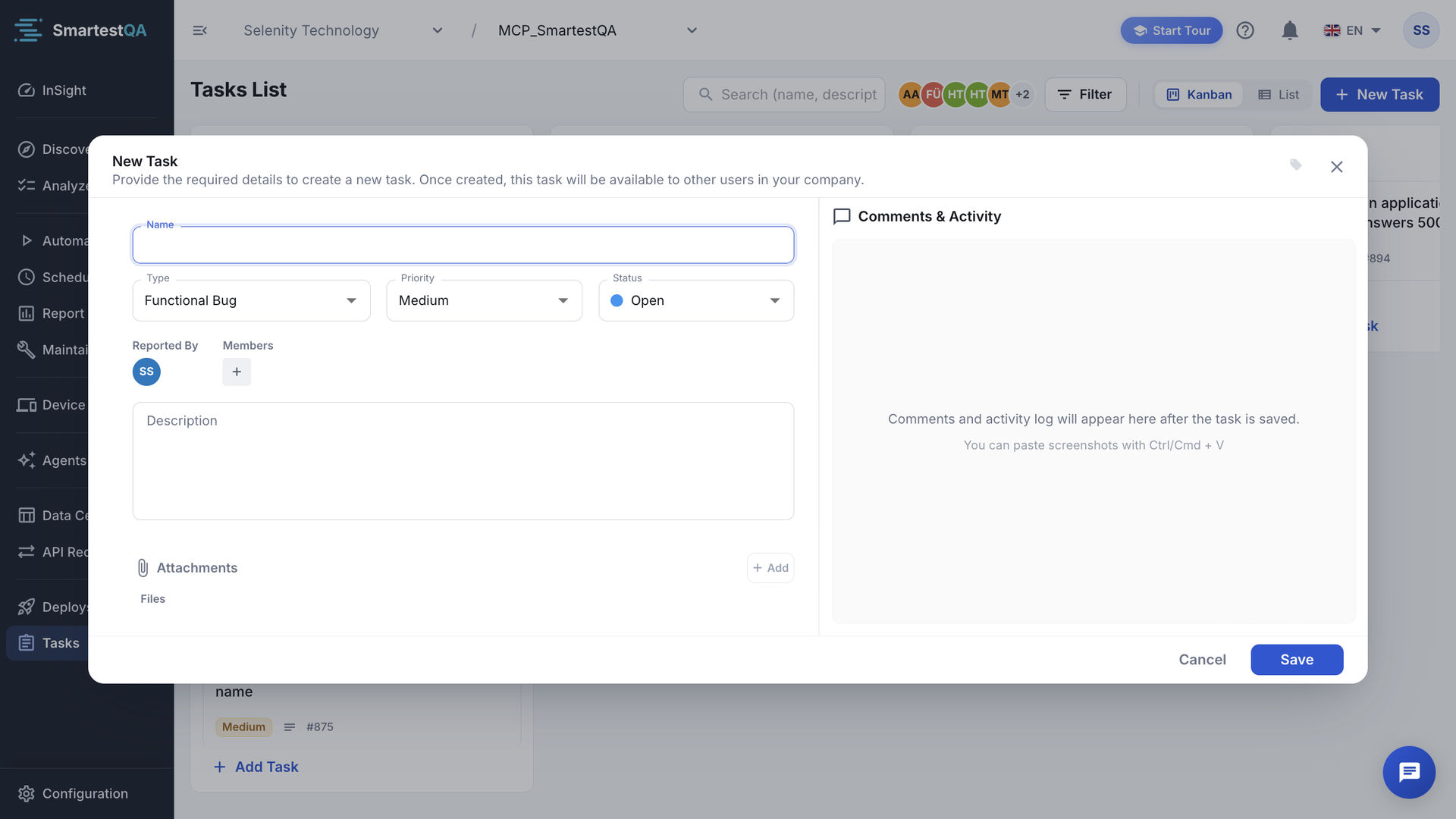
A task opens in one large window: fields at the top, description and attachments on the left, comments and activity on the right. This page covers creating a task and every part of that window.
In short
On this page you can
- Create a task with New Task or Add Task in a column.
- Set type, priority, status and Members; changes save at once.
- Paste screenshots with Ctrl/Cmd + V and attach PDF, Office, text and CSV files.
- Discuss in Comments & Activity with @mentions, replies and formatting.
How to use it
- Click New Task, type a name and pick priority and type.
- Paste a screenshot, write the steps in Description, click Save.
- Add Members and tags in the saved task.
- Comment with @name to ask a colleague; share the task by copying the page address.
Create a task#
Open a new task
Click New Task (top right), or Add Task at the bottom of a board column to preset that column’s status. The window reads “Provide the required details to create a new task. Once created, this task will be available to other users in your company.”
Name it
Type a Name: what is wrong, where. Up to 500 characters. It is the only required field.
Check the defaults
Type starts as Functional Bug, Priority as Medium, Status as Open (or the column’s status). Reported By is you. Add people under Members.
Describe it and add screenshots
Write the steps, expected and actual result in Description (up to 10,000 characters). “You can paste screenshots with Ctrl/Cmd + V”: pasted images wait with “Attachment will be uploaded after task is saved.”
Save
Click Save (it shows “Creating...”).
“Task added successfully.” The task gets a number and appears on the board. Members other than you get a notification.
Without a name you see “Please fill in task name.” Tags, the Add Attachment button and comments become available after the first save. To raise a task straight from a failed step, see From Report.
Fields#
| Field | Values | In a saved task |
|---|---|---|
| Name | Up to 500 characters. | Click the title to edit it in place. |
| Type | Functional Bug, UI Bug, Performance Issue, Security Flaw. | Saved as soon as you pick. |
| Priority | Low, Medium, High, Critical. | Saved as soon as you pick. Changing to Critical sends a Teams or Slack alert when set up. |
| Status | The company’s statuses. | Saved as soon as you pick; logged in the activity. |
| Members | Active users of your company, several allowed. | Saved when you confirm; added and removed members are logged. |
| Reported By | Set by SmartestQA: you, or Automated Tests. | Read-only. |
| Description | Plain text, up to 10,000 characters. | Edit, then click Save under it. Automatic tasks show a read-only report. |
The bottom line shows Created by and Updated by with name and time, the task number, and on automatic tasks Go to Report. If a change cannot be saved: “Error updating task field. Please try again.” Typing past a limit shows “You can enter at most n characters.”
Members and notifications#
- Each new member except yourself gets an in-app notification that you assigned the task. Clicking it opens the task.
- A task can have several members. On cards and in the list they appear as avatars; with none, Unassigned.
- Filter for your own tasks with Assigned to me.
Attachments#
- Add: click Add next to Attachments (saved tasks), or paste an image anywhere in the window with Ctrl/Cmd + V. “Attachment added.”
- Formats: PNG, JPG, GIF, WEBP, BMP, SVG, PDF, DOC, DOCX, XLS, XLSX, TXT, CSV. Anything else: “Unsupported file format. Supported formats: PNG, JPG, GIF, WEBP, PDF, DOC, DOCX, XLS, XLSX, TXT, CSV”.
- The run’s screenshot: on an automatic task, the failed run’s screenshot is the first file, named Screenshot.
- Show: the first four files are visible; Show all attachments shows the rest, Show less hides them. Click an image to preview it.
- Download or delete: open a file’s menu. Delete asks Delete Attachment: “Are you sure you want to delete this attachment? This action cannot be undone.” Adding and deleting files are logged in the activity.
Tags#
Add tags next to the title of a saved task (“Tags can be added after the task is saved” before that). Tags are shared across your company, so the same release-2.14 tag can mark tasks and other items. Use them in the Tags filter with Include and Exclude.
Comments and activity#
The right side, Comments & Activity, mixes comments and the activity log in time order. Before the first save it reads “Comments and activity log will appear here after the task is saved.”
Write
Click “Write a comment...”. Use bold, italic, lists, links, images and quotes.
Mention
Type @ and a few letters of a name, email or user name, then pick the person. Only people of your company can be mentioned; they get a notification.
Attach or reply
Attach file adds a file to the comment. Reply on a comment quotes it; reply on an attachment puts it into your comment.
Send
Click Send.
The comment appears with your name and time. You can edit or delete your own comments from their ⋮ menu; edited ones show “(Edited)”.
| Activity line | Logged when |
|---|---|
| “user created this card” | A task is created by hand. |
| “user added member to this card” / “removed … from this card” | Members change. |
| “user moved this card from Open to In Progress” | The status changes, in the window or by dragging. |
| “user attached file to this card” / “removed attachment …” | Attachments change. |
Priority, type, name and description changes are not logged. Empty comments are refused with “Comment cannot be empty”.
Open and share a task#
- Click a card or a list row. The task opens immediately with its summary and fills in the rest a moment later.
- The page address gets
?task=128. Copy it to share the task; the browser’s Back button closes it. A number that does not exist in this project shows “Task not found.” - Notifications about a task, and task lists on the Dashboard, open the task the same way.
- The window does not close when you click outside it. Use X, Esc, Close or Cancel.
Video transcript
Tasks holds the defects of the project: found by failed runs, or reported by hand. New Task opens an empty task. Name it after what is wrong, not after where you saw it. Type, Priority and Status start as Functional Bug, Medium and Open. Raise the priority if it blocks users. In Description, write the steps, what you expected and what happened. Save. The task appears in the Open column with its priority and number. Open the card to add members, attachments and comments.
If something goes wrong#
Didn’t find your answer?Write to support with your project name and what you see on screen.
info@smartestqa.ai