Board, list and filters
The Tasks page shows the project’s tasks as a Kanban board or as a list. This page covers reading cards, moving tasks, filtering and searching, and deleting.
In short
On this page you can
- Switch between Kanban and List; the page remembers your choice.
- Drag a card to another column to change its status.
- Filter by Assigned to me, Created by me, members, status, priority, type and tags.
- Search names and descriptions, and delete a task from its card or row.
How to use it
- Click your avatar next to the search box to see your tasks.
- Open Filter and pick statuses or priorities; the count shows the results.
- Drag the card you start on to In Progress.
- Click a card to open the task and work on it.
The Kanban board#
One column per status, in the company’s order. The default statuses read Open, In Progress, Resolved and Closed; your company’s own statuses follow (Statuses). Each column header has the status colour, its name and the number of matching tasks.
What a card shows#
- Tags: up to three, then
+n. Click them to open the task, where tags are edited. - Name and the priority chip (Low, Medium, High, Critical).
- Icons with counts: Has description, the number of comments, and the number of attachments. How they are counted.
- Number, for example
#128. - Member avatars, or Unassigned.
- More actions (…, on hover or keyboard focus): Edit and Delete.
Click a card, or focus it and press Enter, to open the task detail.
Long columns#
Each column first loads the 10 most recently updated tasks. Scrolling near the bottom loads 10 more; you can also click Load More (n), where n is the number not loaded yet. An empty column shows “No Task Found”.
Move a task#
Drag the card
Drag it to another column and drop it where you want it.
The status is saved
The task gets that column’s status at once, and its activity log records “you moved this card from Open to In Progress”.
Both column counts change. If saving fails, the card jumps back and you see “An error occurred while processing your request. Please try again.”
- Within a column, dragging changes only the order you see. That order is kept in this browser only; colleagues see their own.
- With the keyboard, focus a card, press Space to lift it, use the arrow keys, and Space again to drop.
- Column order: drag a column header. The new order is saved on the server for everyone, so it needs an Admin; for a User the columns jump back.
- Add Task at the bottom of a column opens a new task with that column’s status.
- Add new Status, after the last column, adds a column. Admins only; see Add a status.
Video transcript
Tasks is a board with one column per status: Open, In Progress, Resolved and Closed. A card shows the name, the priority and the task number. List shows the same tasks as a table, with status, priority, type and who reported them. Back on Kanban, open a task. The detail holds the description, the members, attachments and the comments of the team. Close it and the board is where you left it.
The list#
Choose List for a table of all matching tasks, the most recently updated first.
| Column | Shows |
|---|---|
| ID | The task number. |
| Name | Cut off with … when long; hover for the full name. |
| Status | A chip in the status colour. A status that no longer exists shows as plain text. |
| Priority, Type | The priority chip and the type, for example UI Bug. |
| Assigned To | Member avatars; hover for names. |
| Reported By | Who created it, or Automated Tests. |
| (last) | A delete icon. |
Show 10, 25, 50 or 100 rows per page (Rows per page). Changing a filter returns to the first page. Click a row to open the task. If loading fails you see “Failed to load tasks. Please try again.” with Retry.
Search and filters#
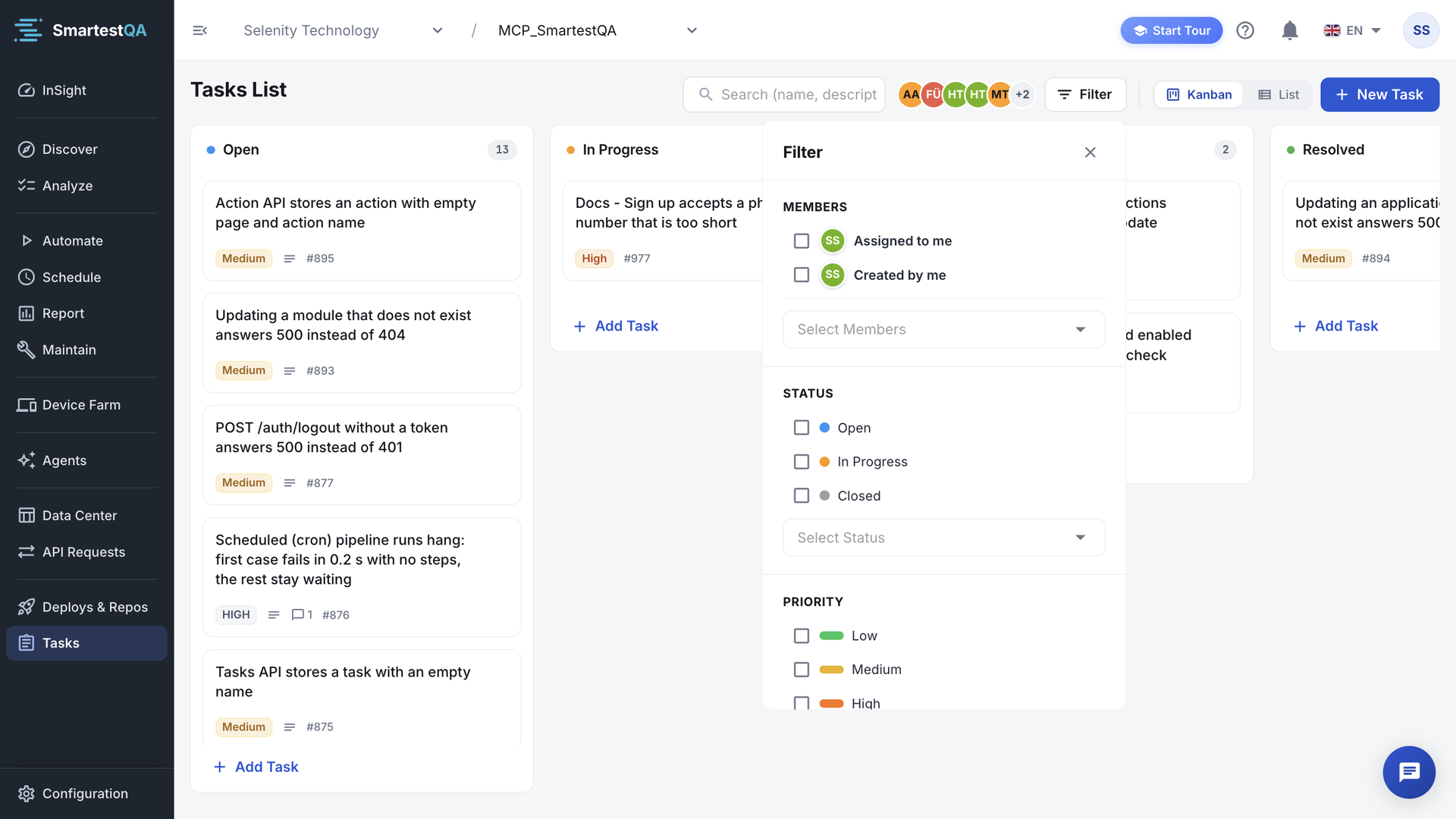
| Control | What it does |
|---|---|
| Search box | “Search (name, description)...”: tasks whose name or description contains the text, ignoring case. It applies when you stop typing. The X clears it. |
| Member avatars | The first five people of the company in alphabetical order, next to the search box on large screens. Click to show only tasks assigned to that person; click more to add people. |
| Filter › Members | Assigned to me, Created by me, and Select Members for anyone else. |
| Status, Priority, Type | Pick one or more values each. |
| Tags | For each tag choose Include or Exclude. No Tag shows tasks without any tag. |
| Clear all | Removes every filter. |
The filter box shows the total, for example “12 results found”. The filters and the view are remembered in this browser, so they are still set the next time you open Tasks; the search text is not.
How filters combine#
- Within Status, Priority or Type, any selected value matches: Status Open + In Progress shows both.
- Between groups, all must match: Status Open and Priority High.
- Members: a task matches when it is assigned to any selected person, or, with Created by me ticked, when you created it.
- Tags: it must have at least one included tag, and none of the excluded tags.
- On the board, a status filter leaves the other columns in place but empty.
Members   Assigned to me
Status    Open, In Progress
Priority  High, Critical
Tags      Exclude: release-2.13
Delete a task#
Choose Delete
On the board: the card’s More actions › Delete. In the list: the delete icon at the end of the row.
Confirm
Delete Task: “Are you sure you want to delete task “name”?”
“Task deleted successfully --> name”. The task is deleted together with its comments and attachments.
There is no undo
Anyone with access to the project can delete a task, and it cannot be restored. Prefer moving it to Closed with a comment. AI assistants connected through MCP cannot delete tasks at all; they close them.
If something goes wrong#
Didn’t find your answer?Write to support with your project name and what you see on screen.
info@smartestqa.ai