Record and add steps
A test case gets its steps in two ways: you record a flow in your app, or you add steps one by one from the toolbar. This page covers both, plus templates and which step family to pick.
In short
On this page you can
- Record a web flow in a new tab with Record.
- Record mobile or desktop steps with the inspector behind the same button.
- Add existing actions from the Action List dialog.
- Insert a template as a single step with Template.
- Add API, database, mail, code, AI and assertion steps from the toolbar.
How to use it
- Check the environment and start page in Test Case Detail (web).
- Click Record and do the flow the way a user would.
- Return to SmartestQA: the new steps are appended to the list.
- Add proof steps such as Assert from the toolbar.
- Click Save, then Dry Run.
Record or add by hand?#
| Record | Add from the toolbar | |
|---|---|---|
| Best for | Clicks, typing and selections in a flow you can do by hand | Steps you cannot click: API calls, database checks, mail, assertions, code, AI; reusing recorded actions |
| Creates actions | Yes, one per control you use, with locators and a screenshot | No (except Create New Action, and step types that bring their own) |
| Saved | Web: at once, as you record. Mobile and desktop: when you click Save. | When you click Save |
| Typical use | The skeleton of a new test case | Adding proof steps and data steps to the recorded skeleton |
Most good test cases mix both: record the flow, then add an Assert or a visibility check at the end so a passing run proves something.
Record a web flow#
Open the test case
Open a saved test case, or create one with New Test Case. The step toolbar appears once the case exists.
Check environment and start page
In Test Case Detail pick the start page URL and the environment. Recording opens that address. See Environment and start page.
Click Record
Click Record at the left of the step toolbar. Your app opens in a new tab and the extension adds every click, typed value and selection as a step.
- No start page: “Please select a Start Page URL.” The URL dialog opens and recording starts once you pick one.
- No address for this environment: “No URL configured for environment: env”.
- No extension: the Chrome Web Store opens. Install it and come back; the page reloads and resumes. See Install the browser extension.
Do the flow
Log in and work through the flow the way a user would. Wait for each page to load before you click.
Finish and come back
Close the recording tab and return to SmartestQA.
“n new step(s) added!” The new steps are appended at the end of the list. Each one points at an action in Discover.
Web recording writes at once
The extension saves actions and steps to the test case while you record, without Save. Back in the editor, SmartestQA looks for the new steps for up to 20 seconds and adds only the ones that are not in the list yet; edits you had not saved are kept. If you open another test case while recording, the incoming steps are not shown there: reopen the recorded case.
Record with test data only
Recording saves a screenshot of every control you use, and the values you type are stored in the steps. Use a test user. Values typed into fields named like password, secret, token or PIN are masked in run logs, but they are still stored in the step: put real secrets in a data source instead (see Secrets).
Record mobile and desktop steps#
In MOBILE and DESKTOP projects the same Record button opens an inspector instead of a browser tab.
| Project type | Record opens | You need |
|---|---|---|
| MOBILE | The Appium inspector: a live view of the device. Tap elements to add steps; global actions and assertions can be added from the inspector too. | The agent and Appium Server on your computer with a device or emulator, or a Device Farm device. See Mobile capture. |
| DESKTOP | The desktop inspector for the test case’s Target Application. Pick elements in order to add steps. | The SmartTest desktop agent running on the Windows or macOS computer with the application. See Desktop capture. |
Unlike web recording, these steps are added to the editor only: “n step(s) added to the test case. Don't forget to save.” Click Save to keep them.
The step toolbar#
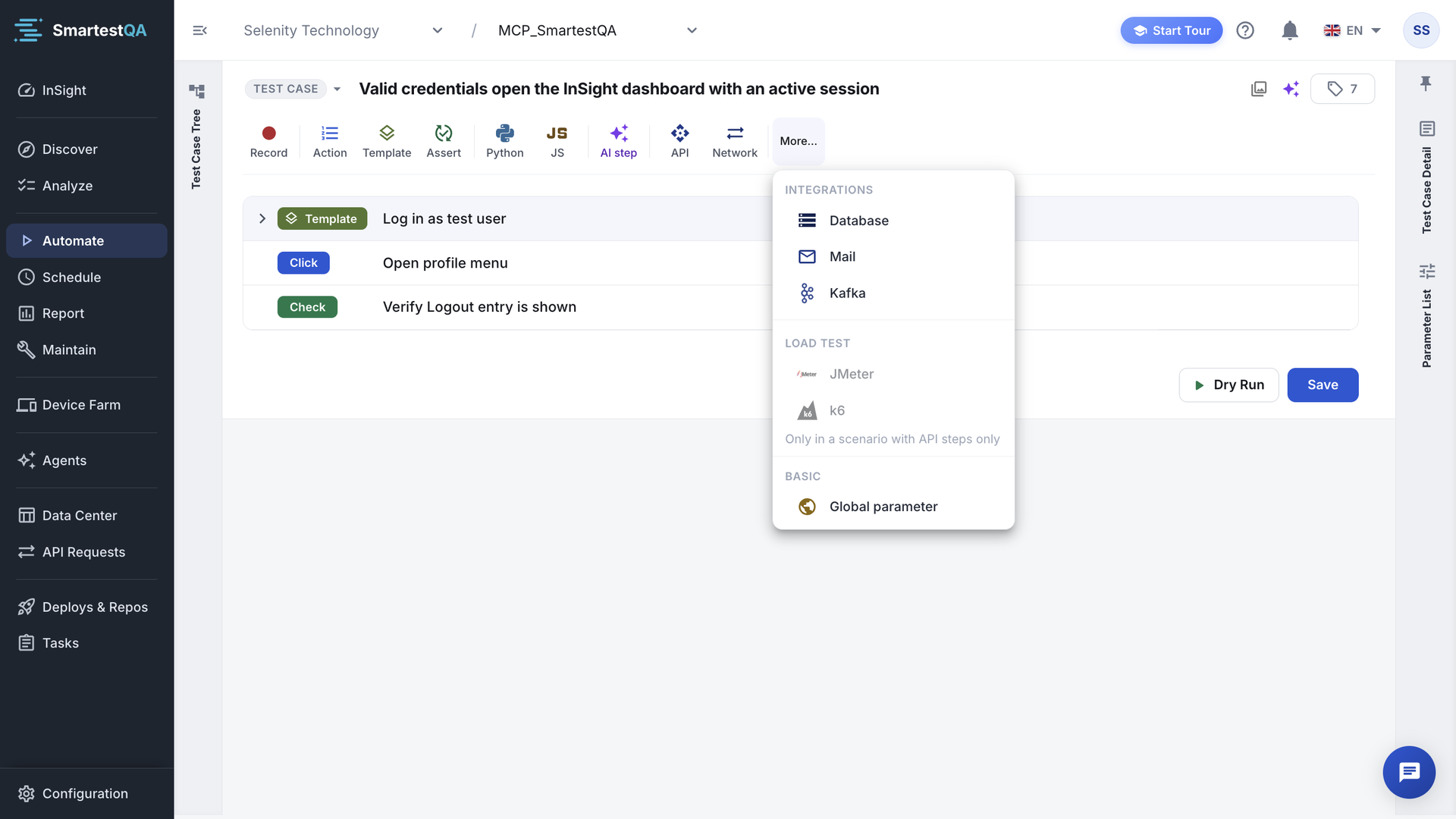
The toolbar above the step list adds one step at a time. The everyday types are on the bar; the rest are under More…. When the bar is too narrow, buttons move into More… too.
| Button | Adds | Projects |
|---|---|---|
| Record | A recorded flow (see above) | All |
| Action | A step bound to an existing action | All |
| Global | Pre-built steps that need no recorded control (on mobile, for example Press Back or Hide Keyboard) | MOBILE, DESKTOP |
| Template | A template test case as one step | All |
| Assert | A comparison of an actual value with an expected one | All |
| Python, JS | Your own code; JS runs in the browser page | Python: all. JS: WEB |
| AI step | A step written in plain language that the AI performs, answers or checks | All, when AI is on |
| API | An HTTP request, with values extracted from the response | All |
| Network | A check of the browser’s own network calls | WEB |
| More…Global parameter | Sets one or more variables | All |
| More…Database | A SELECT query whose columns become variables | All |
| More…Mail | Read mails, extract an OTP or link, send or wait for a mail | All |
| More…Kafka | Produce or consume a message | All |
| More…JMeter, k6 | A load test | WEB, DESKTOP |
Every parameter of every step type, and how each behaves at run time, is in the step reference.
Which step family to use#
| You want to… | Use | Good to know |
|---|---|---|
| Click, type, select, hover | Action or Record | Type adds to what is in the field; use Clear & Type to replace it. |
| Prove the result | Assert, or an action of type Visibility Check with text | A failed assertion stops the test; a failed visibility check marks the step failed and the test goes on. |
| Read a value for later | An action of type Get | It stores the text under a key you name, as {{key}}. See Variables. |
| Call a backend | API | Any HTTP status passes the step; extract @status and assert it if the code matters. |
| Check stored data | Database | The query runs from where the test runs: a server run cannot reach a database inside your network. |
| Handle a login code by mail | Reads only unread mails that arrived shortly before or after the step starts. | |
| Do what no step type covers | Python or JS | Return a value to create a variable; IF / ELSE / END blocks are supported. |
| Handle a screen that changes a lot | AI step | Calls the AI on every run: slower, not deterministic, and needs AI turned on. |
Add a step from an existing action#
Open the Action List
Click Action in the toolbar. The Action List dialog opens.
Find the action
Narrow the list with Filter by Action Name, Page Name and Action Type. Page Name starts on the page the last step leads to, so the next action is usually at the top.
Click to add
Click an action. It is added as a step at the end of the list (“name step added”). The dialog stays open so you can add several in a row.
The new step has empty values. Select it and fill them in the Parameters List. See Step parameters.
Each click is one step
Because the dialog stays open, a double click adds the same step twice. Check the list before you close the dialog and remove duplicates.
The action you need does not exist yet? In a WEB project click Create New Action in the dialog: the extension recorder starts paused on your app so you can capture just that control. Or create it in Discover with New Action.
Add a template#
Open the template list
Click Template in the toolbar. The Template Test Cases dialog lists the project’s templates. Search by name, filter by Module, and show 5, 15, 25 or 100 per page.
Click to add
Click a template. It becomes one step at the end of the list. The dialog stays open.
The step shows the template’s name and “n steps”. Click Show its steps to see its step names (read only).
When you select the template step, the right panel shows What it does, Reads (variables it expects from the caller) and Produces (variables it creates), plus Open template, which opens the template in a new tab. To change its steps, edit the template itself: every test case that uses it changes too.
- The list leaves out the current test case and every test case that already calls it, directly or through another template, so you cannot build a loop. If one slips through you see “Cannot Add Recursive Test Case”.
- A template can only call test cases of the same project.
- An inactive template step skips the whole template at run time.
Make a test case a template: Test case or template.
Load-test scenarios#
A test case with a JMeter or k6 step is a load test. It can hold only JMeter, k6 and API steps: “This scenario is a load test: only JMeter, k6 and API steps can be added.” In a test case that already has browser steps, JMeter and k6 are disabled: “This scenario has browser steps. JMeter goes only with API steps; put the load test in a scenario of its own.” Record is hidden in load-test scenarios.
If something goes wrong#
Didn’t find your answer?Write to support with your project name and what you see on screen.
info@smartestqa.ai