- Docs
- Reference
- Step reference
- Kafka steps
Kafka steps
Many systems talk through events. The Kafka steps let a test publish an event, or wait for the event your app should send, for example after a click in the UI.
In short
On this page you can
- Publish a message to a topic with Produce and check the broker accepted it.
- Wait for a message on a topic with Consume.
- Match the message you expect by a JSON field and value.
- Use variables in the topic, key, headers and message.
- See the consumed message in the step’s report.
How to use it
- Create the Kafka connection on the Data Source page (Kafka tab).
- Click More › Kafka and fill Test Step Name and Configuration.
- Choose Produce or Consume as the Operation Type.
- Fill Topic, and the message or the match fields.
- Place a Consume step right after the step that triggers the event, then run.
At a glance
- Added from
- More › Kafka. Chips: Kafka Prod, Kafka Cons.
- Project types
- WEB, MOBILE, DESKTOP.
- Needs
- A Kafka configuration (bootstrap servers, security, user) on the Data Source page, Kafka tab.
- Connects from
- The machine that runs the test. Dry runs connect to the real broker too.
- On error
- ERROR, and the test case stops.
- Log limit
- Message bodies are cut at 5,000 characters in the log.
Add a Kafka step#
Open the dialog
Click More › Kafka. The dialog Add Kafka Step opens. If the project has no Kafka connection: “No Kafka configuration found. Create one on the Data Source page (Kafka tab).”
General Information
Fill Test Step Name (for example
Publish transfer event) and pick the Configuration. The configuration cannot be changed later in the right panel; add a new step to use another one.Operation Type
Produce: “Send a message to a topic and verify broker ack”. Consume: “Wait for a matching message from a topic (with timeout)”.
Parameters
Fill the fields below and click Add. You can edit the values later in the right panel.
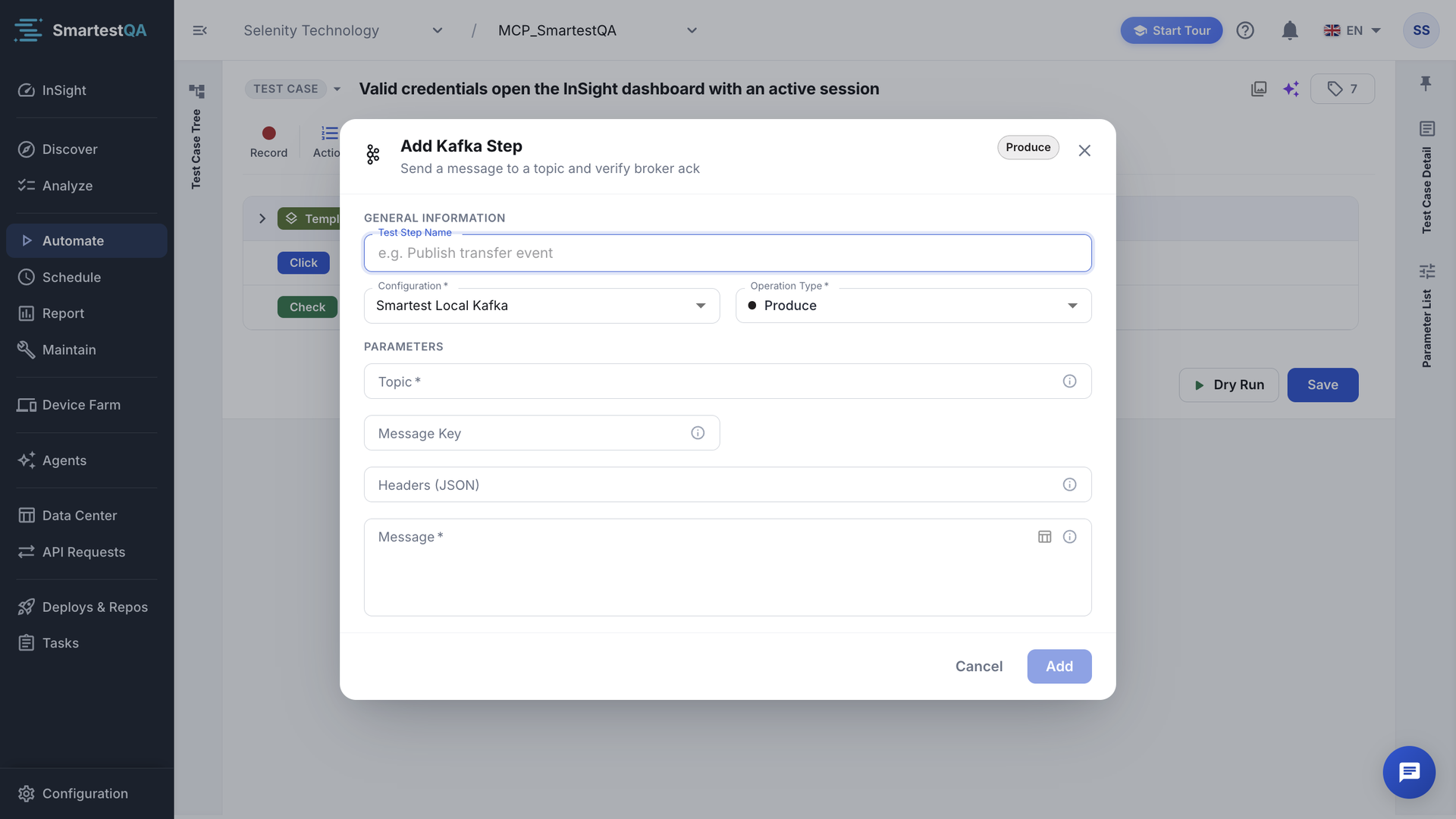
Produce#
| Field | Required | Notes |
|---|---|---|
| Topic | Yes | Letters, digits, dot, underscore and dash only. Variables allowed. |
| Message Key | No | Optional message key (partitioning). |
| Headers (JSON) | No | A JSON object: {"source":"smartest","traceId":"{{tc:traceId}}"}. |
| Message | Yes | Message body, JSON or plain text. Variables are resolved. |
The step waits up to 10 seconds for the broker to confirm delivery. It passes when the broker acknowledges the message.
Consume#
| Field | Required | Notes |
|---|---|---|
| Topic | Yes | As above. |
| Match Path (JSONPath) | No | A field in the consumed message, for example $.transferId. |
| Match Value | No | The expected value of that field. Variables are resolved. Without a match path and value, the first message matches. |
| Timeout (seconds) | No | How long to wait for a matching message. Default 10, allowed 1–300. |
Each Consume step reads with its own consumer group, so parallel runs never take each other’s messages. It does not start at the newest message only: it also looks a little back, to catch a message your app sent just before the step began.
start = the later of:  (offset of 60 seconds ago)  and  (latest offset − 100)
then:   read until a message matches or Timeout (seconds) ends
Example: a partition has 5,000 messages and 300 arrived in the last 60 seconds. latest − 100 = offset 4,900; the 60-second offset is 4,700. The later one, 4,900, wins: the step looks at the last 100 messages and then at new ones. On a quiet topic with 20 messages in the last minute, the 60-second offset is the later one, so only those 20 are re-read. If no message at all arrived in the last 60 seconds, the step starts 100 messages back. A match among these older messages also counts, so make the match value unique to this run (an ID, not a fixed text).
When nothing matches in time, the step fails with a message that says how many messages it saw, for example “Kafka consume timed out after 10s on topic 'transfers': no matching message found (matchPath='$.transferId', matchValue='T-1042'). 37 message(s) seen in the lookback+wait window.”
3  API            POST /api/transfers        JSON Paths: transferId ← data.id
4 Kafka Consume Topic: transfers Match Path: $.transferId Match Value: {{tc:transferId}} Timeout: 15Results#
- The consumed message is shown in the step’s report, in the same viewer as an API response.
- The editor does not offer variables from a consumed message. To check a field of it, put that field in Match Path (JSONPath) and Match Value: the step fails when no message has that value.
- Passwords of the configuration are never written to the log.
If something goes wrong#
Didn’t find your answer?Write to support with your project name and what you see on screen.
info@smartestqa.ai