- Docs
- Resources
- Agent Pool & Device Farm
- Test Agents
Test Agents
Test Agents lists every machine that can run your tests and gives you what you need to connect one: the client, a one-line install command and the agent’s API key.
In short
On this page you can
- See which agents are Online: Smartest Server, your Localhost agent, shared agents.
- Create a shared agent for a build server or VM with New Host.
- Copy an agent’s API key, rename or delete a shared agent.
- Download the client or copy a one-line install command for Windows, macOS or Linux.
- Watch an agent’s CPU, memory, sessions and running tests live.
How to use it
- Open Device Farm › Test Agents and select the agent in the list.
- In Download Client pick your OS, or copy the command under Install Via CLI.
- Start the client with the agent’s API key and leave it running.
- Wait until the dot turns green and the row says Online.
- Use the middle panel to check the machine’s load while tests run.
First agent?
The short version, from download to the green dot, is in Quick Start › Install an agent. This page explains every part of the screen in detail.
The screen#
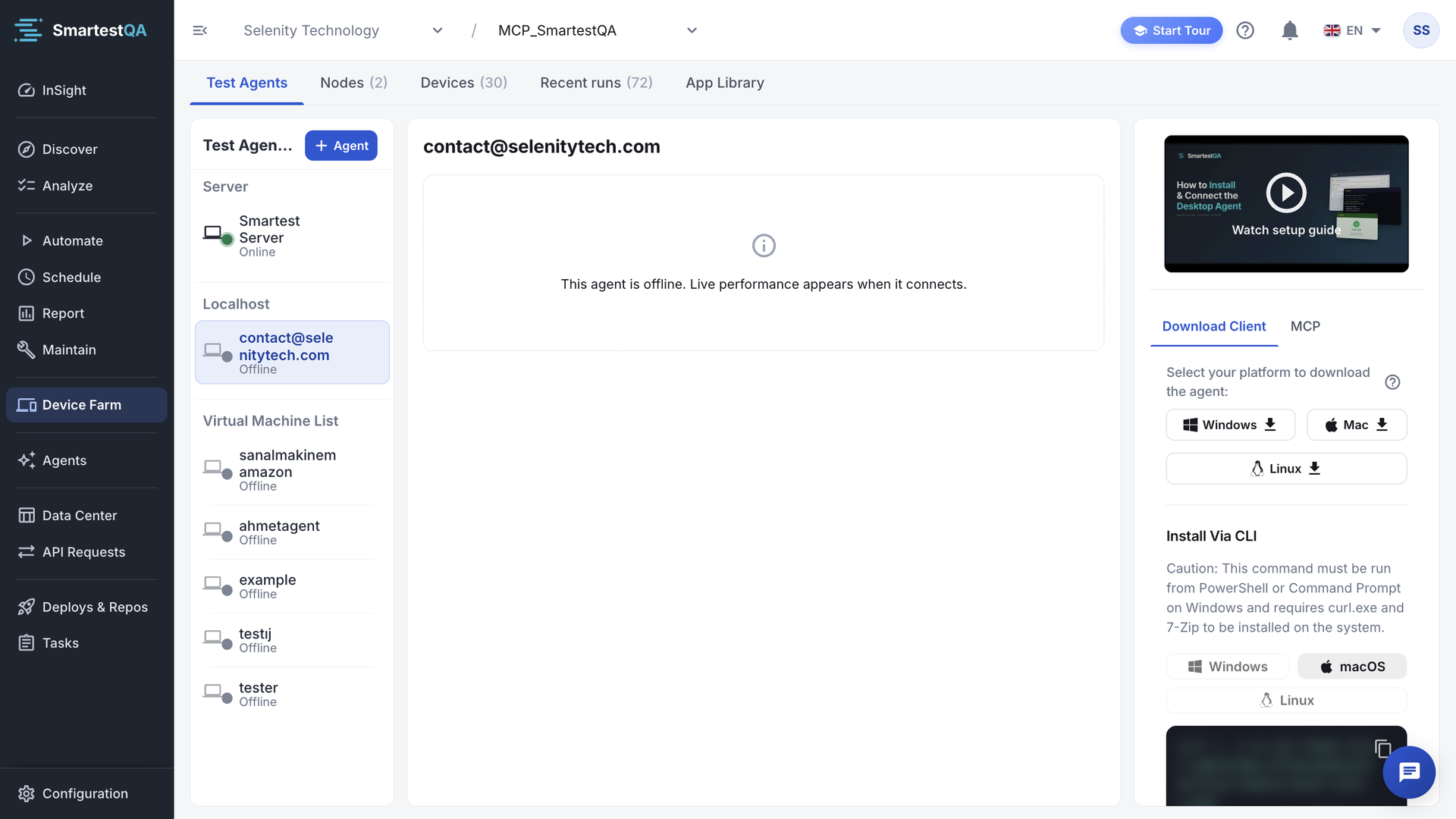
Test Agents has three panels side by side. On a narrow screen they stack.
- Left: the agent list (Test Agent List), grouped into Server, Localhost and Virtual Machine List, with the Agent button to add a shared agent.
- Middle: live performance of the selected agent: machine facts, sessions, workers, a timeline of running tests and four charts. See Live performance.
- Right: set-up: the Watch setup guide video and the tabs Download Client, Local Emulator Setup or Local Desktop Setup (MOBILE and DESKTOP projects only) and MCP.
The agent list#
The list loads when you open the page, refreshes every 5 seconds and also updates as soon as an agent connects or disconnects. Your Localhost agent is selected first.
| Group | What it is | Who sees it | Rename / delete |
|---|---|---|---|
| Server | Smartest Server, SmartestQA’s own test server. Always Online. No API key and no Detail button. | Everyone | No |
| Localhost | Your personal agent, named after your email address. Created for every user automatically. | Only you | No: “Local agent names cannot be updated”, “Local agents cannot be deleted” |
| Virtual Machine List | Shared agents created with Agent, sorted by creation date. | Everyone in the company | Yes |
| Connected Devices | MOBILE projects only: phones and emulators attached to your online Localhost agent. See Connected Devices. | You | — |
Online and Offline#
Each row has a computer icon with a status dot and the word Online or Offline under the name.
| You see | Means | What you can do |
|---|---|---|
| Online green dot that pulses | The client is connected and sent a heartbeat in the last 90 seconds. | Runs, recording and dry runs can use it. |
| Offline grey dot, faded icon | The client is not running, the computer sleeps, or no heartbeat arrived for 90 seconds. | Start the client. Runs that target it fail; see the fix. |
The Test Agent List of a pipeline shows an offline agent with a red dot instead of a grey one; it means the same.
Grey is not an error colour: an agent that is switched off is a normal state. The exact rule, with an example, is in When is an agent Online? If your system settings ask for reduced motion, the dot does not pulse.
Row actions#
Hover a row, or move to it with Tab, to show its actions:
- Detail (info icon): opens the agent’s details. Not on Smartest Server.
- Copy API Key: copies the agent’s key; the tooltip changes to API Key copied. Not on Smartest Server.
- Delete (bin icon): Virtual Machine agents only. See Delete a shared agent.
Create a shared agent#
You only need this for a machine that several people or pipelines use, such as a build server, a test VM or a machine inside a customer network. On your own computer, use your Localhost agent.
Click Agent
At the top of the list click Agent (tooltip “Click to add a new agent”).
Name it
In New Host type a Host Name such as
ci-runner-01and click Create or press Enter. Spaces at the start and end are removed. Clicking outside the dialog does not close it.“Agent created successfully: ci-runner-01”. The agent appears under Virtual Machine List as Offline and is selected.
Install the client on that machine
With the new agent selected, use Install Via CLI on the target machine. The command already contains this agent’s key.
Names must be unique within your company. A duplicate gives “An agent with this name already exists. Please try a different name”. Any user can create a shared agent.
Agent details and renaming#
Detail opens a dialog titled with the agent’s name. It shows Host Name and Api Key with a copy button.
Edit the name
Virtual Machine agents only: click the pencil, type the new name, then the save icon or Enter.
“Agent name updated successfully: new name”. The client keeps working; it connects with its key, not its name.
If you close the dialog with an unsaved name, it asks before discarding. Localhost and Smartest Server names cannot be changed.
The API key#
- Every agent has its own key, created with the agent. A client started with a key appears as that agent.
- The key is shown in Detail, copied with Copy API Key, and built into the Install Via CLI command and the MCP commands.
- When Smartest Server is selected, those commands use your Localhost agent’s key, because the server has none.
Treat the key like a password
Anyone with the key can connect a machine as that agent and receive its test jobs. Do not paste it into tickets or chat. If a shared agent’s key leaked, delete the agent and create a new one.
Delete a shared agent#
Click the bin icon
Hover the agent under Virtual Machine List and click delete.
Confirm
Delete Agent asks “Are you sure you want to delete agent “name”?”. Confirm.
“Agent has been deleted successfully.” A client that is still running with this key is disconnected straight away.
Pipelines that targeted this agent can no longer run on it; point them at another target in Schedule. Localhost agents cannot be deleted.
Download Client#
The first tab on the right. Under “Select your platform to download the agent:” there is one button per operating system. Each downloads the newest client as a .zip.
| Button | File | Use it for |
|---|---|---|
| Windows | SmartTest-Desktop-Windows-latest.zip | Web, Android, and Windows desktop apps |
| Mac | SmartTest-Desktop-macOS-latest.zip | Web, Android, macOS desktop apps, and iOS devices and simulators (iOS needs macOS) |
| Linux | SmartTest-Desktop-Linux-latest.zip | Web and Android |
Hover a button to see the package’s Version, Size and Last updated date. Each platform has its own version number. If the tooltip is empty, the version information could not be loaded; the download still works.
The packages are small because the client downloads the browser it needs when it starts for the first time, so the first start takes longer than later ones.
Install Via CLI#
Below the download buttons. Use it on servers and VMs without a desktop, or to install in one step. Pick Windows, macOS or Linux; the page preselects the system of the browser you are using. Copy the command with the copy icon and run it on the target machine.
| OS | Run it in | What it does |
|---|---|---|
| Windows | PowerShell | Downloads the zip with curl.exe, unpacks it with Expand-Archive to %LOCALAPPDATA%\SmartTest, starts SmartTest-Desktop.exe with the key |
| macOS | Terminal | Downloads with curl, unpacks with ditto to ~/Applications/SmartTest, starts the app with the key |
| Linux | A shell | Downloads with curl, unpacks with unzip to ~/.local/share/SmartTest, starts SmartTest-Desktop with the key |
curl -L -o st.zip "https://…/desktop/SmartTest-Desktop-Linux-latest.zip"
unzip -o st.zip -d "$HOME/.local/share/SmartTest"
"$HOME/.local/share/SmartTest/SmartTest-Desktop" --apikey=YOUR_AGENT_API_KEY
The command contains the API key of the agent selected in the list, so select the right agent first. The download address matches your SmartestQA installation; always copy it from the screen.
About the caution under the heading
The note under Install Via CLI mentions curl.exe and 7-Zip. The current Windows command uses curl.exe, which Windows 10 and 11 include, and the built-in Expand-Archive. You do not need 7-Zip.
Watch setup guide#
The video at the top of the right panel shows the full installation. It plays inside SmartestQA, so you do not lose your place; close it with the X, Esc or a click outside.
Local Emulator Setup and Local Desktop Setup#
In MOBILE projects the second tab is Local Emulator Setup; in DESKTOP projects it is Local Desktop Setup. Both are step-by-step guides for Appium and the device on this computer; the desktop guide shows the Windows steps. See Local device setup, which also covers a Mac for desktop tests.
MCP: connect an AI assistant#
The last tab, MCP (tooltip Connect to Claude), connects an AI assistant such as Claude to SmartestQA. It appears in every project type. The commands use the API key of the selected agent; with no agent selected you see “Select a host to see the command with your API key.”
Claude Desktop
Download SmartestQA MCP (.mcpb). In Claude Desktop open Settings › Extensions, drag the file onto that screen and click Install. Paste the API key, Save, then quit Claude completely (including the tray icon) and open it again. Claude shows a security warning during installation; that is normal for local extensions.
Claude Code, Cursor or another MCP client
Pick Windows, macOS or Linux and run the one-line command shown. It needs Node.js 18 or newer; Claude Desktop is not required. Instead of the command you can download SmartestQA MCP (.zip) (one package for all three systems), unpack it into a permanent folder and run the command shown under it.
After you change the key, quit and reopen Claude: the running server keeps the old key. What an assistant can do with Device Farm is in FAQ › MCP.
Live performance#
The middle panel shows the selected agent’s machine: its name, then “Live performance · hostname · operating system”. Pick a time range: 30m, 1h (default), 4h, 12h or 24h.
- Cards: Total RAM, CPU cores, Free disk, Active sessions (with Peak), Workers (active/total), Queued.
- Worker timeline: one bar per running or recent test, labelled with the test case or schedule name. Hover a bar for schedule, project, user and duration. Show All expands a long legend.
- Charts: CPU & RAM usage, Concurrent sessions & browser processes (plus JMeter or k6 users when a load test ran), Memory (MB), Disk I/O (MB/s). Hovering one chart moves a line across all of them and the timeline.
The panel loads up to one day of history, then adds a live point every 3 seconds while the browser tab is visible. On Smartest Server you see only your own company’s tests in the timeline. How each number is calculated: Performance cards and charts.
| Message instead of charts | Means |
|---|---|
| “This agent is offline. Live performance appears when it connects.” | The agent is Offline; nothing is polled. |
| “The agent is not reporting performance metrics for this host yet (is it online?).” | The agent is connected but has not sent metrics yet, or its version does not send them. |
| “Couldn't reach the agent. Make sure the host is online and try again.” | The request for metrics failed. |
If something goes wrong#
Didn’t find your answer?Write to support with your project name and what you see on screen.
info@smartestqa.ai