- Docs
- AI
- Autonomous Agents
- Runs and proposals
Runs and proposals
A run is one execution of an agent. Its detail shows what the agent did step by step, what it found, what it cost and which changes it proposes. You decide which proposals are applied.
In short
On this page you can
- Start any active agent at once with Run now.
- Follow a run live and see each model decision and tool call.
- Read the report as a formatted page, as JSON or as a PDF.
- Apply or dismiss each proposed change, or use Apply all.
- Find all runs of the project, newest first, on the Runs tab.
How to use it
- Switch the agent on and click Run now on its card.
- Click a bar in Last runs, the summary line, or a row on Runs.
- Read Summary and Outcome, then the Steps list.
- For each PROPOSAL step, open it, read Input, then click Apply or Dismiss.
- Click Download PDF to keep or share the report.
Start a run#
Make sure the agent is on
The switch on the card must be on. Run now is greyed out while the agent is paused or a run of it is still going (the button then says Running now).
Click Run now
You see “Run started.” The run is queued, then starts on the SmartestQA server with the project’s AI connection, also for agents set to Claude Desktop.
Watch it
The newest bar of Last runs pulses while the run is going. The page refreshes every 5 seconds; an open run detail every 3 seconds.
The bar fills in its result colour and the card shows the summary under the bars.
If the agent has already spent its daily budget, the run is saved as Budget blocked straight away and you see a warning with the amount spent and the limit.
Read an agent’s card#
- Kind: Autonomous agent or Custom agent, then the name.
- Trigger line: when it runs, plus “Next” with the date for a schedule; “Paused: triggers are off” when off.
- Runs on: “User's LLM client (Claude Desktop)” appears when it runs there.
- Last runs: up to 14 bars, oldest on the left. Colour shows the result, height shows the cost. Failed and limited runs are hollow bars. Click a bar to open that run.
- Today: spent today against the daily budget, with a meter. How it is drawn.
- Chips: number of tools, Can apply changes or Suggests only, and the version.
The Runs tab#
The latest 100 runs of the project, newest first. Click a row (or focus it and press Enter) to open the run.
| Column | Shows |
|---|---|
| # | Run number |
| Agent | The agent’s name |
| Status | See Run statuses |
| Trigger | Manual or Schedule. A run started by the After each deploy trigger shows Schedule, because that trigger is an hourly check. On test failure appears only on older agents that still have that trigger. |
| Started · Duration | Start time; duration as seconds or minutes and seconds |
| Steps | Steps recorded |
| Proposals | Proposals recorded (empty when none) |
| Cost (USD) | Model cost of the run, four decimals |
| Summary | The agent’s summary, or the error |
Run statuses#
| Status | Meaning |
|---|---|
| Queued | Created, waiting to start. |
| Running | The agent is working. A run in Claude Desktop stays Running until Claude reports the result. |
| Succeeded | The agent finished and wrote its summary. |
| Stopped at limit | It reached Max steps per run or Max cost per run before finishing. |
| Budget blocked | The agent’s daily budget was full, at the start or during the run. |
| Failed | An error stopped it, or the run made no progress for too long and was closed. Why. |
Read a run#
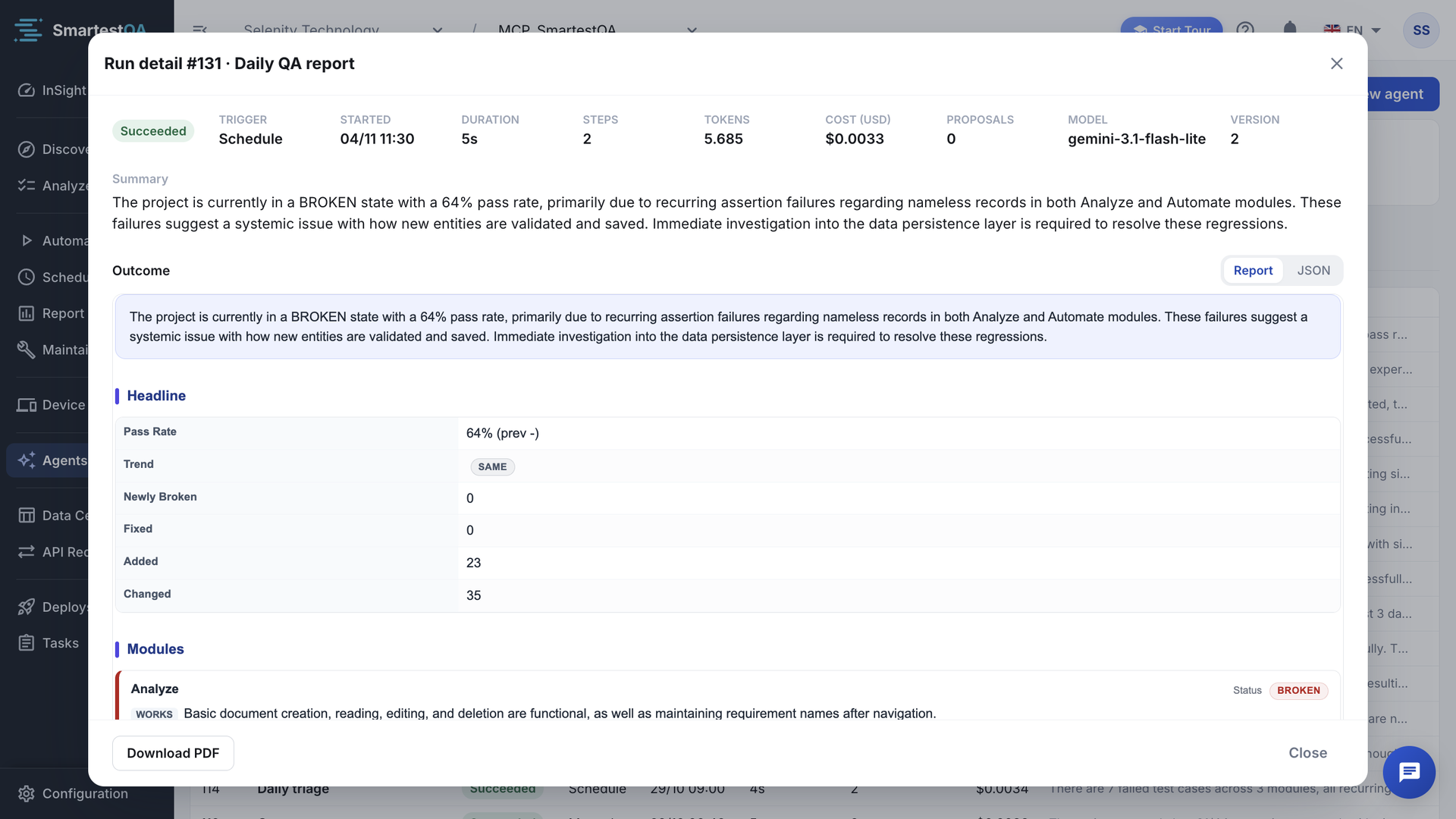
The top row
Status, Trigger, Started, Duration, Steps, Tokens (input plus output), Cost (USD), Proposals, Model and the agent Version that ran.
Summary and Outcome
Summary is the agent’s own words. Outcome is its result: Report shows it as a formatted page (findings as cards, status and risk as badges), JSON shows the raw data. Your choice is remembered in this browser.
What started it
User request shows a request given for this run only. Trigger details shows the scheduled time, or the deploy events and failed runs the agent was given.
The steps
One row per step, numbered. Click the arrow to open Reasoning, Input and Output. Each row also shows its cost and duration.
The settings it used
Settings used in this run shows the agent’s settings at that moment, so a later change does not hide why a run behaved as it did.
| Step kind | Meaning |
|---|---|
| MODEL | One model decision: what to do next and why. Each one counts as a step against Max steps per run. |
| TOOL | A tool call and its result. DENIED means the tool is not allowed for this agent, or the user it runs as lacks the permission. ERROR means the call failed. |
| PROPOSAL | A change the agent wants. Not carried out until a person applies it. |
| FINAL | The agent’s closing summary. |
| ERROR | The run hit an error. |
Download PDF (at the bottom left, available once the run has ended) opens the report in a new tab, ready to print or save as PDF. E-mail targets receive the same report as an attachment.
Apply or dismiss proposals#
When a run would change something (a locator, a defect, a tag, a test case), the server records the exact call as a PROPOSAL step instead of making it. While proposals wait, the run shows “n proposals are waiting. An applied proposal runs as you, with the same arguments.”
Open the proposal
Proposal rows open by default. Read Reasoning (why) and Input (exactly what will be sent).
Apply or dismiss
Apply runs the recorded call now, as you, with your permissions. Dismiss drops it.
Or apply all
Apply all applies the waiting proposals one after the other, in order, because later ones may build on earlier ones.
The row shows APPLIED and its output starts with the result of the call.
| Proposal status | Meaning | You can |
|---|---|---|
| (none) | Waiting for a decision | Apply, Dismiss |
| APPLIED | Done, by the user shown in the output | Nothing more |
| DISMISSED | Dropped | Nothing more |
| APPLY_FAILED | The call failed: “The proposal could not be applied; see the step output for details.” | Fix the cause and Apply again |
| APPROVED | A proposal from a Claude Desktop run that SmartestQA could not apply on its own; the agent’s next run in Claude Desktop applies it | Wait for the next run |
Why proposals, not changes
Nobody watches a scheduled run. A proposal keeps a person between the agent’s judgement and your test library. Because the proposal runs as you, it can do only what you are allowed to do in that project.
Video transcript
Autonomous Agents starts with four numbers: active agents, runs today, proposals to review and spend. The Runs tab lists every run with its agent, status, trigger, duration, steps and cost. Click a run to open its detail. The top row shows trigger, start, duration, steps, tokens, cost and the model that ran. Summary is the agent's conclusion in plain words. Outcome holds the full result, as a report or as JSON. Steps lists what the agent did, call by call. Proposed changes would wait here for you to apply or dismiss.
If something goes wrong#
Didn’t find your answer?Write to support with your project name and what you see on screen.
info@smartestqa.ai