- Docs
- Reference
- Step reference
- Network step
Network step
A page can look right while the call behind it failed. The Network step watches the browser’s own requests during a web test, so you can check the API answer of a click, take a value from it, or list every call and JS error for the report.
In short
On this page you can
- Check the call a click made: status code, a response field, a header or the duration.
- Save a value from a browser call, such as an ID or a token, with Get value.
- List all calls, failed calls, console messages and JS errors in the report with List.
- Describe what you want in plain words with Describe with AI.
- Mark the step as a warning or a failure when calls fail or JS errors appear.
How to use it
- Add the step that triggers the call, for example Click
Save. - Click Network and choose what it should do: Check, Get value or List.
- Under Which call? enter part of the URL, for example
/api/orders. - Add rows under Checks or Save to variable.
- Save and run; the report shows the matched request and response.
At a glance
- Added from
- The Network button on the step toolbar. Chips by mode: Net Check, Net Get, Net List.
- Project types
- WEB only. Not offered in mobile and desktop projects.
- Engines
- Playwright sees all calls. Selenium sees fetch and XHR calls (and the first page load only in Chrome and Edge).
- On failure
- A failed check or a missing call: FAILED, the case stops. Failed calls or JS errors: WARNING by default.
The three modes#
| Mode | Asks | What it does |
|---|---|---|
| Check | Did the call return correctly? | Waits for the request made by the previous step and checks the response. |
| Get value | Save a value from the response | Waits for the request and saves values from it for later steps. |
| List | Report calls and errors | Writes a snapshot of the important calls so far (API, page loads, errors) with their requests and responses, plus console messages and JS errors, to the report. |
Add a Network step#
Put it after the trigger
Add the step that makes the call first, for example Click
Save order. The Network step looks at calls started by the step before it.Open the dialog
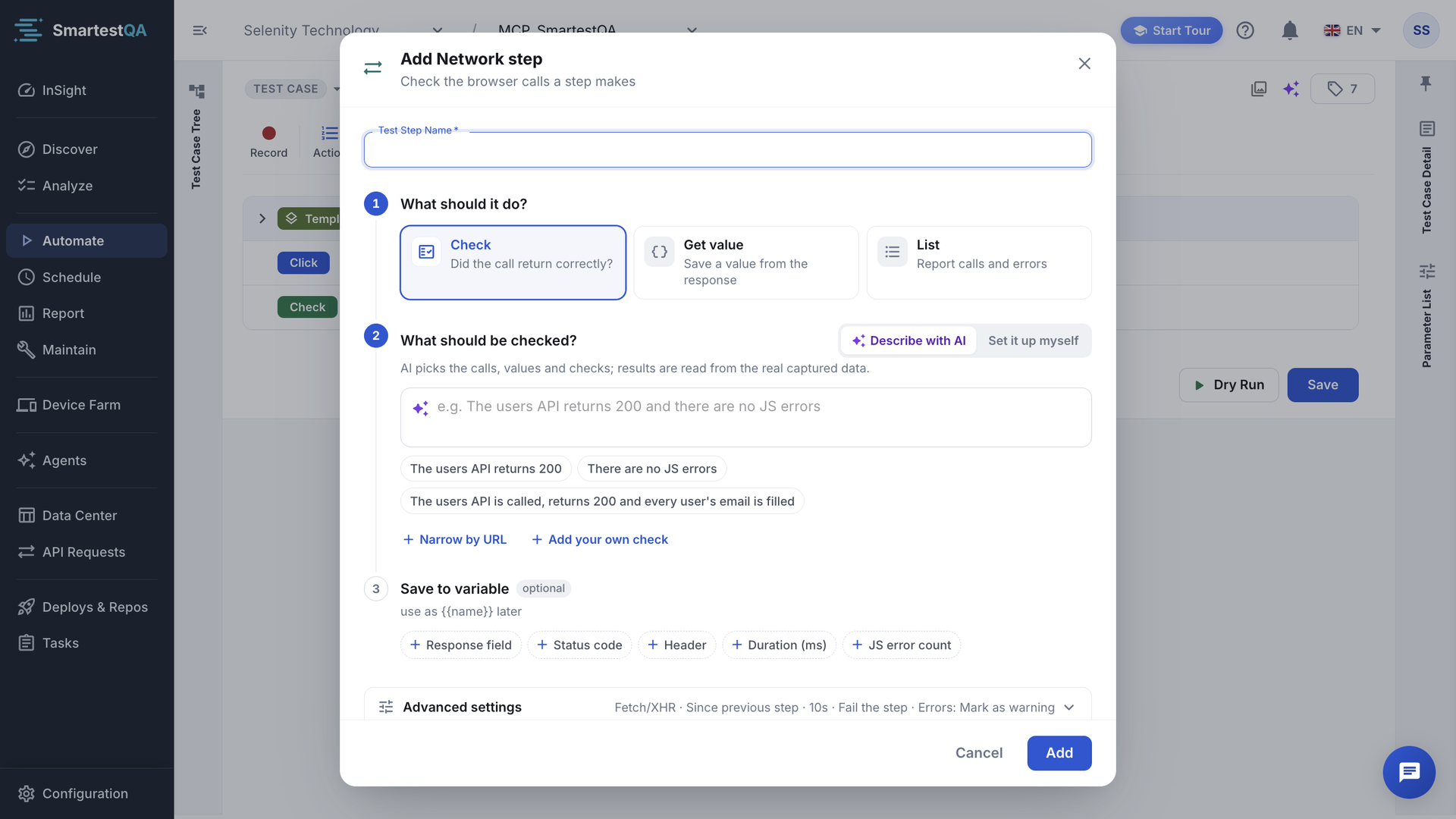
Click Network. The dialog Add Network step opens. How to use opens a short guide.
What should it do?
Pick Check, Get value or List. Then choose Set it up myself or Describe with AI.
Which call?
Enter part of the request URL, for example
/api/v1/orders, choose Match and, if needed, Method. For List the URL is optional (“Leave empty to list every call.”).Checks or variables
For Check, add rows under Checks (the step fails if one fails). For Get value, add rows under Save to variable. Fill Test Step Name and click Add.
The step appears with its mode chip. In the right panel it shows a summary with Edit.
Which call#
| Field | Options | Default |
|---|---|---|
| URL | Part of the request URL. {{variables}} are resolved at run time. | — (required for Check and Get value without a prompt: “URL is required”) |
| Match | contains, equals, wildcard, regex | contains |
| Method | Any, GET, POST, PUT, PATCH, DELETE | Any |
Check#
Each row under Checks has a Target, for some targets a Path / header, an Operator and an Expected value.
| Target | Path / header | Default row |
|---|---|---|
| Status code | — | equals 200 |
| Response field | JSON path, for example $.data.status | equals … |
| Header | Header name | content-type contains json |
| Duration (ms) | — | less than 2000 |
| Request field | JSON path in the request body | equals … |
| URL | — | contains … |
| Call count | — | at least 1 |
| JS error count | — | equals 0 |
Operators: equals, not equals, contains, does not contain, starts with, ends with, greater than, at least, less than, at most, is empty, is not empty, is missing, exists, is true, is false, matches regex. In List mode only Call count and JS error count can be checked.
The step waits for a completed matching call for up to Wait up to (sec) (default 10), because the response may arrive after the click ended. If no call matches in time: “No matching request within 10s”, and the step fails (or is skipped, see Advanced settings).
Get value#
Same call selection as Check; instead of checks you save values. Get value can also run checks.
Save to variable#
Each row has a Variable name (letters, digits and _ only) and a Source. Later steps use {{tc:name}}.
| Source | Saves | Suggested name |
|---|---|---|
| Response field + JSON path | A field of the response, for example $.data.id | — |
| Status code | The HTTP status | statusCode |
| Header + name | A response header | — |
| Duration (ms) | How long the call took | durationMs |
| URL | The full request URL | requestUrl |
| Request field + JSON path | A field of the request body (or the whole body) | — |
| JS error count, Console messages | Errors and console output in scope | jsErrorCount, consoleLogs |
| Call count, Call list (List mode) | Number of calls, or the list without bodies | callCount, callList |
| AI result (with a prompt) | What the AI found | aiValue |
Row errors: “Name is required”, “Letters, digits and _ only”, “Name is used twice”, “Path is required”, and in List mode “List mode supports call count or call list”.
List#
List writes a snapshot to the report: the calls in scope with requests and responses, failed calls, pending calls, console messages and JS errors. By default it uses Request type “API + pages + errors” and Scope “Whole session”. Put a List step at the end of a flow, or after a failure-prone step, to see what happened behind the page. Static files (CSS, scripts, images) are hidden from the list.
Advanced settings#
| Setting | Options | Default |
|---|---|---|
| Request type | API + pages + errors, Fetch/XHR, Document, All | Fetch/XHR (List: API + pages + errors) |
| Scope | Since previous step: requests started by the step before this one; consecutive Network steps look at the same action. Whole session: everything since the test started. | Since previous step (List: Whole session) |
| If several match | Use the last one, Use the first one | Use the last one |
| Wait up to (sec) | 1–120 (“Between 1 and 120 seconds”) | 10 |
| If no request | Fail the step, Skip and continue | Fail the step |
| On failed calls / JS errors | Mark as warning, Fail the step, Ignore. Covers 4xx/5xx responses, network failures and JS errors in scope. | Mark as warning |
Describe with AI#
Instead of setting the call and checks yourself, write what you need in Ask in plain words (at most 1,000 characters), for example “The users API returns 200 and there are no JS errors”. At run time the AI picks the calls, values and checks from the calls actually captured; the values themselves are always read from the real data. A URL is optional and narrows what the AI looks at. You can add your own checks under Extra checks. This needs AI enabled for the project. If the AI cannot answer, the report says “AI could not interpret the prompt”.
Limits#
- Web projects only. A Network step in another project type is refused at run time.
- Selenium: only fetch and XHR calls; the first page load is visible only in Chrome and Edge. Iframes, service workers, sendBeacon, form posts and static files are not seen. Playwright sees all calls.
- The network report of a step is fitted into about 60,000 characters; bodies are shortened first, the list of calls stays complete (“Shortened to fit the report”).
- The captured calls of a test case can be turned into an API test case later, from Maintenance (Network Calls).
If something goes wrong#
Didn’t find your answer?Write to support with your project name and what you see on screen.
info@smartestqa.ai