- Docs
- Reference
- Step reference
- Browser actions
Browser actions
Browser actions are the steps that drive a web page: clicking, typing, choosing, reading and checking. Each one points at an action captured in Discover and runs in Selenium or Playwright.
In short
On this page you can
- Click, double-click, right-click or hover a control on the page.
- Type into a field, or clear it first with Clear & Type.
- Pick a dropdown option by its visible text with Select.
- Open a URL with Navigate and read text into a variable with Get.
- Check that an element or a text is on the page with Visibility Check.
How to use it
- Click Action in the step toolbar, or Record the flow in the browser.
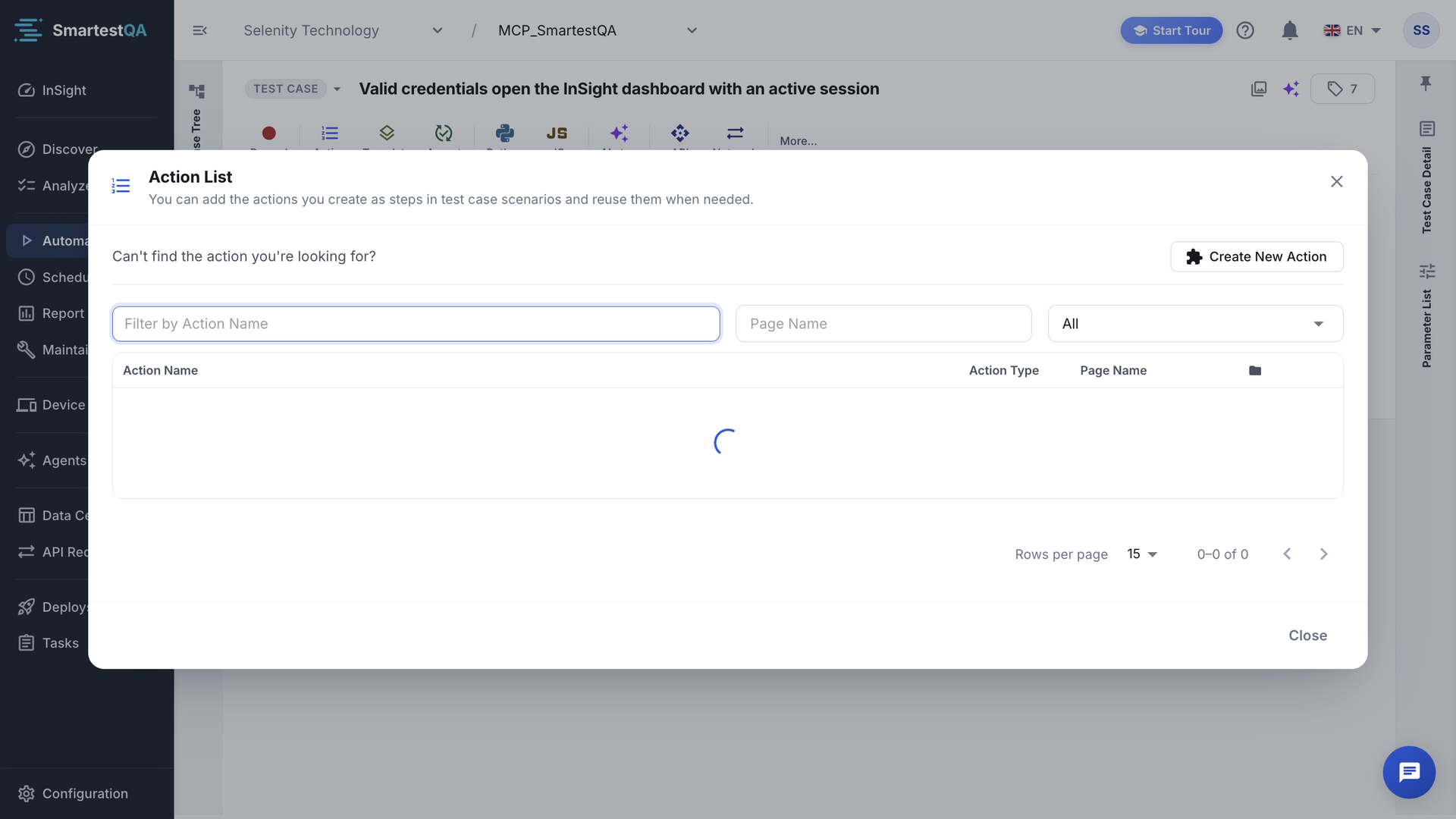
- Pick the action in the Action List dialog; each click adds one step.
- Select the step and fill its value in the right panel, for example the text to type.
- Use
{{tc:name}}in a value to type a saved variable. - Save and run a Dry Run; read each step’s message in the live log.
The web action types#
These types exist only in WEB projects, except Wait (seconds), which every project type has. Each step points at an action (page, name, locators) from Discover › Actions. Steps that need no element (Navigate, Wait) still use an action, without a locator.
| Type | Chip | What it does | Value you fill | Output |
|---|---|---|---|---|
| Click | Click | Clicks the element. | None | None |
| Double Click | DblClick | Double-clicks the element. | None | None |
| Right Click | RClick | Right-clicks the element (opens the context menu). | None | None |
| Hover | Hover | Moves the mouse over the element. | None | None |
| Type | Type | Types text without clearing the field; the text is added to what is there. | The text | None |
| Clear & Type | ClrType | Clears the field, then types. | The text | None |
| Select | Select | Picks a dropdown option by its visible text. | The option text | None |
| Navigate | Nav | Opens a URL in the current tab. | The URL | None |
| Get | Get | Reads the element’s text into a variable. | The variable name (the key) | {{tc:key}} |
| Visibility Check | Check | Checks that the element, or a text, is visible. | Optional expected text | None |
| Wait (seconds) | Wait | Pauses for a fixed time. | Seconds, 0.1–3600 | None |
Add a browser action step#
Open the Action List
In the test case, click Action. The dialog lists the project’s actions. Filter by action name, page name (it starts on the page the last step leads to) or action type.
Add the steps
Click an action to add it as a step at the end. The dialog stays open, so you can add several in a row. Each click adds one step: do not double-click.
The steps appear in the list with their chip, for example Type or Click.
Fill the values
Select a step. In the right panel, under Parameters List, enter the value: the text for Type, the URL for Navigate, the option for Select. Use the picker icon to insert a data source column or a global parameter.
Save
Click Save. Then run a Dry Run to check it.
Recording is faster for a whole flow: Record captures clicks and typing in the browser and adds both the actions and the steps. See Record your first test. To create a missing action by hand, see Create an action.
Click, Double Click, Right Click#
The runner waits until the element can be clicked, scrolls it into view and closes overlays such as cookie banners that cover it. It then clicks it. Double Click and Right Click work the same way and need no value.
- Live log:
"Sign In" was clicked, orFailed to click on "Sign In"with the reason. - If a click opens a new tab, Playwright follows the new tab automatically. Selenium stays on the old one.
- A click that fails stops the test case.
Hover#
Moves the mouse over the element, for example to open a menu that appears on hover. Add the step that clicks the menu item right after it. Log: Hovered over "Products".
Type and Clear & Type#
Type types the value into the field without clearing it: the text is added after what the field already contains. Clear & Type empties the field first. Use Clear & Type for edit forms and for fields the browser autofills.
Value:  {{tc:userEmail}}
Log: The "Email" field was cleared and "anna@example.com" was entered- The value can be plain text, a variable, or text with variables in it:
Order {{tc:orderId}}. - For fields whose name looks like a password, secret, token or PIN, the log shows
••••••instead of the value. - If a variable cannot be resolved, the step types the text as it is, for example
{{tc:userEmail}}. See Variable typed literally.
Select#
Chooses an option of a dropdown by its visible text, for example Germany. Log: "Germany" was selected from "Country". The text must match the option as shown. For custom dropdowns built from other elements, use two Click steps instead (open, then pick).
Navigate#
Opens the URL in the value, in the current tab. Use it to jump to a page directly or to start a second part of a flow. Log: Navigated to https://shop.example.com/cart.
An empty Navigate does nothing
A Navigate step without a URL is left out of the run without a message. The editor asks for a value before saving.
Get#
Reads a value from the element and saves it as a variable. The key of the step’s parameter is the variable name; later steps read it as {{tc:key}}.
- The runner waits until the element is present (it does not have to be visible). It reads the visible text; if that is empty, it reads the element’s
value(for input fields). - The key may contain only letters, digits and underscore. Otherwise: “Parameter key can only contain letters, digits and underscore”.
- Get is the only step that offers transforms (Trim, Replace, To Number…) and a per-step Timeout. See Transforms.
Step 5  Get        "Order Total"   key: orderTotal      → saves "€ 1.234,50"
        Transform  To Number                           → orderTotal = 1234.5
Step 6  Assertion  actual: {{tc:orderTotal}}  Greater Than  expected: 1000
Visibility Check#
Checks that something is visible on the page.
| You give | It checks |
|---|---|
| A locator (the action) only | The element is visible. |
| A locator and a text value | The element is visible and its text contains the value. Spaces are normalised; the comparison is case-sensitive. It retries for up to 8 seconds. |
| A text value, no locator | The text appears anywhere on the page. |
| Neither | Nothing: the step ends as ERROR with “Text or locator is required for visibility check.” |
A failed Visibility Check does not stop the case
The step is marked FAILED and the next steps still run. When the rest of the flow makes no sense without it, use an Assertion instead, which stops the case. See Choose the right check.
Wait (seconds)#
Pauses the run for the number of seconds in the value: 0.1 to 3600, decimals allowed (0.5 = half a second), or a variable. Log: Waited 2 seconds. It is the same in web, mobile and desktop projects. Prefer waits that end as soon as the page is ready; see Waits.
How a step finds its element#
Every element step tries the action’s locators in a fixed order and waits a limited time for each.
- Order of locators. The locator that worked in the last successful run goes first, then higher confidence, then by type: id, name, CSS, XPath, link text, class, tag.
- Time. The first locator gets the full Wait Timeout of the project (default 30 seconds). Later locators share what is left, at least 2 seconds each.
- Frames. If no locator matches in the page, the runner looks inside iframes, up to 3 levels deep.
- Retries. The whole find-and-act is retried up to 3 times when the element is missing, stale, covered or not ready.
- Auto-heal. When every locator fails, auto-heal looks for the element and, if it finds a safe match, uses it and records the change for review in Maintenance.
When the step still fails, the log line has the form message: reason | Locator: by=value | Detail: …. The reasons are listed in Troubleshooting. How the timeout numbers add up: Timeouts.
Selenium and Playwright#
A web project runs its steps with Selenium or Playwright, set by the project’s script language. The steps are the same; a few behaviours differ:
| Behaviour | Selenium | Playwright |
|---|---|---|
| A click opens a new tab | Stays on the old tab | Follows the new tab |
| Ignore certificate errors setting | Applies | Not applied |
| Network step sees calls of the first page load | Chrome and Edge only | Yes |
| Auto-heal inside iframes | Yes | Main page only |
If something goes wrong#
Didn’t find your answer?Write to support with your project name and what you see on screen.
info@smartestqa.ai