- Docs
- Build tests
- Maintenance
Maintenance
Maintain is the menu item for work that your test runs found and that waits for a person’s decision: repairs made by auto-heal, AI steps that can become regular actions, and network captures that can become API test cases.
In short
On this page you can
- Review the locator and assertion repairs the runner made, in Auto-heal.
- Turn AI steps that keep passing into regular actions, in AI Steps.
- Turn a Network step’s captured calls into an API test case, in Network Calls.
- See how each repair was found, how it was checked, and who decided it.
- Jump to the right tab from the InSight banner or from a report row.
How to use it
- Run your test cases and pipelines as usual; repairs and candidates collect here.
- Open Maintain › Auto-heal and read each card under Waiting for review.
- Click Approve for a correct repair and Reject for a wrong one.
- In AI Steps, click Convert to Action on steps that should run without AI.
- In Network Calls, click Make API test to build API checks from a browser test.
At a glance
- Where
- Main menu › Maintain, right after Report. Tabs: Auto-heal, AI Steps, Network Calls.
- Who
- Everyone with access to the project, Admin and User alike. Each decision is saved with your email.
- You need
- Test runs. Nothing appears here until a run has repaired something or produced a candidate.
- Time
- A repair takes seconds to review. Converting an AI step or a capture takes a minute.
- Produces
- Kept or restored locators, new actions in the Action List, new API test cases in Automate.
- Fed by
- The runner during Dry Runs and pipeline runs (auto-heal), and saved pipeline results (AI Steps, Network Calls).
Start from your question#
I want to…
Something is wrong
Where Maintenance fits#
The main menu is the order of work. Maintenance comes last because it works on what the runs before it found.
- 1DiscoverPages, controls, rules
- 2AnalyzeRequirements from the map
- 3AutomateTest cases from actions
- 4SchedulePipelines
- 5ReportResults
- 6MaintenanceHeal and review
Each question has its own screen:
| Your question | Go to |
|---|---|
| What have I not set up yet? | Discover › Setup Roadmap |
| How healthy are my tests? | InSight › Test Health |
| What did the system find that waits for a decision? | Maintain (this section) |
| Which work is assigned to a person? | Tasks |
Why use it#
- Tests keep running when the UI changes. When a button moves or its id changes, the runner finds the element again, checks that the step still does the same thing, and saves the new locator. You do not lose a night of pipeline runs to one renamed id.
- A person stays in control. Every repair waits as a card with the old and the new locator side by side. You approve it, reject it, or let it confirm itself after 3 more successful runs.
- Wrong repairs are undone exactly. Reject puts the action’s locators back as they were before the repair.
- Faster, cheaper runs. An AI step asks the AI on every run. Converted to an action, it runs from a saved locator with no AI call.
- API coverage from browser tests. A Network step already records the calls your web app makes. One dialog turns them into an API test case.
The building blocks#
- Repair
- One change the runner made during a run and recorded for review. It is shown as a card in Auto-heal.
- Locator repair
- All locators of an action failed, and the runner found the element again with a new locator. The new locator is written to the action at once, so the next runs use it.
- Assertion repair
- A text assertion passed although the two texts differ only in how they are written, for example
50 TLand50,00 TL. Nothing in the test is changed. - Healed tag
- An amber tag named
healedon a test case while at least one of its repairs waits for review. - Confirmed by runs
- A locator repair that worked in 3 more runs is confirmed without a person. See the count.
- AI step
- A test step that tells the AI what to do in plain words (an AI Do step). It finds its element anew on every run.
- Network capture
- The browser calls a Network step recorded during a run: method, address, status and bodies.
- Action
- One control on one page with its locators. Actions live in Discover › Action List.
The screen#
Maintain has three tabs. It opens on the tab in the address (?tab=auto-heal, ai-steps or network), otherwise on the tab you used last, otherwise on Auto-heal. The address /auto-heal also opens the Auto-heal tab.
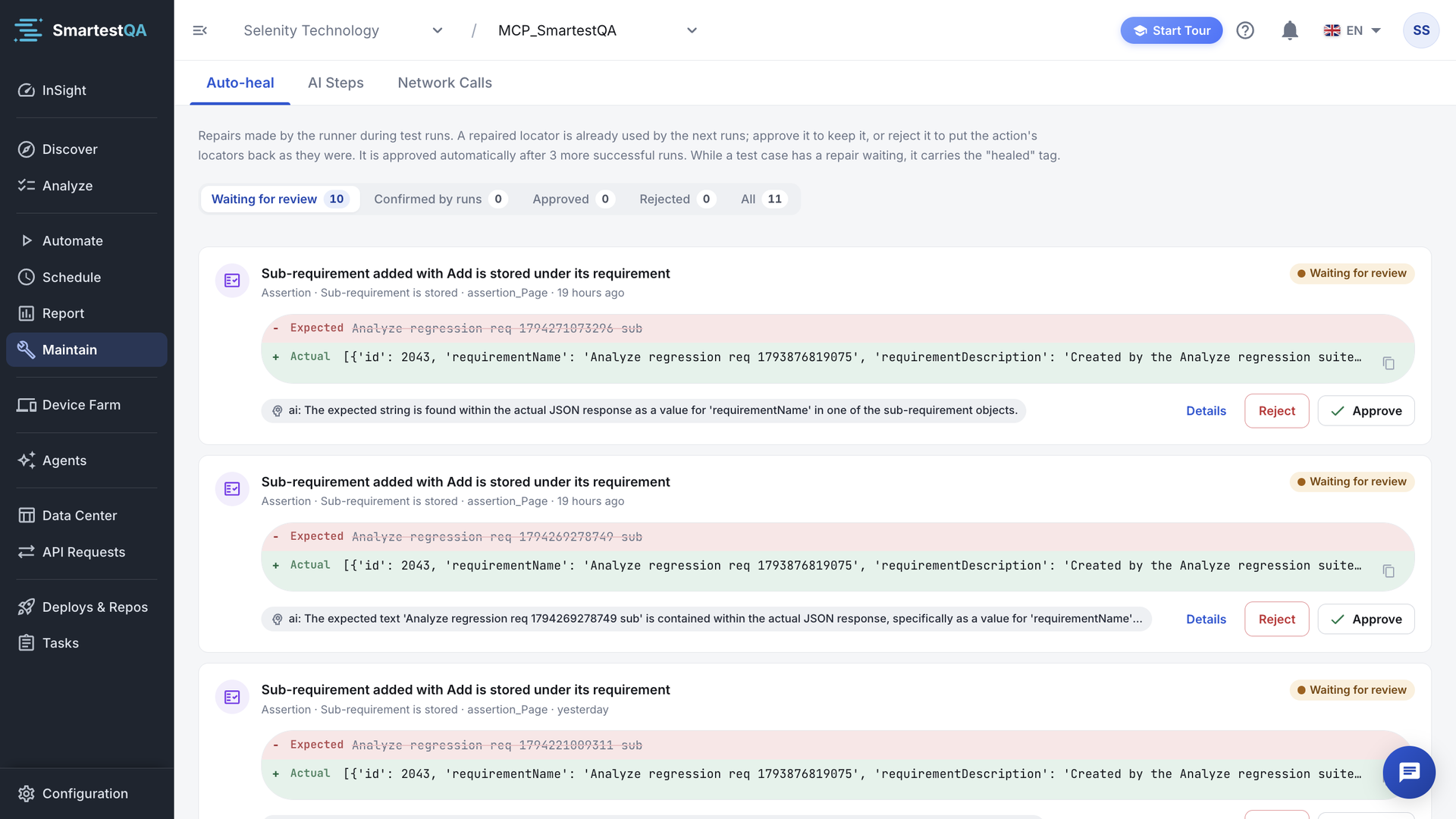
| Tab | What it lists | Your decision |
|---|---|---|
| Auto-heal | Repairs the runner made: new locators and assertions that passed on format alone | Approve or Reject, or let it confirm itself |
| AI Steps | AI steps that ran successfully in a pipeline and found their element, one row per step | Convert to Action |
| Network Calls | Test cases whose Network steps captured calls, one row per test case | Make API test |
Every tab has a status filter with a count on each option, a short explanation under the tab bar, and a Retry button if the list cannot be loaded. An empty pending list shows a green check: nothing waits.
How you get here#
- From InSight. While repairs wait, the Execution tab’s run environment line and the first row of Fix these first on Test Health say “n auto-heal repair(s) on m test case(s) wait for review.” Click Review. The line is hidden when nothing waits.
- From a run report. A successful AI step row in the step table has a Convert to Action button (“Opens this step in Maintain > AI Steps”). A Network step has Convert to API steps (“Opens this test case in Maintain > Network Calls”); if the case still waits, the conversion dialog opens by itself.
- From Automate. A test case with the healed tag has a repair waiting.
- From an AI assistant. Through MCP,
smartest_heallists and decides repairs. See MCP.
Before you start#
| To see | You need |
|---|---|
| Locator repairs (web) | A run in which all locators of an action failed. The exact identity match works without AI; the AI choice needs Enable AI and Auto-Heal. See Settings. |
| Locator repairs (desktop) | Enable AI and Auto-Heal on, and an agent online. See Install an agent. |
| Assertion repairs (web) | An Equals, Contains, Starts with or Ends with assertion that fails on format only. |
| AI Steps | A web test case with an AI Do step that passed in a pipeline or scheduled run. Dry Run results are not saved, so they do not count. |
| Network Calls | A web test case with a Network step that ran in a pipeline or scheduled run. Use List mode to capture the whole session. |
Best practices#
Do
- Review Waiting for review after each nightly pipeline, while you still remember the UI change.
- Open Details before approving a repair the AI chose.
- Reject a repair that clicked the wrong element, then fix the action in Discover.
- Ask developers to add a
data-testidto elements that need repair often. - Convert AI steps that have passed in several runs.
- Select the login request when you make an API test from a capture.
Don’t
- Approve every card without reading the change.
- Treat a confirmed repair as proof the test is right; it only proves the element was found.
- Ignore assertion repairs: the same assertion creates a new card on every run until you change the expected value.
- Rely on repairs on MOBILE projects; fix their locators in Discover.
- Convert an AI step whose element changes from run to run.
In this section#
Read a repair card, open its details, approve or reject it, and know what each decision changes.
MaintenanceHow auto-heal decidesWhen the runner heals a step, how it finds and checks the element, what it saves, and the settings that control it.
MaintenanceAI StepsTurn AI steps that passed into regular actions, so they run from a saved locator without an AI call.
MaintenanceNetwork CallsTurn the browser calls a Network step captured into a new API test case, one test case at a time.
MaintenanceHow the numbers workFormulas and worked examples for the status counts, the 1/3 runs bar, the AI score, the InSight banner and the AI Steps and Network counts.
MaintenanceTroubleshootingEvery Maintain message and symptom, and every auto-heal run-log reason, with why it happens, what to check and how to fix it.
MaintenanceFAQ, MCP & limitsQuestions and answers about auto-heal and conversions, the smartest_heal MCP tool and the module’s limits.
Didn’t find your answer?Write to support with your project name and what you see on screen.
info@smartestqa.ai