- Docs
- Reference
- Step reference
Step reference
A test case is a list of steps. This reference lists every step type SmartestQA offers, which project types have it, where you add it, and what happens to the run when it passes or fails.
In short
On this page you can
- Find the right step type for a task, from a click to a database query.
- See which step types exist in WEB, MOBILE and DESKTOP projects.
- Learn which failures stop a test case and which only mark the step.
- Look up the variables each step produces and how later steps read them.
- Open the family page with fields, examples and errors for each step.
How to use it
- Open a test case in Automate and look at the step toolbar above the step list.
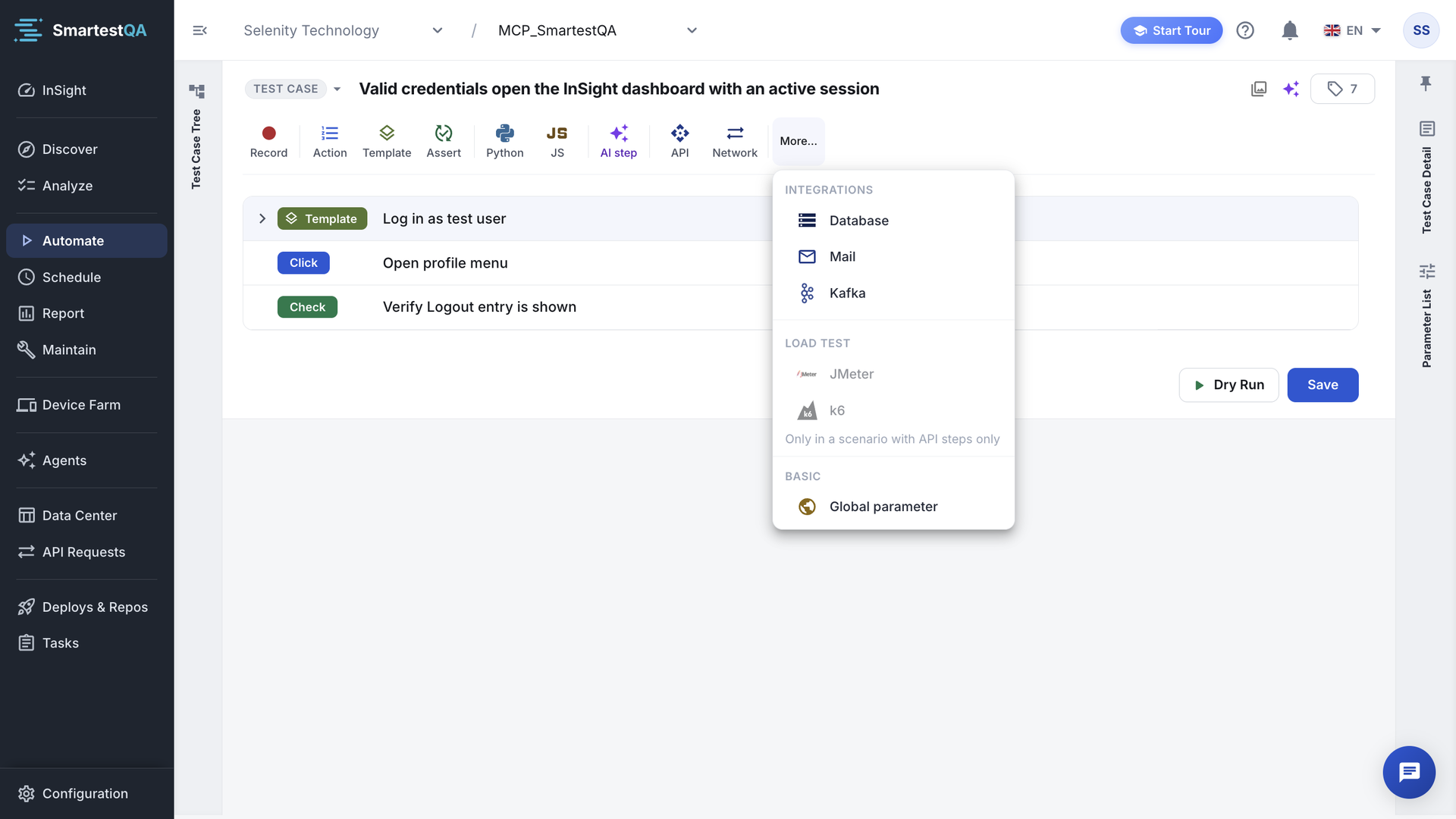
- Pick a button such as Action, Assert or API, or open More for the rest.
- Fill the step’s dialog, then select the step to set its values in the right panel.
- Pass values between steps with
{{tc:name}}variables. - Click Save, then Dry Run to see each step’s result in the live log.
At a glance
- Where
- Automate › a test case › the step toolbar above the step list. Less common types are under More.
- Who
- Every user of the project can add, change and remove steps. There is no role check on steps.
- Two kinds
- Action steps point at an action from Discover (a control on a page). Step-type steps (Assert, Python, API, Mail…) are created by their own dialog.
- Values
- Each step has parameters in the right panel. Any value can contain a variable such as
{{tc:orderId}}. - Results
- Each step ends as SUCCESS, FAILED or ERROR (Network steps can also end as WARNING).
- Runs in
- Dry Run from the editor, pipelines in Schedule, on the server or on your agent. The same steps run in all of them.
- Project types
- WEB, MOBILE (Android and iOS) and DESKTOP (Windows and macOS) each have their own action types. Assertion, Python, API, Database, Mail, Kafka, Global parameter, Wait and AI exist in all three. JavaScript and Network are web only. JMeter and k6 are web and desktop.
Start from your question#
I want to…
Something is wrong
Where steps fit#
Steps are built in Automate, the third stage of the order of work. Action steps reuse the actions you captured in Discover; pipelines in Schedule run the finished test cases.
- 1DiscoverActions and pages
- 2AnalyzeRequirements
- 3AutomateSteps in test cases
- 4SchedulePipelines run them
- 5ReportStep results
- 6MaintenanceHeal and review
For the editor itself (creating test cases, the step list, saving, Dry Run), see Automate. To capture actions first, see Discover › Actions.
All step families#
The toolbar shows the everyday types. Everything else is in More, grouped under Basic, Integrations and Load test. When the toolbar is too narrow, buttons that do not fit move into More as well.
| Family | Step types | Project types | Added from |
|---|---|---|---|
| Browser actions | Click, Double Click, Right Click, Hover, Type, Clear & Type, Select, Navigate, Get, Visibility Check, Wait (seconds) | WEB | Action, Record |
| Mobile actions | Tap, Swipe, Scroll, Type Text, Launch App, Press Back, Get Text, Wait For Element, Assert Text and 25 more | MOBILE | Action, Global, the Appium Inspector |
| Desktop actions | Click, Type Text, Type Key by Key, Press Key, Select, Switch Window, Assert Enabled and 24 more | DESKTOP | Action, Global, the Desktop Recorder |
| Checks and assertions | Assertion (Assert), Visibility Check, AI Check, Network Check, mobile and desktop Assert actions | All | Assert |
| Waits, conditions and templates | Wait (seconds), Wait For… actions, IF / ELIF / ELSE / END, Template | All | Action, Python, Template |
| Data and variables | Global parameter, Get, step outputs, data sources | All | More › Global parameter |
| Code | Python, JavaScript | Python: all. JS: WEB | Python, JS |
| AI steps | AI Ask, AI Check, AI Do, AI Chat | All | AI step |
| API | API Request | All | API |
| Network | Check, Get value, List (browser calls) | WEB | Network |
| Database | DB (SQL query) | All | More › Database |
| Get Mails, Extract OTP, Extract Link, Send Mail, Wait for Mail | All | More › Mail | |
| Kafka | Kafka Produce, Kafka Consume | All | More › Kafka |
| Load tests | JMeter, k6 | WEB, DESKTOP | More › JMeter / k6 |
The building blocks#
- Step
- One line in a test case. It runs in order, from step 1 down. A step has a name, a type, and parameters.
- Action step
- A step that points at a shared action (for example
Click Sign Inon pagelogin). Fixing the action’s locator fixes every test that uses it. The step list shows how many test cases use the action. - Step-type step
- A step created by its own dialog: Assertion, Python, JavaScript, AI, API, Network, Database, Mail, Kafka, Global parameter, JMeter, k6. These are not in the Action List and belong to one test case.
- Parameter
- A key and a value on the step, shown in the right panel under Parameters List. For a Type step the value is the text to type; for a Get step the key is the name of the variable to fill.
- Variable
- A value saved by one step and read by a later one, written
{{tc:name}}. See Data and variables. - Output
- The variable a step writes: the Get key, an API JSON path, SQL output values, a mail OTP, a code step’s returned value.
- Template
- A test case marked as a template, added inside another case as one step. Its steps run in place. See Templates.
Step results#
Every step reports one status in the live log of a Dry Run and in the report of a pipeline run.
| Status | Meaning | Typical causes |
|---|---|---|
| SUCCESS | The step did what it should. | Element clicked, assertion met, query returned rows. |
| FAILED | A check ran and did not pass. | Assertion not met, Visibility Check false, Network check failed, AI Check answered false, load test with failed requests. |
| ERROR | The step could not run. | Element not found, connection refused, wrong SQL, code exception, missing configuration. Reports store it as failed. |
| WARNING | Network step only: failed calls or JS errors were seen and On failed calls / JS errors is Mark as warning. | A 500 response in scope. |
| SKIPPED | Live log only: the step did not run because an earlier step stopped the case. | Any stopping failure above it. |
Which failures stop the test case#
Most failures stop the test case: the remaining steps do not run. A few step types only mark themselves and let the case go on. Plan your checks with this table.
| Step | When it goes wrong | The case… |
|---|---|---|
| Click, Type, Select, Hover and other element actions | Element not found after retries and auto-heal | stops |
| Assertion | Condition not met, or configuration error | stops |
| Visibility Check | Element or text not visible | continues (step FAILED) |
| API Request | Any HTTP status, including 4xx and 5xx | continues (step SUCCESS) |
| API Request | Timeout, SSL or connection error | continues (step ERROR) |
| Database, Mail, Kafka | Connection, query or timeout error | stops |
| Network | Check fails, or no matching call with Fail the step | stops |
| Python, JavaScript | Exception, or STATUS output is false | stops |
| AI step | AI error or a failed AI Check | stops for steps added from the dialog (they are created with stop-on-error); continues otherwise |
| JMeter, k6 | Failed requests, timeout, tool missing | the step ends as ERROR in the report |
Check API results yourself
An API step passes on any HTTP answer. Save @status into a variable and add an Assertion after it. See Check the status code.
Where steps run#
A test case runs on the server (headless, no agent needed) or on your agent (the SmartTest app on your computer). Steps that connect to other systems connect from that machine.
| What the step reaches | Connects from | Watch out |
|---|---|---|
| Your app’s UI (web, mobile, desktop) | The browser, device or desktop session of the run | Mobile runs need a device or emulator; desktop runs need an agent on the Windows or macOS computer with the app. |
| API, Database, Mail, Kafka | The machine that runs the test | A database in your office network is not reachable from the server. Run on your agent. |
| AI steps | The project’s AI provider | AI must be enabled for the project. |
| JMeter, k6 | The machine that runs the test | JMeter must be installed there. k6 is downloaded automatically unless that is turned off. |
Differences between a Dry Run and a pipeline run that matter for steps:
- A Dry Run uses only the first row of a data source and does not retry a failed test case.
- Every step gets a screenshot in a Dry Run. Dry Run results are not saved to reports.
- Load-test steps run with their own defaults in a Dry Run (k6: one user, one iteration). Pipeline load settings apply only in Schedule.
Best practices#
Do
- End every flow with a check: an Assertion, a Visibility Check or an AI Check.
- Use Clear & Type for fields that already contain text.
- Name variables after what they hold:
orderId, notvalue1. - Put a login or setup sequence in a template and reuse it.
- Assert on
@statusafter every API step that must succeed. - Run database, mail and Kafka steps on an agent inside your network.
Don’t
- Add fixed waits to fix timing. Use a Wait For… step or a check that waits.
- Rely on Visibility Check to stop a broken flow; it lets the case continue.
- Leave AI steps in place once a regular action can do the job.
- Write UPDATE or DELETE queries against shared data without a WHERE clause.
- Mix JMeter or k6 with browser steps; load tests need their own test case.
In this section#
The web action steps: Click, Double Click, Right Click, Hover, Type, Clear & Type, Select, Navigate, Get, Visibility Check and Wait.
Step referenceChecks and assertionsThe Assertion step and its types, how values are compared, and which check to use when: Assertion, Visibility Check, AI Check, Network Check and the mobile and desktop Assert actions.
Step referenceWaits, conditions and templatesFixed and conditional waits, how long a step waits for its element, IF / ELIF / ELSE / END blocks, and template steps that reuse a whole sequence.
Step referenceData and variablesPass values between steps: the Global parameter step, the Get step and its transforms, which steps produce variables, and the {{tc:}}, {{ds:}} and {{excel:}} reference syntax.
Step referenceCode steps: Python and JavaScriptWrite Python or JavaScript in a step, return a value or a pass/fail result, insert ready commands, and build IF / ELSE blocks.
Step referenceAI stepsAsk about the screen, check something visible, act in plain words, or chat with the AI as a step: the four AI modes, their fields and outputs.
Step referenceAPI Request stepCall an HTTP API inside a test case, try it with Send, save response values with JSON paths, and check the status code.
Step referenceNetwork stepCheck, read or list the calls the browser makes during a web test: status codes, response fields, durations, JS errors.
Step referenceDatabase stepRun an SQL query against your database inside a test case and save column values as variables.
Step referenceMail stepsRead a one-time code or a link from an email, wait for a message, count messages, or send an email during a test.
Step referenceKafka stepsPublish a message to a Kafka topic and wait for a matching message, to test event-driven flows inside a test case.
Step referenceLoad test steps: JMeter and k6Add a JMeter or k6 load test as a step: upload a .jmx or .js file, or generate one with AI from the API steps of a test case.
Step referenceMobile actionsEvery Android and iOS action step: touch and gestures, input, app lifecycle, navigation, reading values, waits and assertions, plus the ready-made Global actions.
Step referenceDesktop actionsEvery Windows and macOS action step: mouse, input and keys, scrolling, waits, assertions, reading values, app and window control, plus Global desktop actions.
Step referenceStep troubleshootingEvery step-level message and surprise, from element not found to mail timeouts, with why it happens, what to check and how to fix it.
Didn’t find your answer?Write to support with your project name and what you see on screen.
info@smartestqa.ai