- Docs
- Resources
- API Requests
- Use requests in tests
Use saved requests in tests
An API step is a saved request inside a test case. This page covers adding one, why the step keeps its own copy, and the differences between Send on the API Requests page and a real run.
In short
On this page you can
- Add a saved request to a test case as an API step.
- Create a request and its step from a curl command in one go.
- Try the step with test values before you run the test.
- Know that each step keeps its own copy of the request.
- Avoid the settings a run handles differently from Send.
How to use it
- In Automate, add an API step from the step toolbar.
- In Select API Request, find the request and click Add Step.
- Check the step’s request; replace secrets with {{ds:…}} references.
- Click the step’s Send and fill the Test values.
- Save the test case and run a Dry Run.
Add a saved request as a step#
Open the test case in Automate
Open the scenario and add an API step from the step toolbar.
Find the request
The dialog Select API Request shows the API library as a tree. Search with “Search by name, URL or method...”.
Add it
Click Add Step on the request. SmartestQA loads the full request and adds the step. If loading fails: “Failed to load API request; step not added.”
Save the test case
The step shows the request’s name and method. In the step you add extractors (for example
@statusor a JSON path) and later assertions; that part is described in Automate.
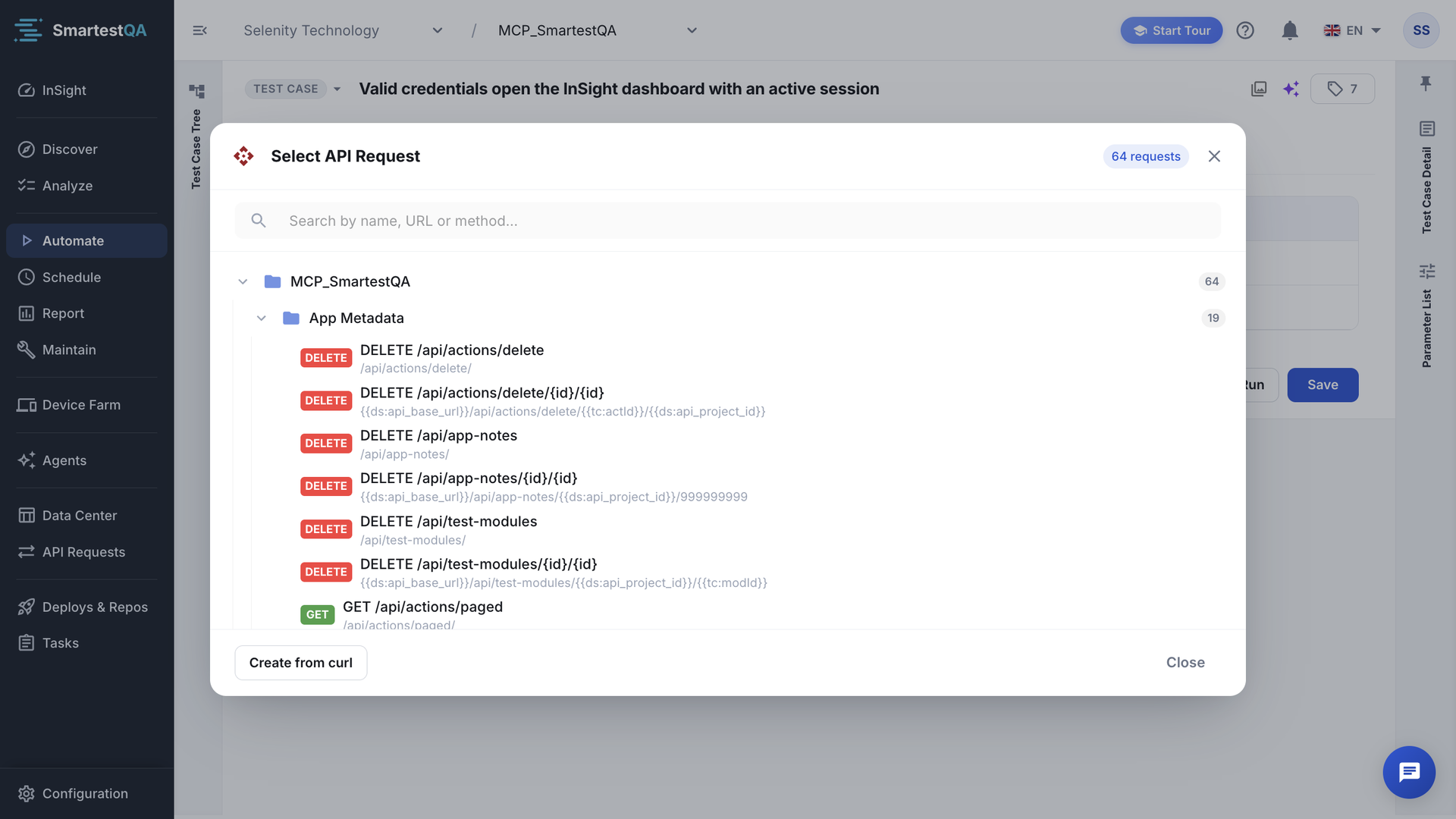
From a curl command#
In Select API Request, click Create from curl: “Paste a curl command below. A new API Request will be created and added as a step.” The request is saved in the API library and the step is added. The same rules as pasting curl into the URL apply. Messages: “Empty curl command.”, “No URL found in the curl command.”, “Failed to parse the curl command.”, “Failed to create the API request.”
Each step keeps its own copy#
When you add a request, the step gets a copy of it. From then on the two are independent:
| You change | Effect |
|---|---|
| The saved request in API Requests | Existing steps do not change. New steps get the new version. |
| The request inside a step | Only that step changes. The library stays as it was. |
| Delete the saved request | Steps keep working. |
To roll out a change to many tests, keep what changes in references: {{ds:apiBase}} for the address, {{ds:apiToken}} for the token. Changing the key changes every step at once. Otherwise edit each step, or remove it and add the request again.
Try the step#
The step’s own Send fills references before it sends:
- Data Source keys get their value automatically. An encrypted key is sent as
••••••, because the screen never has the real value. - Everything that only exists during a run (
{{tc:…}},{{excel:…}}) is asked for in Test values: “These variables get their value during the test run. Enter a value to try the request; values are not saved.” “Empty fields are sent as empty text.”
Like Send on the API Requests page, it goes out from the SmartestQA server. For secured calls and internal APIs, check the step with a Dry Run (Run your first test).
What a run does differently#
| Send on the page | Test run | |
|---|---|---|
| Sent from | The SmartestQA server | The machine that runs the test: server, agent, self-hosted runner or AWS Device Farm (details) |
| Methods | POST, PUT, DELETE; GET, PATCH, HEAD and OPTIONS go out as GET | GET, POST, PUT, PATCH, DELETE. HEAD and OPTIONS fail with “Unsupported HTTP method”. |
| References | Data Source keys in the URL only, default value | Everywhere: URL, headers, params, body, Bearer token; environment variants apply |
| Params | Not added | Added to the URL; a parameter already in the URL is not sent twice |
| Body | raw as typed; form-data as a JSON object | The raw body, sent as JSON. form-data rows are not sent. |
| Authorization | Bearer, Basic, inherited | Bearer only (see below) |
| Time limit | 30 seconds | 30 seconds |
| Result | The response is shown | Any HTTP status passes the step. Check @status with an extractor and an assertion. A timeout, SSL or connection error marks the step as an error; the test case continues. |
Authorization in runs#
A run applies only Bearer Token. Basic Auth and Inherit from parent are still offered in the API step, but runs ignore them, so the call goes out without credentials and usually gets 401.
| You need | Do this in the step’s request |
|---|---|
| A token | Bearer Token with {{ds:apiToken}} (an encrypted key), or a token produced earlier in the run, such as {{tc:accessToken}}. |
| Basic login | A header Authorization with the value Basic {{ds:apiBasicAuth}}, where the encrypted key holds the Base64 of user:password. |
| The collection’s token | Set Bearer Token on the request itself, with the same reference as the collection. |
| An API key header | A header such as X-Api-Key: {{ds:apiKey}}. |
The run masks Authorization, token and API key headers in its logs. See Secrets in runs.
Bodies in runs#
A run fills references in the body, then reads it as JSON and sends it as JSON. A body that is not JSON, such as XML or plain text, is sent as one JSON text in quotes. The API step still offers form-data rows, but runs ignore them. Check such requests with a Dry Run and the request log before you rely on them.
AI assistants (MCP)#
An assistant connected through MCP adds or changes library requests with smartest_api_library (name, url, method, headers, queryParams, body, formData, authType, token, username, password). Tokens and passwords are accepted only as {{ds:key}} or {{tc:…}} references, never as literal values; the keys are created empty for you to fill. Scenarios then copy the request into an API step by its id, or carry their own request. More: FAQ › MCP.
If something goes wrong#
Didn’t find your answer?Write to support with your project name and what you see on screen.
info@smartestqa.ai