- Docs
- AI
- Autonomous Agents
- Install an agent
Install an agent
The catalog groups the ready-made agents by when they run. Installing one opens its settings first; the agent is created only when you click Install, and it starts paused.
In short
On this page you can
- Browse the agent catalog by rhythm: after each deploy, daily, weekly, on demand.
- See which agents are Core and which are already Installed.
- Install a ready-made agent with its default schedule and limits.
- Start a Custom agent from an empty template.
- Fix what blocks an install, such as a missing repository or Smoke pipeline.
How to use it
- Click Install new agent on the Autonomous Agents page.
- Pick an agent and click Install, or Create under Custom agent.
- Check the trigger, the limits and the report targets in the settings dialog.
- Click Install: the agent is created paused.
- Run it once with Run now, then switch it on.
Install an agent step by step#
Open the catalog
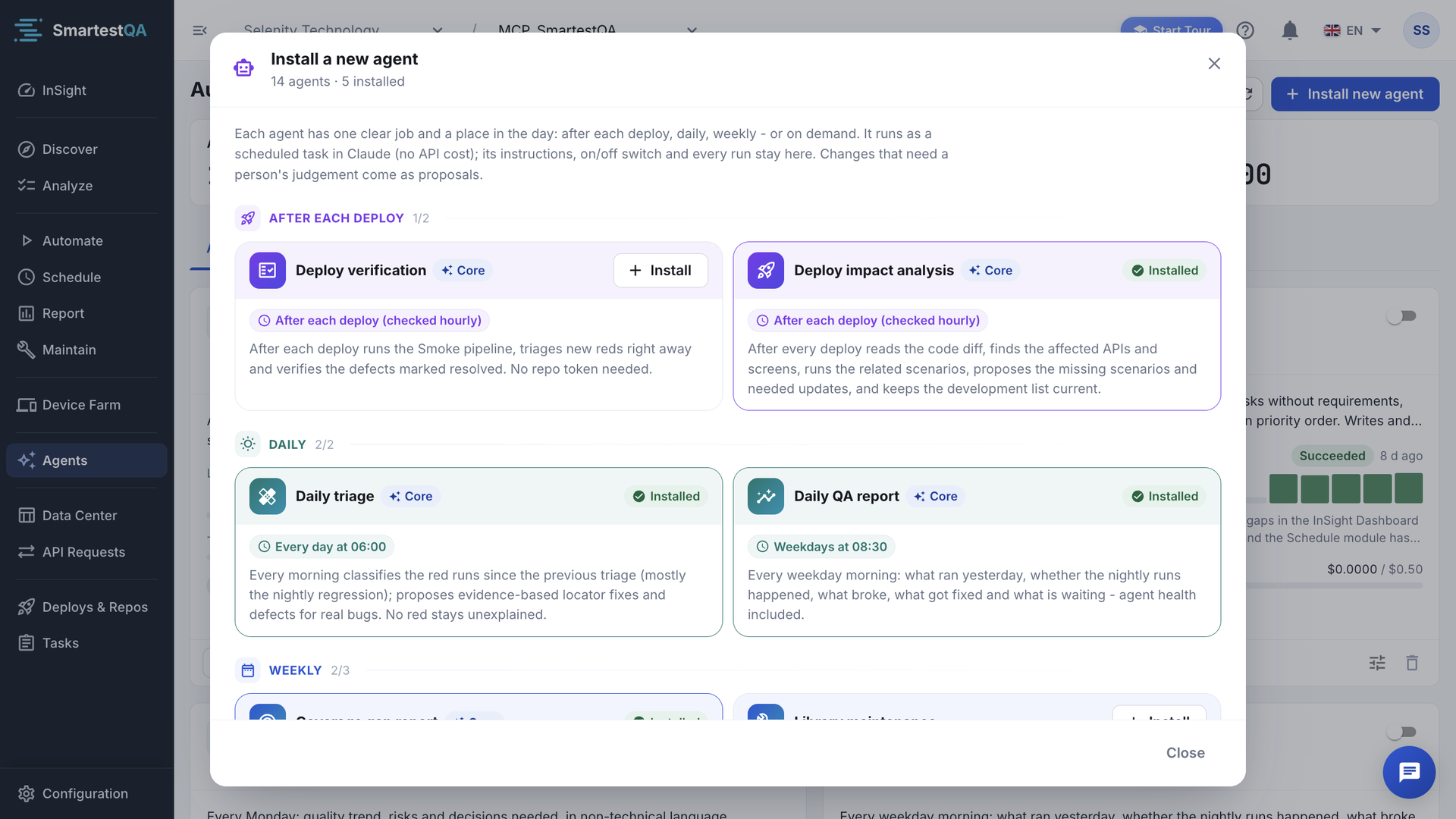
On Autonomous Agents, click Install new agent. The dialog Install a new agent opens with “n agents · i installed” under the title. The button is greyed out until a project is selected in the header.
Pick an agent
Agents are grouped by rhythm. Inside each group the Core agents (the ones SmartestQA recommends first) come first. An agent you already have shows Installed instead of a button.
Click Install
The settings dialog opens with the agent’s defaults: Install agent · name, “Review the settings — the agent is installed when you click Install, and starts paused.” Nothing is created yet. If you close it, nothing is installed.
Check the settings
Look at least at Trigger (when it runs, time zone, where it runs), Reports (who gets the result) and Limits. All tabs are explained in Agent settings.
Click Install
You see “Agent created as paused. Review the settings, then activate it.” The card appears on the Agents tab with “Paused: triggers are off”.
Try it, then switch it on
A paused agent cannot be run, so switch it on with the toggle on its card and click Run now once. If the result is useful, leave it on; its trigger takes over. If not, switch it off and adjust the settings.
The card shows the first run in Last runs, and the next scheduled time next to the trigger.
One of each
The catalog installs one agent per entry in a project. To get a second copy with other settings, start a Custom agent and paste the instructions you want.
The catalog#
Times are in the agent’s time zone (the server default unless you pick one). “Runs on” is the default when you install; you can change it in Trigger, except for agents that only work on the server.
After each deploy#
These agents check for a new deploy every hour and run only when one has arrived. No new deploy, no run, no cost. Deploys reach SmartestQA from your CI through Deploys & Repos.
| Agent | What it does | Needs | Runs on |
|---|---|---|---|
| Deploy verification Core | Runs the Smoke pipeline after each deploy, triages new reds right away and re-checks defects marked resolved. | A code repository and a pipeline tagged smoke. No repository token needed. | Claude Desktop |
| Deploy impact analysis Core | Reads the code diff of the deploy, finds the affected APIs and screens, runs the related scenarios and proposes missing or changed ones. | A code repository with an access token SmartestQA can read. | Claude Desktop |
Daily#
| Agent | When | What it does | Runs on |
|---|---|---|---|
| Daily triage Core | Every day at 06:00 | Groups every red test case since the previous day (on Monday, since Friday) by the same error on the same page, classifies each group (real bug, locator change, test data, environment, flaky…) and names the next action. It writes nothing. | SmartestQA server only |
| Daily QA report Core | Weekdays at 08:30, not after 12:00 | Module by module: what works, what broke, what got fixed, what is not tested, what was added; pipelines, defects and agent health, compared with the previous period. | SmartestQA server only |
Weekly#
| Agent | When | What it does | Runs on |
|---|---|---|---|
| Coverage gap report Core | Every Monday at 07:00 | Every untested point on the app map, tasks without requirements, sub-requirements without test cases and data-quality problems, in priority order. Writes and proposes nothing. | SmartestQA server only |
| Weekly management report | Every Monday at 09:00 | Quality trend, risks and decisions needed, in non-technical language. | SmartestQA server only |
| Library maintenance | Every Friday at 07:00 | Finds flaky scenarios; in the first week of the month also never-run and duplicate ones, missing tags and page info. Proposes tags and fixes. Deletes nothing. | Claude Desktop |
On demand#
“No schedule: run them when you need them. Try each one at least once - they show what you may not know about your project.” All of them have the trigger Manual and run with Run now.
| Agent | What it does |
|---|---|
| Release readiness gate | A GO / NO-GO decision before a release: pipeline results, open defects, unexplained reds, performance and coverage, as a document with the evidence. |
| Pipeline health check | Finds pipelines that are wrongly ordered, share a suite, are always red or never run, and writes the exact fix for each. Changes nothing. |
| API coverage map | Builds the API surface from saved requests, captured traffic and, if given, a Swagger / OpenAPI spec, and shows which endpoints nobody tests. |
| Re-check open defects | Runs the scenarios of open defects older than 14 days and separates the ones that look fixed, still reproduce or cannot be checked. |
| Test data audit | Finds passwords, tokens and personal data written into steps, and empty data sources, and says where each should move. Changes nothing. |
| API & load tests | Captures the scenarios’ browser traffic and drafts an API test case and a JMeter test per page for the API and Performance pipelines. Does not run load tests. |
| Performance before / after | Runs the JMeter tests of the Performance pipeline and compares them with the previous measurement; warns on a regression. |
On-demand agents install with “Runs on” set to Claude Desktop. Agents find pipelines by their tag (smoke, regression, api, performance), not by name, and do not touch your other pipelines.
Default limits#
Each agent comes with limits you can change in Limits. The run stops at whichever comes first.
| Agent | Max steps | Max cost per run (USD) | Daily budget (USD) |
|---|---|---|---|
| Deploy verification | 45 | 1.00 | 3.00 |
| Deploy impact analysis | 60 | 2.00 | 4.00 |
| Daily triage · Daily QA report · Weekly management report | 6 | 0.20 | 0.60 |
| Coverage gap report | 6 | 0.10 | 0.50 |
| Library maintenance | 40 | 0.80 | 2.00 |
| API & load tests | 40 | 1.00 | 2.00 |
| Performance before / after | 25 | 0.50 | 2.00 |
| Release readiness gate | 35 | 0.80 | 2.00 |
| API coverage map · Re-check open defects | 35 | 0.60 | 1.50 |
| Pipeline health check | 30 | 0.50 | 1.00 |
| Test data audit | 30 | 0.40 | 1.00 |
| Custom agent | 15 | 0.50 | 1.00 |
A run in Claude Desktop does not use the project’s AI connection, so it records no cost in SmartestQA. See How spend is counted.
When Install is not possible#
A card that cannot be installed shows the reason in an amber box and its Install button is greyed out.
| Message on the card | Agent | Fix |
|---|---|---|
| “Checking repository access…” | Deploy impact analysis | Wait a moment; SmartestQA tries the saved repository token. |
| “Needs a connected code repository: this agent reads the diff of every deploy.” | Deploy impact analysis | Click Connect a repo and add the repository in Deploys & Repos. |
| “Your repository has no access token, so diffs can’t be read. Add a token.” | Deploy impact analysis | Add a token to the repository in Deploys & Repos. |
| “The repository couldn’t be read with the saved token. Check it in Deploys & Repos.” | Deploy impact analysis | The token expired or lost its rights. Replace it; Open Deploys & Repos. |
| “Needs a connected code repository so deploys are known.” | Deploy verification | Connect a repository so your CI can report deploys. |
| “Needs a Smoke pipeline to run after each deploy. Set it up in stage 5 of the Setup Roadmap.” | Deploy verification | Create a pipeline tagged smoke in Schedule, or let your AI assistant build the module pipelines. |
More in Troubleshooting.
Start a custom agent#
Click Create
At the bottom of the catalog, the box Custom agent reads “Write the instructions and pick the tools yourself. Starts paused and runs on demand.” Click Create.
Describe the job
The settings open on Instructions. Fill box 1, What should the agent do?, or pick one of the examples under Start from an example: Daily failure summary, Flaky test finder, Requirement gap finder, Weekly quality report, Test case tidy-up. See Instructions.
Pick the tools
A custom agent starts with no tools. Any tool named in your steps is ticked for you; add the rest in Tools & autonomy.
Name it and install
Give it a name on General (an example fills name and description for you) and click Install.
The agent appears paused, with the trigger Manual (“Only when you run it”).
Pause, change or delete an agent#
- Pause: switch the toggle on the card off. The card shows “Paused: triggers are off”. Runs that come due while it is paused are not caught up later.
- Change: click Settings (the sliders icon). Saving creates a new version; the card shows Version n.
- Delete: click the bin icon. “The agent stops and is removed from the list. Its run history is kept.” After deleting, the catalog offers that agent again.
If something goes wrong#
Didn’t find your answer?Write to support with your project name and what you see on screen.
info@smartestqa.ai