- Docs
- Administration
- Company settings
- Task Settings
Task Settings
Task Settings holds the list of statuses a task or defect can have in your company. Four default statuses are always there; you add the ones your workflow needs.
In short
On this page you can
- See the four default statuses: Open, In Progress, Resolved and Closed.
- Add a status with its own name and colour, for example Waiting for customer.
- Rename a status or change its colour in the table.
- Delete a status that no task uses any more.
How to use it
- Open Configuration › Company Settings › Task Settings.
- Click New status, type the Status Name, pick a colour, click Add.
- To change one, click its edit icon, change name or colour, press Enter.
- Before deleting, move its tasks to another status; then click delete.
Task Status Management: “Manage task/defect statuses. You can add new statuses or edit existing ones.” The statuses are used by tasks in the Tasks module, including tasks created automatically after failed pipeline runs (Auto Task Creation).
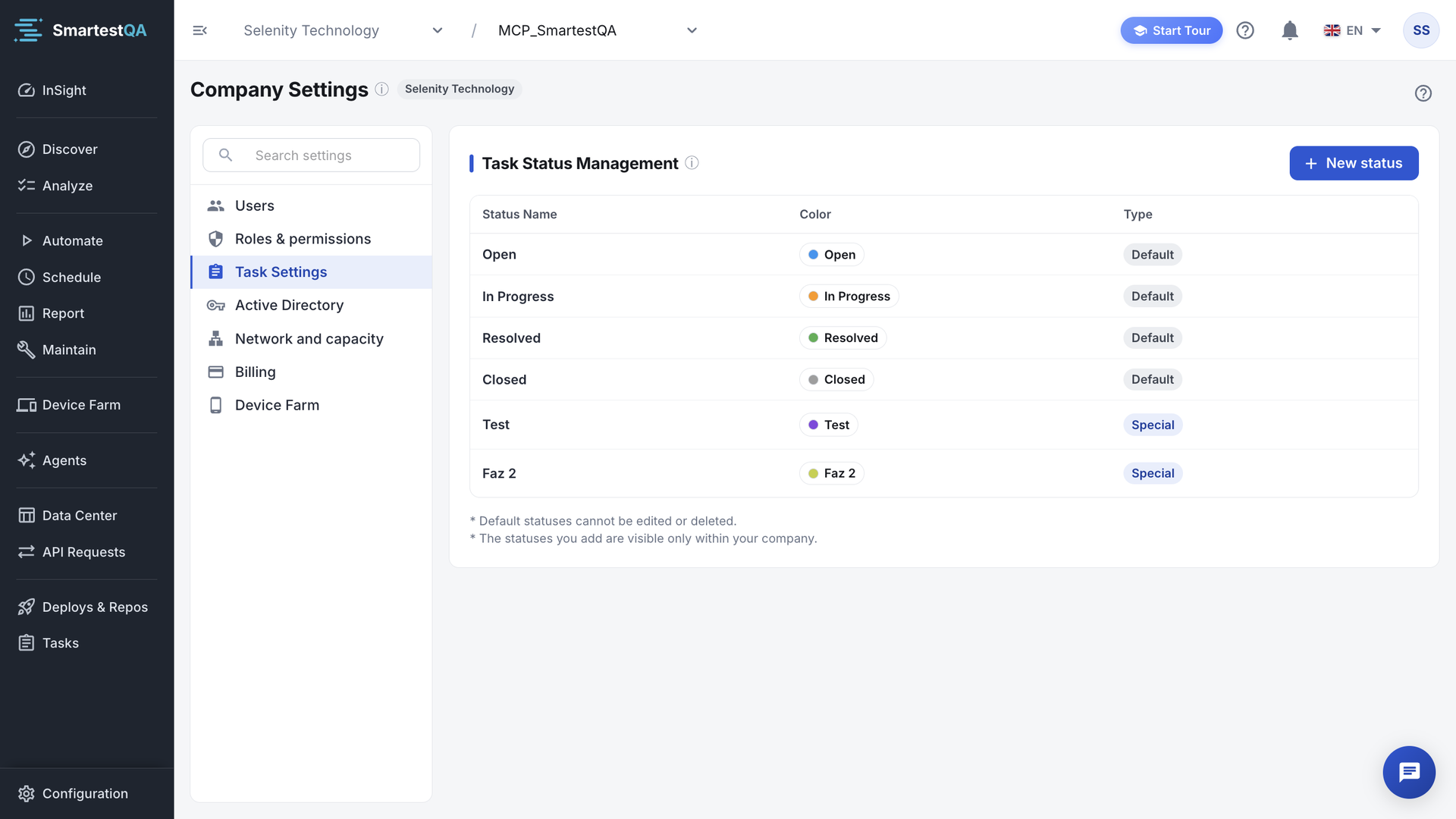
Default and special statuses#
| Type | Statuses | Can you change them? |
|---|---|---|
| Default | Open, In Progress, Resolved, Closed — always in this order, at the top. | No: “* Default statuses cannot be edited or deleted.” |
| Special | The statuses your company added, below the defaults in board order (a new status goes to the end). | Yes: rename, recolour, delete. “* The statuses you add are visible only within your company.” |
On the board each status is a column, in every project of the company: see Tasks › Statuses & Task Settings.
Add a status#
Click New status
The dialog asks for a Status Name and a colour (“Select a color”).
Name and colour
Type the name. Pick a colour with the picker or type it as
#RRGGBB, for example#1976d2. A preview chip shows the result.Add
Click Add.
“Status added successfully”. The new status is available for every task in the company.
Names are unique in the company, ignoring case: “A status with this name already exists”.
Edit a status#
Click the edit icon of a special status. Change the name or the colour in the row, then press Enter or click the save icon; Esc cancels. Success: “Status updated successfully”.
Rename before the status is used
A task stores the name of its status. Renaming a status does not rename it in tasks that already have it: they keep the old name. Rename a status while no task uses it, or set those tasks again afterwards. See what a rename does to the board.
Delete a status#
Click delete
SmartestQA counts the tasks with this status. The dialog asks “Are you sure you want to delete this status? This action cannot be undone.” and, if tasks use it, warns how many.
Move its tasks first
A status that tasks still use cannot be deleted: “'name' status is used in n task(s). Please change the status of these tasks first.” Set those tasks to another status in Tasks.
Confirm
“Status deleted successfully”.
Example workflow#
| Status | Type | Meaning in this team |
|---|---|---|
| Open | Default | New defect from a failed run. |
| In Progress | Default | A developer is fixing it. |
| Waiting for customer | Special | Needs test data or a decision from the customer. |
| Resolved | Default | Fixed, waiting for the next pipeline run. |
| Closed | Default | Retested and passed. |
More column layouts: Suggested workflows.
If something goes wrong#
Didn’t find your answer?Write to support with your project name and what you see on screen.
info@smartestqa.ai