- Docs
- Administration
- Integrations
Integrations
Integrations connect a SmartestQA project to the tools your team already uses: issue trackers, test management, chat, CI/CD, monitoring and a test mailbox. Each one is set up per project by an admin.
In short
On this page you can
- Link tasks to Jira issues or Azure DevOps work items, both ways.
- Sync test cases and results with Xray and Zephyr Scale; publish reports to Confluence.
- Send run results and task alerts to Slack, Teams, WhatsApp or any webhook.
- Start pipelines from GitHub Actions, GitLab CI, Jenkins or Azure Pipelines and fail the build on failures.
- Show Datadog or Dynatrace server metrics in load test reports; give test steps a mailbox.
How to use it
- Select the project in the top bar: every integration belongs to one project.
- Open Integrations under Configuration and click the card you need.
- Click Setup, enter the address and token, then Test Connection.
- Save and check that the page shows Active and Last test: OK.
- Run a pipeline and confirm the result arrives in the other system.
At a glance
- Where
- Main menu › ConfigurationIntegrations. Each card opens its own page, for example
/integrations/jira. - Who
- Company Admins. Users do not see the menu item. See roles.
- Scope
- One project. Select the project first; the same Jira site can be connected to several projects, each with its own settings.
- You need
- An account on the other system that may create an API token, webhook or app, and the address of that system.
- Secrets
- Tokens, passwords and webhook addresses are stored encrypted and never shown again. Leave the field empty to keep the saved value.
- Status
- Catalogue: Active or Ready. Integration page: Not configured, Disabled or Active, plus a separate Last test line. See how statuses are decided.
- When things are sent
- Chat, webhook, APM, Zephyr and Azure DevOps Test Plans react to pipeline runs. Jira reacts when a task is created or changed. Timed syncs run in the background for Jira and Azure DevOps. Everything else runs when you click its button.
Start from your question#
I want to…
Something is wrong
Where integrations fit#
Integrations are not a step of their own. They carry what SmartestQA does in Schedule and Report to other tools, and bring requirements and test cases in for Analyze and Automate.
- 1DiscoverPages, controls, rules
- 2AnalyzeZephyr brings requirements; Confluence only through an AI assistant
- 3AutomateXray and Zephyr bring test cases
- 4ScheduleCI/CD starts pipelines; chat and webhooks announce them
- 5ReportResults go to Xray, Zephyr, Test Plans, Confluence, APM
- 6MaintenanceTasks go to Jira or Azure DevOps
The catalogue#
The Integrations page lists 17 cards. Several cards open the same page: GitHub Actions, GitLab CI and Jenkins open the CI/CD page on their tab, and Datadog and Dynatrace open the APM page.
| Card | Category filter | What it does | Direction | Read |
|---|---|---|---|---|
| Jira | Defect | Tasks become Jira issues; status, priority, assignee and comments come back. | Both ways | Jira |
| Azure DevOps | Defect | Tasks become work items; state and assignee come back; pipeline results go to Test Plans. | Both ways | Azure DevOps |
| Xray | Test | Test cases go to Xray Cloud as Tests, and Xray Tests come in as test cases. | Both ways | Xray |
| Zephyr Scale | Test | Zephyr test cases and linked Jira issues come in; new test cases go out; run results go to a test cycle. | Both ways | Zephyr Scale |
| BrowserStack | Test | Opens Project PanelMobile Config, where BrowserStack devices are set up. | — | Mobile and desktop apps |
| Confluence | Doc. | Publishes run reports and test case documentation as Confluence pages. | Out | Confluence |
| Slack | Notification | Posts pipeline, task and daily summary messages to a channel. | Out | Slack |
| Microsoft Teams | Notification | The same messages, to a Teams channel through a Workflows webhook. | Out | Teams |
| WhatsApp Business | Notification | Failures and the daily summary to up to 20 phones, with approved templates. | Out | |
| Email (IMAP/SMTP) | Notification | A test mailbox that mail steps read (one-time codes, links) and send from. | Both ways | |
| Generic Webhook | CI/CD | Signed JSON events to any HTTP endpoint. | Out | Webhooks |
| GitHub Actions, GitLab CI, Jenkins | CI/CD | A ready-made CI step starts a pipeline, waits, writes a JUnit report and sets the exit code. | In and back | CI/CD |
| Datadog, Dynatrace | Monitoring | Server metrics in load test reports; run start and end events in your APM. | Both ways | APM |
| Active Directory (LDAP) | Identity | Opens Company SettingsActive Directory. It is set for the whole company, not per project. | — | Company & users (in Administration) |
The building blocks#
- Integration
- The saved settings for one outside system in one project: address, credentials, switches and mappings.
- Connection test
- A read-only call to the other system with the credentials you entered, for example Jira’s “who am I”. Chat integrations send a real test message instead.
- Integration Active
- The on/off switch on the integration page. Off keeps the settings but stops all sending and syncing.
- Mapping
- The link between a SmartestQA item and its copy in the other system, for example task 412 ↔
PAY-88. Mappings stop duplicates on the next sync. - Sync
- One pass that sends or reads items. Manual syncs run when you click a button; timed syncs run in the background.
- Event
- Something that happened in SmartestQA and can be announced: pipeline started, completed or failed; task created; deploy received.
- Daily summary
- One message per day with yesterday’s runs and today’s open tasks, at the hour you pick.
- Signing secret
- A random value shared with a webhook receiver so it can check that a request really came from SmartestQA.
- Agent API key
- The key of a test agent (host). CI jobs use it to start pipelines with that user’s project access.
The screens#
The catalogue#
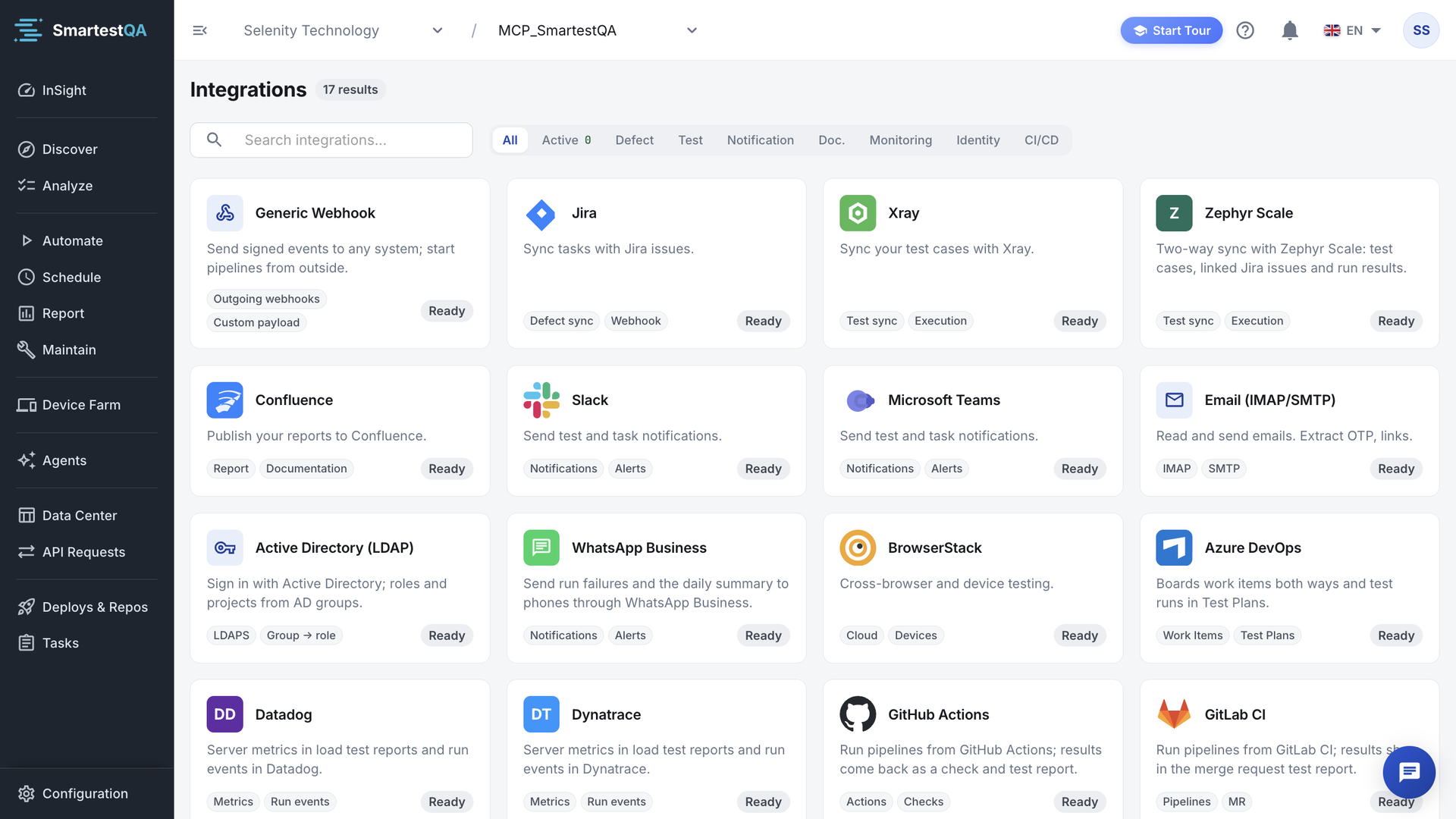
- Result count: “n results”, the cards that match the search and filter.
- Search (Search integrations...): matches the card name and description.
- Category filter: All, Active (with the number of active integrations), Defect, Test, Notification, Doc., Monitoring, Identity, CI/CD.
- Card: logo, name, description, two feature tags and a status chip. Active cards are listed first.
- “Couldn't load integration status.” with Retry when the status call fails; the cards then all show Ready.
An integration page#
Every integration page has the same frame, so you find the same controls in the same place.
- ← Integrations: back to the catalogue.
- Status chip: Not configured, Disabled or Active.
- Last test: OK, Failed, Testing… or Not tested, with the time. A failed test shows its message in the connection panel.
- Refresh: reloads the data without losing unsaved edits.
- Remove (Xray, Zephyr, Confluence, Azure DevOps): deletes the settings after a confirmation.
- Test Connection or Send Test Message: appears once the integration is saved.
- Setup before the first save, Settings afterwards: opens the settings dialog.
- Unsaved changes bar: appears at the bottom when you edit on the page, with Discard and Save.
Jira, Xray, Zephyr Scale and Azure DevOps test the saved connection automatically when their page opens and the integration is on. Slack, Teams and WhatsApp do not, because their test posts a real message.
Video transcript
Integrations lists everything SmartestQA can connect to. The category row narrows it: defect trackers, test management, notifications, documentation, monitoring, identity and CI/CD. Active shows what is already connected. Nothing is connected in this project yet, so the list is empty. Jira syncs tasks with issues. Xray and Zephyr Scale sync test cases and run results. Slack sends test and task notifications. Confluence publishes reports. Generic Webhook sends signed events to any system, and starts pipelines from outside. A card marked Ready can be set up: open it and follow its steps.
Before you start#
| Integration | On the other system you need | Details |
|---|---|---|
| Jira | Cloud: an Atlassian email and API token. Server/Data Center: a personal access token. A project you may create issues in. | Jira |
| Azure DevOps | A personal access token with Work Items, Test Management and Project and Team scopes. | Azure DevOps |
| Xray | Xray Cloud API key (Client ID and Client Secret) and the Jira project key. | Xray |
| Zephyr Scale | Cloud: a Zephyr API access token. Data Center: a Jira personal access token. | Zephyr Scale |
| Confluence | Confluence Cloud, an Atlassian email and API token, a space key and parent page IDs. | Confluence |
| Slack, Teams | An incoming webhook (Slack app) or a Workflows webhook (Teams) for the channel. | Slack, Teams |
| A WhatsApp Business number, a permanent system-user token and approved templates. | ||
| Webhook | An HTTPS (or internal HTTP) endpoint that accepts JSON POSTs. | Webhooks |
| CI/CD | A pipeline in SmartestQA, an agent API key, and a CI that can reach the SmartestQA API. | CI/CD |
| Datadog, Dynatrace | Datadog: API key and Application key. Dynatrace: a token with metrics.read and events.ingest. | APM |
| A dedicated test mailbox with IMAP on, and an app password. |
How credentials are handled#
- Tokens go into the integration form, nowhere else. Never put a token or password into a test step, a note or a test case. Steps reach the mailbox through the Email integration, not with a password in the step.
- Stored encrypted. API tokens, client secrets, personal access tokens, app passwords, webhook addresses, signing secrets and custom header values are encrypted at rest.
- Never shown again. After saving, a token field shows dots or “Saved”. Leave it empty to keep the saved value; type a new one to replace it.
- Changing the address needs the token again. Zephyr Scale, Azure DevOps, WhatsApp, APM and webhook custom headers refuse to send a saved secret to a new server. Re-enter it when you change the address.
- Use service accounts. Create tokens for a technical user with access to the one project you connect. Then a person leaving the company does not break the integration.
What leaves SmartestQA
Issue trackers receive task names, descriptions, comments and attachments. Chat and WhatsApp messages carry pipeline names, counts and error text, never test data values. Webhooks carry the JSON described in the payload. Check that the receiving system is allowed to hold that data.
Without an integration#
| You want | Without an integration | With an integration |
|---|---|---|
| Results in your team chat | Someone opens Report and pastes a link | Slack, Teams or WhatsApp post them as runs end |
| Bugs in Jira | Copy each task by hand | Tasks become issues and their status comes back |
| Tests in a release pipeline | Start the pipeline by hand and check later | The CI step starts it, waits and fails the build |
| Any other system | Poll the SmartestQA API | A signed webhook arrives on each event |
An AI assistant connected through MCP can also read and drive the Jira, Xray, Confluence and mailbox integrations. See MCP.
In this section#
Connect tasks to Jira issues or Azure DevOps work items, map statuses and priorities, and publish runs to Test Plans.
IntegrationsXray & Zephyr ScaleSync test cases with Xray Cloud or Zephyr Scale, bring Jira requirements in, and write pipeline results back.
IntegrationsConfluencePublish run reports and test case documentation to Confluence Cloud pages under parent pages you choose.
IntegrationsSlack, Teams & WhatsAppPost pipeline results, task alerts and a daily summary to a Slack or Teams channel or to WhatsApp phones.
IntegrationsEmail (IMAP/SMTP)Connect a test mailbox so mail steps can wait for emails, read one-time codes and links, and send mail during a test.
IntegrationsWebhooksSend signed JSON events for pipelines, tasks and deploys to any HTTP endpoint, and verify them on the receiving side.
IntegrationsCI/CDStart a SmartestQA pipeline from your CI, wait for it, get a JUnit report and fail the build when tests fail.
IntegrationsDatadog & Dynatrace (APM)Show your servers’ CPU, memory and response times next to load test results, and mark test runs in your APM dashboards.
IntegrationsHow the numbers workEvery status chip, counter and figure on the integration pages and in their messages, with its formula and a worked example.
IntegrationsTroubleshootingEvery integration message and symptom, with why it happens, what to check and how to fix it.
IntegrationsFAQ, MCP & limitsQuestions and answers about integrations, what AI assistants can do through MCP, and every limit.
Related#
Didn’t find your answer?Write to support with your project name and what you see on screen.
info@smartestqa.ai