Run, stop and follow a pipeline
Starting a pipeline is one click; knowing what happens next is the useful part. This page covers the checks before a run starts, what you see while it runs, how to stop it, and where its results go.
In short
On this page you can
- Start a saved pipeline with Run in the list, or save and start with Save & Execute.
- Stop a running pipeline with Stop run; Teardown cases still run.
- See every past run with its result and status in Execution History.
- Open the reports with View Reports or See Reports.
- Start the pipeline from a terminal or CI/CD with one HTTP call.
How to use it
- Hover the pipeline in the list and click Run.
- Wait for Report to open on the new run; read cases and steps there.
- To stop it, click Stop run in Last Run Date and confirm.
- Later, open the pipeline and click the History icon to compare runs.
- For CI/CD, copy the command under Execute Pipeline via CLI.
Run a pipeline now#
| Run (Pipelines list) | Save & Execute (pipeline page) | |
|---|---|---|
| Where | Hover the row, or focus it with the keyboard | Bottom right of the run list |
| Runs | The pipeline as last saved | Saves what is on screen, then runs it |
| Disabled when | The pipeline has no test case, requirement or pipeline: “Please add at least one test case or requirement before executing” | The same, or a required field is missing (hover for “Required: …”) |
Both ignore the Period: they start one run now. A scheduled pipeline keeps its schedule.
Checks before the run starts#
The run does not start, and you see a warning, when:
- A required field is empty: “Name is required”, and for web “Start Page Url is required”, “Environment is required”.
- Before or After rows have no Test row to wrap: “Before/After cases cannot run on their own…” (why).
- Run on Your Agent and a ticked agent is offline: “The following agent(s) are currently offline: names. Please ensure your agents are running before executing the pipeline.”
- A desktop pipeline is not set to an agent (Windows or macOS): “Desktop tests run only on an agent (Windows or macOS)…”.
- Your licence has ended or a limit is reached (licence).
What you see after you start it#
A message
“name execution started successfully”, or, when the run waits for a SmartestQA server, “name Queued · next in line for your company · pool 8/8” (Server queue).
Report opens
SmartestQA switches to Report. As soon as the run has written its first record, the run’s report opens by itself; until then Report shows that the report is being prepared, or the queue band.
The list shows Running
Back in Schedule, the pipeline’s Last Run Date shows Running and Stop run. When the run ends, the list refreshes by itself and shows the status icon and date.
The run is in Report with every case, step, screenshot, video and log, and in the pipeline’s History.
In what order cases run#
One after another, in run-list order, grouped Setup → (Before → Test → After) → Teardown (Phases). A failed case is retried up to Retry Count times; with Continue On Failure off, the first failure skips the remaining tests (Test Management). A run on several agents runs the whole list once on each agent.
Stop a run#
Click Stop run
In the Pipelines list, the running pipeline shows Running in Last Run Date. Click Stop run next to it.
Confirm
“Stop this run?” — “The case that is running now will finish, then no new case starts and the rest are marked as skipped. Teardown cases still run.” With several runs of the same pipeline going: “Stop this pipeline's runs?”.
“Stop requested. The current case will finish, then the run stops.” The cell shows Stopping… (or “1/2 stopping”) until it ends.
- Who: anyone with access to the project.
- Not instant: the case that is running finishes first. A load test step is the exception: it is stopped right away.
- Waiting runs too: stopping also removes this pipeline’s runs that still wait for a server.
- In the report each case that never ran gets a failed record: “The run was stopped by the user, so this case was not run.” A stopped run with cases that never ran counts as Failed (Last run status).
- “No running run was found to stop; it may have already finished.” means you were too late.
- Dry runs from Automate cannot be stopped this way.
Execution History#
On the pipeline page, click the History icon left of View Reports. Execution History lists every run of this pipeline, newest first.
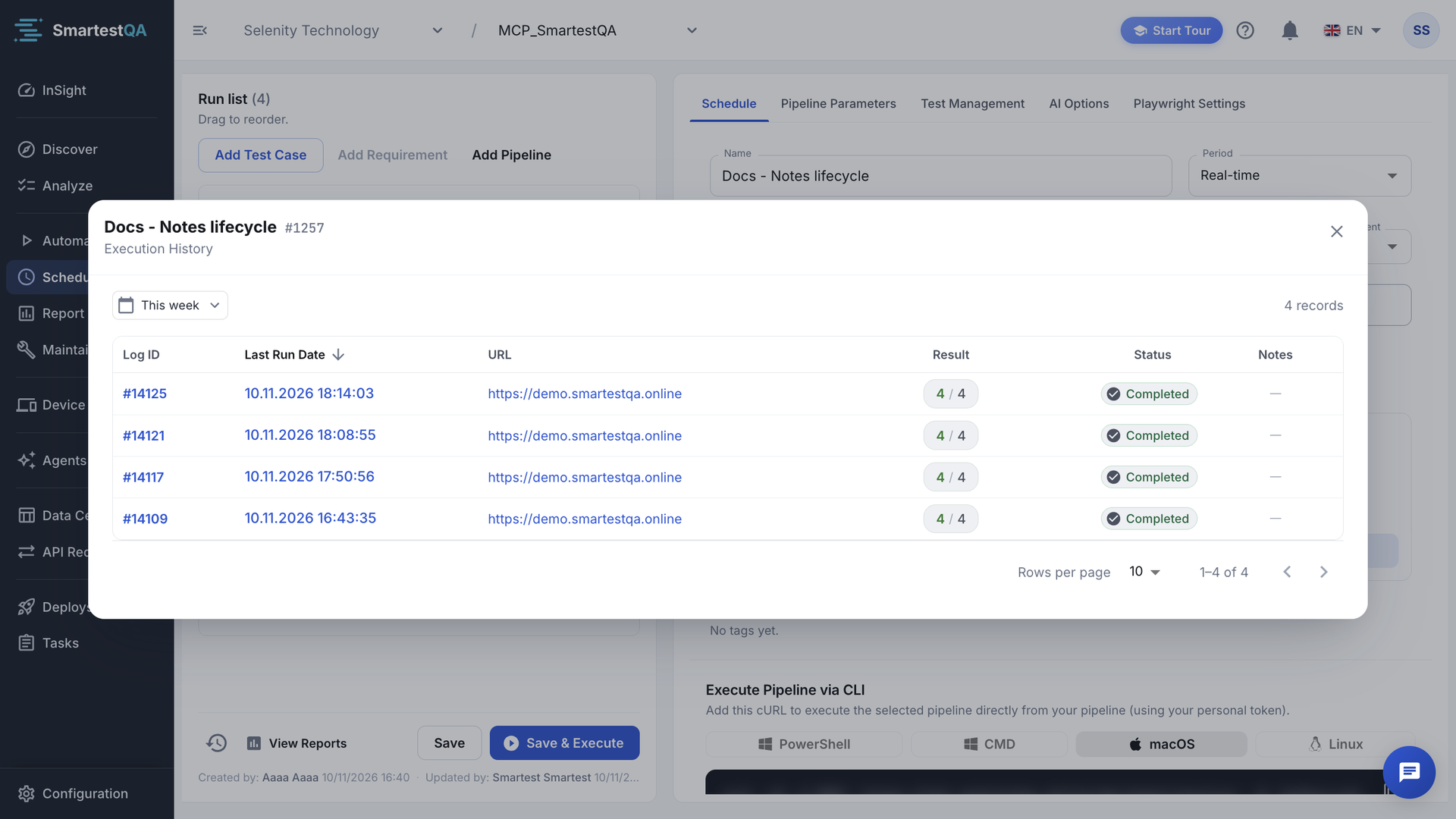
| Column | Shows |
|---|---|
| # | The run’s record ID |
| Last Run Date | When the run started |
| Actual URL | The address the run opened (web). Click to open it. |
| Result | Passed case runs / planned case runs, coloured by share (formula) |
| Status | Completed, Failed, Running, Pending, New or Disconnected |
| Notes | AI notes on failed steps |
- The date filter offers All, Today, Yesterday, This week, Last Week, This month (the default), Last Month, This Year, Last Year and Custom Range.
- Click a row to open that run in Report.
- “No report records found for this pipeline” means it has not run in the selected period.
View Reports and See Reports#
View Reports on the pipeline page (shown after the first run) and the date in the list’s Last Run Date (See Reports) open Report filtered by the pipeline’s name. Reading a report is described in Report.
Statuses you see#
| Status | Means |
|---|---|
| Success (Completed) | Every case of the last run passed. Steps with only warnings count as passed. |
| Failed | At least one case failed or had an error, or the run was stopped before every case ran. |
| Running | The run has not finished. |
| Disconnected | The machine running it stopped reporting: an agent went offline, a server was lost, or a case hung. |
The exact rules: Last run status. Filter the list by status with Filter By Tags.
Run from a terminal or CI/CD#
The Schedule tab ends with Execute Pipeline via CLI: “Add this cURL to execute the selected pipeline directly from your pipeline (using your personal token).”
Pick your shell
Tabs PowerShell, CMD, macOS and Linux. Each is one line, safe to paste.
Copy the command
It already contains the address, the pipeline ID and your agent host’s API key. With no agent host it shows
YOUR_API_KEY; get a key with Copy API Key in Device Farm › Test Agents.Run it
From a terminal or a CI/CD step.
The run starts like a click on Run, with source “CI/CD API”, and the answer contains the run ID.
curl -sS -X POST 'https://<your SmartestQA API>/api/pipelines/run' -H 'Authorization: Bearer <API key>' -H 'Content-Type: application/json' --data '{"pipelineId": 42}'- Wait for the result in CI:
GET /api/ci/runs/<run ID>returns the state (QUEUED, RUNNING, STOPPING, PASSED, FAILED, DISCONNECTED, UNKNOWN) and an exit code: 0 passed, 1 failed or disconnected, −1 not finished./juniton the same address returns JUnit XML for the CI’s test tab. Ready-made scripts are served at/install/smartest-ci.shand/install/smartest-ci.ps1. - Who: the key belongs to a person. Admins can start any pipeline of the company; others only pipelines of projects they can open.
- Treat the key like a password. Store it as a secret variable in your CI, not in the repository.
- The call sends only the pipeline ID; the pipeline’s saved values are used. To pass data from outside, use a webhook trigger.
- Ready-made GitHub Actions, GitLab CI, Jenkins and Azure Pipelines integrations are described in Integrations › CI/CD.
Video transcript
Find the pipeline, hover its row and click Run. Run queues the pipeline and opens its report as soon as it starts. Back in Schedule, Last Run Date shows Running, with Stop run beside it. Stop run asks first: the running case finishes, the rest are skipped, and Teardown still runs. The cell shows Stopping until the run ends. Open the pipeline and click History for every past run, with result and status.
If something goes wrong#
Didn’t find your answer?Write to support with your project name and what you see on screen.
info@smartestqa.ai