- Docs
- Build tests
- Discover
Discover
Discover is where SmartestQA learns your application: its pages, the controls on each page, how the pages connect, and the business rules nobody can see on screen. Analysis, AI test generation and every recorded step read from here.
In short
On this page you can
- Learn what Discover captures: actions, App Map pages and Notes.
- Pick the right tab: Setup Roadmap, App Map, Notes or Action List.
- Check what you need first for a WEB, MOBILE or DESKTOP project.
- Choose a capture method, from Discover Your App to an MCP assistant.
- Follow the best practices that keep pages, locators and rules useful to the AI.
How to use it
- Capture pages with Discover Your App (web), Record Actions (mobile) or Desktop Recorder.
- Review the actions in Action List and fix names and locators.
- Click Update map, then write a Purpose for at least 60% of pages.
- Group pages into modules and add your business rules in Notes.
- Check the Setup Roadmap, then move on to Analyze.
At a glance
- Where
- Main menu › Discover, the first item. Tabs: Setup Roadmap, App Map, Notes, Action List.
- Who
- Everyone in the project. Deleting an action needs Admin or the action’s creator.
- You need
- Web: the browser extension and a start page URL. Mobile and desktop: a running agent.
- Time
- Scanning a page takes seconds; reviewing its actions takes a minute or two.
- Produces
- Actions (one per control, with locators and a screenshot), App Map pages and Notes.
- Used by
- Analyze, AI test generation, Automate steps, the Setup Roadmap and AI assistants through MCP.
- Project types
- WEB: Discover Your App and Record Actions. MOBILE: Record Actions (Appium inspector). DESKTOP: Desktop Recorder. Manual New Action works everywhere.
Start from your question#
I want to…
Something is wrong
Where Discover fits#
The main menu is the order of work. Discover comes first because everything after it builds on what it knows.
- 1DiscoverPages, controls, rules
- 2AnalyzeRequirements from the map
- 3AutomateTest cases from actions
- 4SchedulePipelines
- 5ReportResults
- 6MaintenanceHeal and review
Why spend time here#
- AI writes tests about your app, not a generic one. When AI analyses requirements or generates tests, it receives each page’s purpose, preconditions, expected outcomes, risk, roles, what can be done there, where it leads, and your notes. Without them it falls back to a text search over all actions and the tests come out generic.
- One control, many tests. A test step points at an action by its ID. Fix a locator once and every test that uses the action is fixed.
- Several ways to find each control. Recorded actions keep up to three locators with a confidence score each, so a run can fall back when one stops matching.
- You can see what is untested. The App Map’s Tested column shows, per page, how much of what users can do there is covered by a test.
- Your rules are applied everywhere. A note such as “Orders over €10,000 need a second approver” reaches every AI generation for the pages it applies to.
If you skip Discover
Recording in Automate still creates actions, so tests work. What you lose is context: the Setup Roadmap stays on Describe the app, the App Map has no purposes or coverage, and AI-generated requirements and tests know only the names of controls.
The building blocks#
- Action
- One control on one page, for example
Click Sign Inon pagelogin. It has a type (Click, Type, Get…), one or more locators, an optional Navigates To page and a screenshot. - Page
- A name that groups actions, such as
checkout. Pages are created by naming them; there is no separate “create page” step. - Locator
- How the test finds the control:
id,name,css,xpath,accessibility_id,resource-id,class,linktextortagname. - Navigates To
- The page an action leads to.
Click Sign In→dashboard. These links draw the App Map. - App Map page
- The description of a page: purpose, preconditions, expected outcomes, risk, roles, screenshots, tasks and transitions.
- Module
- A group of pages that belong to one business area, for example Orders. Analyze creates one requirement folder per module.
- Note
- One fact about the app that no scan can find, such as a role rule or a data precondition. Notes are sent to the AI.
- Start page URL
- Where recording begins, with a URL per environment (DEV, TEST, PRP).
The screen#
Discover has four tabs. It opens on the tab in the address (?tab=roadmap, map, notes or actions), otherwise the last tab you used, otherwise Setup Roadmap. Once setup is complete it opens on Action List.
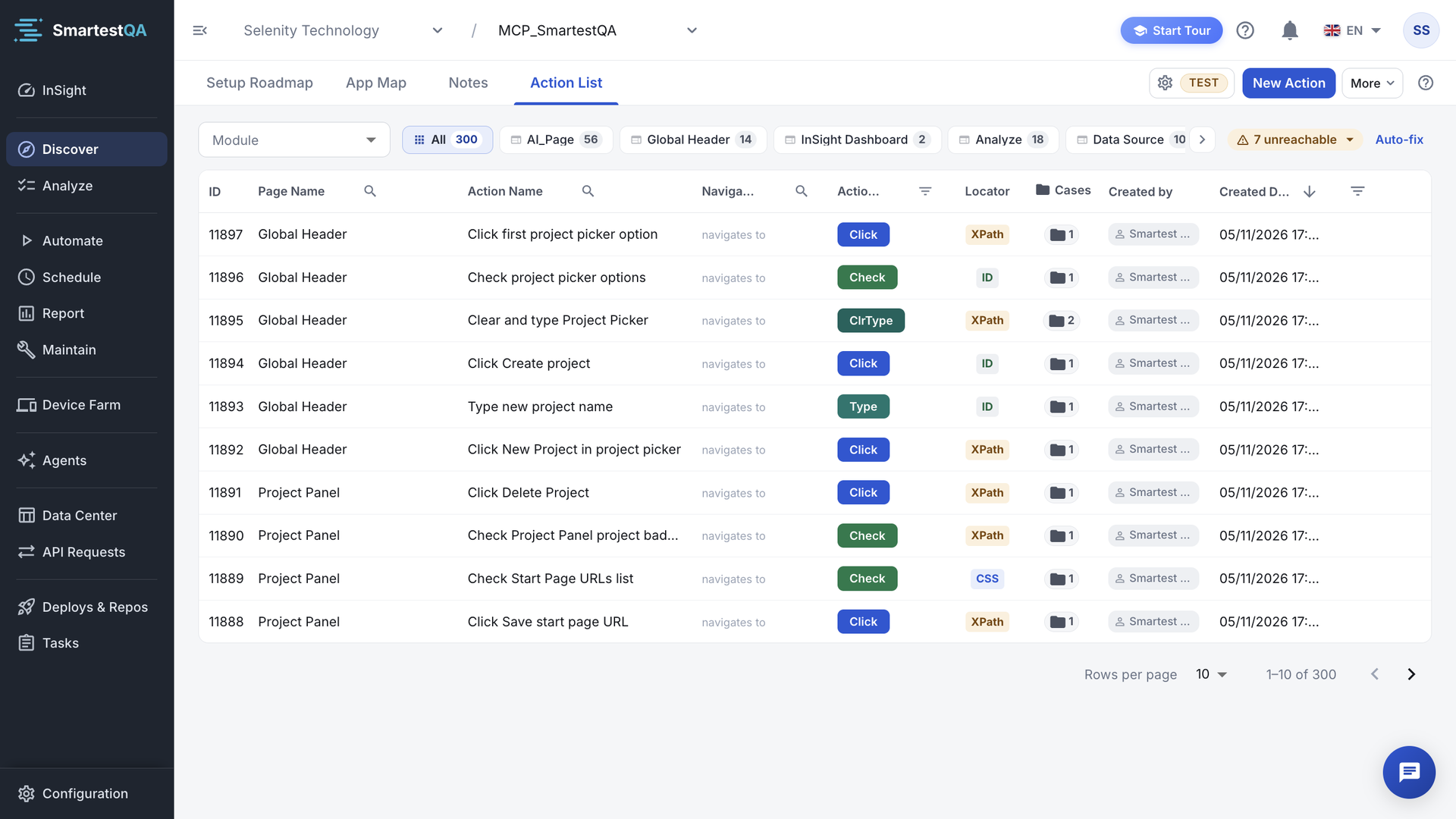
- Tabs: Setup Roadmap, App Map, Notes, Action List.
- Recording settings (web): environment and start page used by Discover Your App. A warning icon means no start page is selected.
- New Action: create an action by hand.
- More (web): Record Actions and Discover Your App.
- Module filter: All, Unassigned, or one module. Narrows the page pills.
- Page pills: one per page, with its number of actions.
- Unreachable: pages no action leads to. Click to see them.
- Auto-fix: fills missing Navigates To from passing test runs.
- Last-run status of the action: passed, failed, never run.
- Locator chip: the main locator’s type, the number of fallbacks, and colour by type.
- Cases: how many test cases use this action. Click to list them.
| Tab | What it is for | Go there when |
|---|---|---|
| Setup Roadmap | Eight-step progress of the whole project, with the next thing to do. Web projects get the Discover Your App button here. | You start a project or don’t know what to do next. |
| App Map | Every page as a record: what it is for, its screenshots, where it leads, how well it is tested, which module it belongs to. | You describe pages, build modules, check coverage. |
| Notes | Rules and facts for the AI, one per note. | You know something about the app that a scan cannot see. |
| Action List | All actions in a searchable table. | You edit, fix or clean up controls and locators. |
Before you start#
| Project type | You need | Check it |
|---|---|---|
| WEB | The SmartestQA extension in Chrome or Edge; a start page URL with an address for the environment you will use; a test user. | Open the recording settings: the environment and start page are filled and there is no warning icon. |
| MOBILE | The agent running on this computer; Appium Server on http://localhost:4723 with a device or emulator, or a SmartTest Device Farm device with your app installed. | The host is green in Device Farm › Test Agents. |
| DESKTOP | The agent running and online on the Windows or macOS computer with the app. | The host is green in Device Farm › Test Agents. |
New to these? Quick Start, step 4 sets them up.
Ways to capture your app#
| Method | Best when | You get |
|---|---|---|
| Discover Your App | Mapping many web pages fast | All interactive controls per page, locators, screenshots, an App Map record |
| Record Actions (More menu) | A page has many controls and you need a few | Only the controls you use, in flow order |
| Record in Automate | You want the test and its actions in one go | A test case plus the actions its steps use |
| New Action | You know the locator; the control is hard to reach | One precise action |
| Appium inspector / Desktop Recorder | Mobile and desktop apps | Actions with platform locators and screenshots |
| AI assistant through MCP | Developers working from source code | The assistant reads the map and writes actions and page descriptions |
Outside SmartestQA, teams keep page objects in code or locator spreadsheets. Those work, but they are not shared with the AI, they have no usage counts, and every locator change is a code change.
Best practices#
Do
- Start with the pages of your three most important user flows.
- Name pages before the first save, the way the business talks.
- Write a Purpose for at least 60% of pages.
- Put critical business rules in Notes, one rule per note.
- Add an
idornamelocator where the app has one. - Run Update map after big recording sessions and after renames.
- Record on TEST with a test user.
Don’t
- Save every control of every page “just in case”. Untick noise in review.
- Keep two pages for the same screen under different names.
- Rename pages casually once tests and notes use them.
- Use Delete Anyway on widely used actions.
- Write purposes that only repeat the page name.
- Record with production data: screenshots are stored with every action.
In this section#
Scan a web app page by page: settings, the review window, page names and what each scan creates.
DiscoverMobile & desktopCapture Android, iOS and desktop apps with the Appium inspector and the Desktop Recorder.
DiscoverActionsCreate and edit actions, find them in the Action List, and rename, copy or delete them safely.
DiscoverApp MapBuild the map with Update map, describe each page, and group pages into modules.
DiscoverNotesWrite the rules and facts the AI cannot see, and control which notes reach it.
DiscoverHow the numbers workFormulas and worked examples for the locator chip, Cases, the roadmap percentage and App Map coverage.
DiscoverTroubleshootingEvery Discover message and symptom, with why it happens, what to check and how to fix it.
DiscoverFAQ, MCP & limitsQuestions and answers, AI assistant use and the module’s limits.
Related#
- Connect your app: extension, start page URL and agent before you capture.
- Analyze: turn modules and pages into requirements.
- Record and add steps: build test cases from your actions.
- Auto-heal reviews: locator repairs proposed after failed runs.
- MCP & AI assistants: let a code assistant map pages and write actions.
- Core concepts: app knowledge: how actions, pages and notes fit together.
Didn’t find your answer?Write to support with your project name and what you see on screen.
info@smartestqa.ai