Edit steps and save
The editor in the centre of Automate holds the steps of one test case; the right panel holds its details and the selected step’s values. This page covers changing steps, the Test Case Detail panel, and what happens when you save.
In short
On this page you can
- Reorder steps by dragging, and switch them off with Deactivate.
- Swap a step’s control with Replace Action.
- Fix a shared action’s locators with Action Detail.
- Set environment, start page, tags and requirement links in Test Case Detail.
- Save, and keep pipelines in sync when parameters change.
How to use it
- Click a step to open its values in Parameters List.
- Change values, order or active state of the steps you need.
- Click Save and fix any issue it lists.
- If asked, update the pipelines that use the test case.
- Run a Dry Run to check the change.
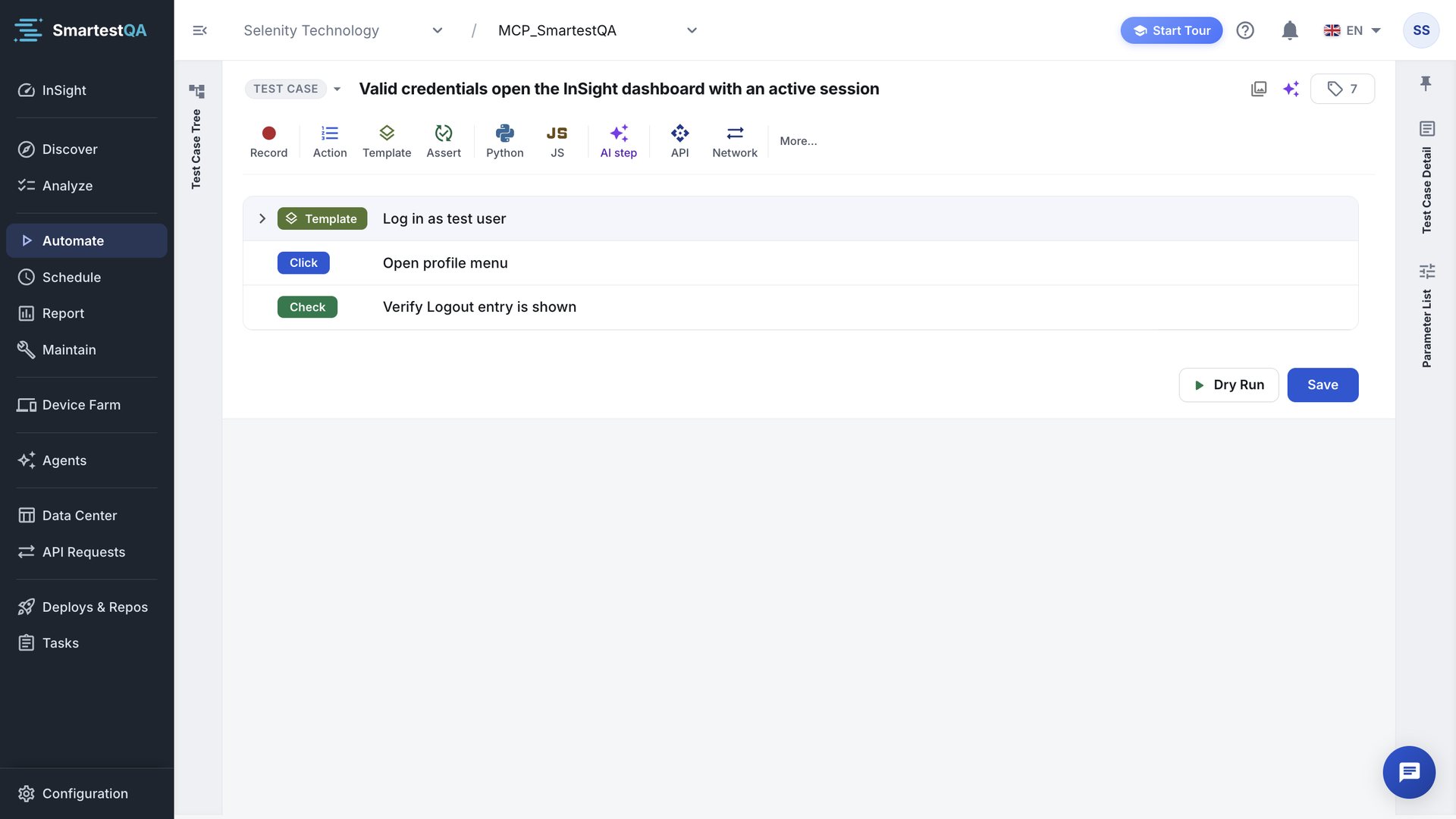
The editor#
| Area | What you find |
|---|---|
| Header | The kind chip (Test case or Template, see Test case or template); the name; Screenshots (only when a step has a screenshot); AI Assistant (see AI in Automate); Tags when the right panel is not pinned. |
| Step toolbar | Record and the step types. See The step toolbar. |
| Step list | One row per step: order number, type chip (Click, Type, Get, Verify, API…), step name and the step’s menu. A step you added but have not saved yet is marked “This step has not been saved yet”. An empty list says “No steps yet” and “Use the toolbar above to add steps”. |
| Bottom | Dry Run and Save. There is no autosave and no keyboard shortcut for Save. |
| Right panel | Test Case Detail and Parameters List (DB Requests when a database step is selected). It opens as a drawer; pin it to keep it open. The choice is remembered in your browser. |
Change steps#
Reorder#
Drag a step row up or down (“Drag to reorder”). The steps are renumbered 1 to n. Steps run in that order. The new order is kept when you click Save.
Switch a step off and on#
Open the step’s ⋮ menu and click Deactivate. The step stays in its place, greyed out, and is left out of every run: dry runs and pipelines. Activate brings it back. The change is kept when you click Save.
Use it to switch off a step while you investigate. A deactivated template step skips the whole template. Remove steps you no longer need instead of keeping them inactive for long: inactive steps confuse the next reader.
Remove#
⋮ › Remove removes the step from the list at once, without asking (“name step removed”). Nothing changes on the server until you click Save; to undo, leave without saving. When you save, steps that brought their own action (code, AI, API, database) are cleaned up with them. The action of an ordinary step stays in Discover for other tests.
Replace the action#
Click Replace Action (⇄) on a step to bind it to another action, for example when the button you click was redesigned. The step keeps its place, but its values are reset to empty: fill them in again before you save.
Edit the action behind a step#
Click Action Detail (⚡) on a step to see the action it uses, with its locators and screenshot. Edit Action opens the action form.
- Save in the action form writes the action at once (“Action update success”). It changes the action for every test case that uses it, without the test case’s own Save.
- Save as Copy is for changing the action of this test case only. It becomes available after you change the action. It “Removes the selected step, creates a copy at the same order with new action values, and adds it as a new test step.” It is not available for assertion, JMeter, k6, AI, API, database and global parameter steps: “Save as copy is not supported for Assertion, JMeter, API, and AI action types.”
Check the usage chip before you edit
When you select a step, the right panel shows “This action is used in n test cases”. Amber means more than one. Click it to see which. If the number is high, prefer Save as Copy for a change that only this test needs. See Usage chip.
Rename a step#
Select the step and change Test Step Name in the right panel (up to 255 characters). A step’s name is the name of its action, so when you click Save the action is renamed in Discover and in every test case that uses it. No warning is shown. Steps keep working: they point at the action by ID, not by name.
Step values (Parameters List)#
Select a step to see its values in Parameters List: the text to type, the option to select, the expected value, the variable a step produces. Click Add Param to add one more row (“Add new parameter to step”). The data picker icon next to a value (“Data Sources - Global Parameters - Datasets”) inserts a {{variable}} instead of a fixed value. How variables work: Variables and test data. The parameters of each step type: step reference.
Not available: duplicating a step (other than Save as Copy), grouping steps (use a template), and notes on single steps.
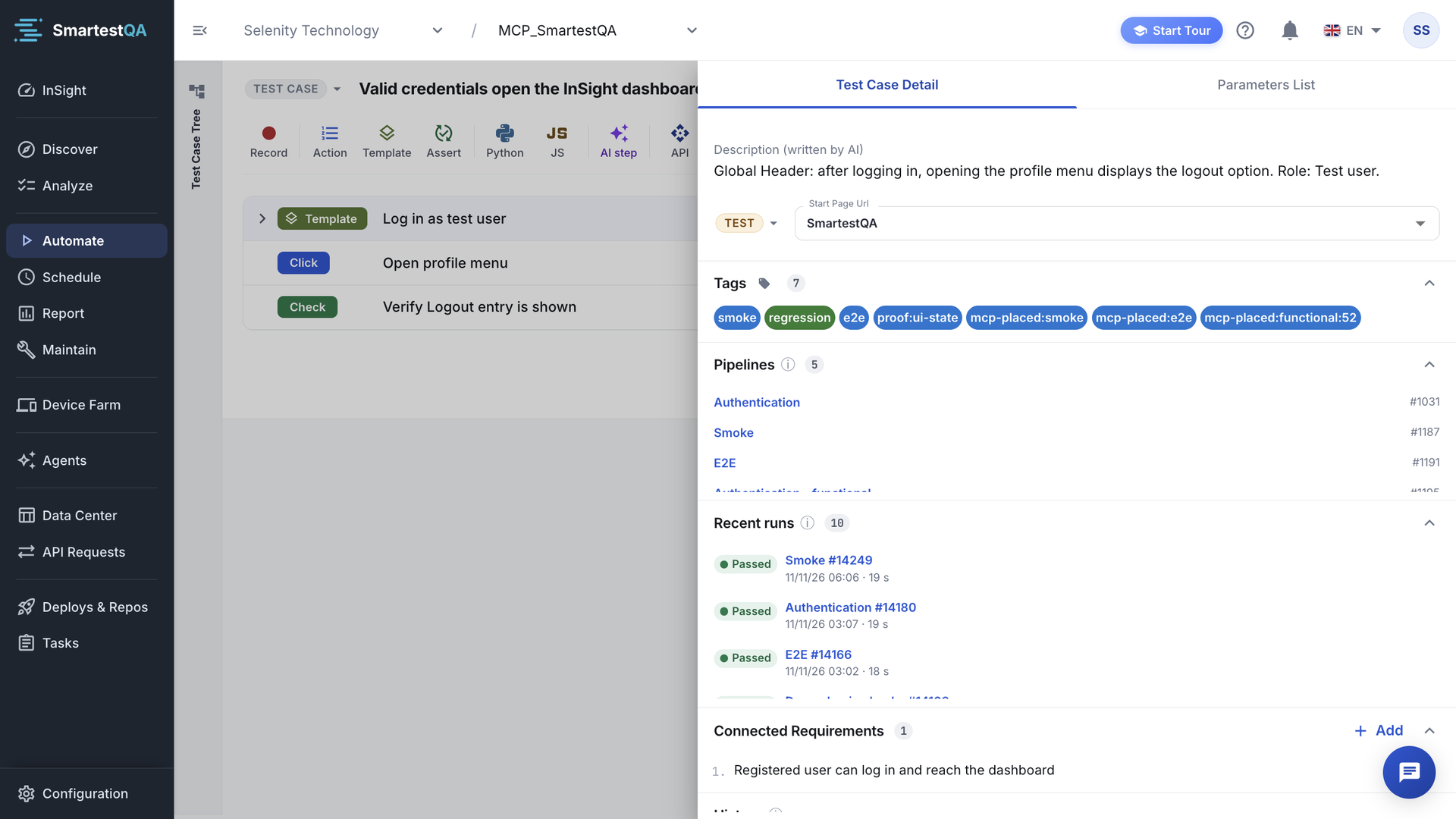
Test Case Detail#
| Field | What it is |
|---|---|
| Description (written by AI) | Read only. “AI writes what this test case verifies, from its steps.” Until the AI has written it, it copies the name you type. See AI descriptions. |
| Environment and start page (WEB) | The environment chip and the start page URL the test opens first. See below. |
| Target Application (DESKTOP) | The desktop application the test drives. Empty means the project’s default. MOBILE projects have no start page: the app comes from Mobile Config. |
| Tags | Labels you can filter the tree by (Filter By Tags). Saved at once; “No tags yet” when empty. |
| Pipelines | “Pipelines that run this test case. Click one to open it.” Empty: “Not in any pipeline yet.” |
| Recent runs | The last pipeline runs of this test case; click one to open its report. Dry runs are not listed. Empty: “Not run yet.” |
| Connected Requirements | The requirements from Analyze this test case covers. Add Requirement links one; the link is kept when you click Save. |
| History | “Changes to this test case: who, when and from where.” |
| Comments | Notes for your team. Saved at once. |
| Footer | #id, Created by and Updated by. |
Environment and start page (web)#
A start page URL is a named address with one value per environment: DEV, TEST and PRP. The test case stores both the start page and the environment; together they decide which address opens. Start page URLs are managed in Project Panel; see Add a start page URL.
- Click the environment chip to choose DEV, TEST or PRP. Environments with no address for this start page are disabled: “No URL defined for this environment”.
- When you pick another start page, the environment switches to one that has an address, preferring TEST, then DEV, then PRP.
- A start page you just picked is stored with the test case when you click Save: “This URL has not been saved yet. It will be saved when you click Save.”
- New test cases start on the environment you used last in this browser, otherwise TEST.
PRP is the production-side environment
A test case on PRP clicks, types and submits in that system. Keep PRP for read-only checks unless you mean it.
Save#
Click Save. It is disabled while the name is empty (“Enter a test case name at the top to enable Save”). Save checks, in this order:
| # | Check | Message |
|---|---|---|
| 1 | A web test case has a start page URL | “Please select a Start Page URL.” The URL dialog opens; Save runs again after you pick one. |
| 2 | Name, description, and for web start page and environment, are filled | “Please fill the following fields:” followed by the missing ones (Test Case Name, Description, Start Page Url, Environment) |
| 3 | Every step’s required values are valid | “Cannot save yet” and “n issue(s) found”, with up to five lines "Step" → field: message |
| 4 | A step timeout is between 1 and 300 seconds | "<step>" → Timeout: 1-300 sn |
| 5 | No step has the same parameter key twice | “Duplicate keys found in step:” with the step and keys |
| 6 | Names that create variables are unique in the test case | “Names that produce a global parameter must be unique within the test case. Conflicts:” with the names |
Then the server saves. Success shows “name updated successfully”. A key that clashes with an existing global parameter shows “This key is already registered as a global parameter, please change the key value.” Every other server-side refusal shows “Test case not be updated”; see what it can mean.
When parameters change: Test Case Parameters Changed#
Pipelines keep their own copy of each test case’s parameter values. If you add, remove or change parameters of a test case that is in one or more pipelines, Save opens Test Case Parameters Changed.
Select the pipelines
The dialog lists the pipelines that use the test case. “The selected schedulers are synced to this test case: new parameters are added and removed ones are deleted.”
Decide about values
Tick Update parameter values from the test case to overwrite the pipelines’ values with the test case’s. Leave it unticked to keep the pipelines’ values (“Your scheduler values are kept — only added or removed parameters are synced.”).
Update
Click Update.
“n scheduler(s) updated. Added: a, Deleted: d”.
Renaming a key alone does not open the dialog. If you skip the dialog, pipelines keep running with their old parameter list.
What is saved without Save#
| Change | Saved |
|---|---|
| Steps recorded with the web extension | At once, while recording |
| Edit Action in Action Detail, Save as Copy | At once, for every test case that uses the action |
| Name and page of a saved AI step | At once |
| Tags and comments | At once |
| Everything else: steps, order, active state, values, name, kind, environment, start page, requirement links | When you click Save |
Leaving with unsaved changes#
If you open another test case or leave Automate with unsaved changes, you are asked “Are you sure to exit without saving?” with Exit without saving, Cancel and Save and Exit. Refreshing or closing the tab shows the browser’s own warning. Dry Run stays disabled until you save (“Please save the test case before running”).
Two people editing the same test case#
Test cases are not locked. If two people edit the same test case, the last Save wins, and steps the other person added can disappear. Agree who edits which test case, and reopen a case before you change it if a colleague may have worked on it.
If something goes wrong#
Didn’t find your answer?Write to support with your project name and what you see on screen.
info@smartestqa.ai