Test Health
The Test Health tab answers “how much of the application do our tests really prove, and what should we do next?”. It counts a requirement as covered only when a scenario that checks a result passed on its last run.
In short
On this page you can
- See requirement, scenario, risk and action coverage against an 80% target.
- Get an automation maturity score and the pillar pulling it down most.
- Work through up to three ranked recommendations, each with a ready MCP prompt.
- Find where requirements get stuck: no scenario, no pipeline, never ran, nothing checked.
- Save the screen as a report and compare it later, or print it as PDF.
How to use it
- Open InSight › Test Health and read Automation maturity and the four pillars.
- Do the first item of Fix these first, or click Copy MCP prompt and give it to your assistant.
- Read the biggest loss in Coverage funnel and Scenario funnel.
- Fix Trust issues and Gaps, then click Refresh.
- Before a release, click Save report; reopen it under Reports.
Live numbers, saved reports and PDF#
The tools sit on the right of the tab row: the live chip, Refresh, Save report, Reports and PDF. Everything is calculated from your project when the tab opens or when you click Refresh; the numbers do not change by themselves. See Saved reports.
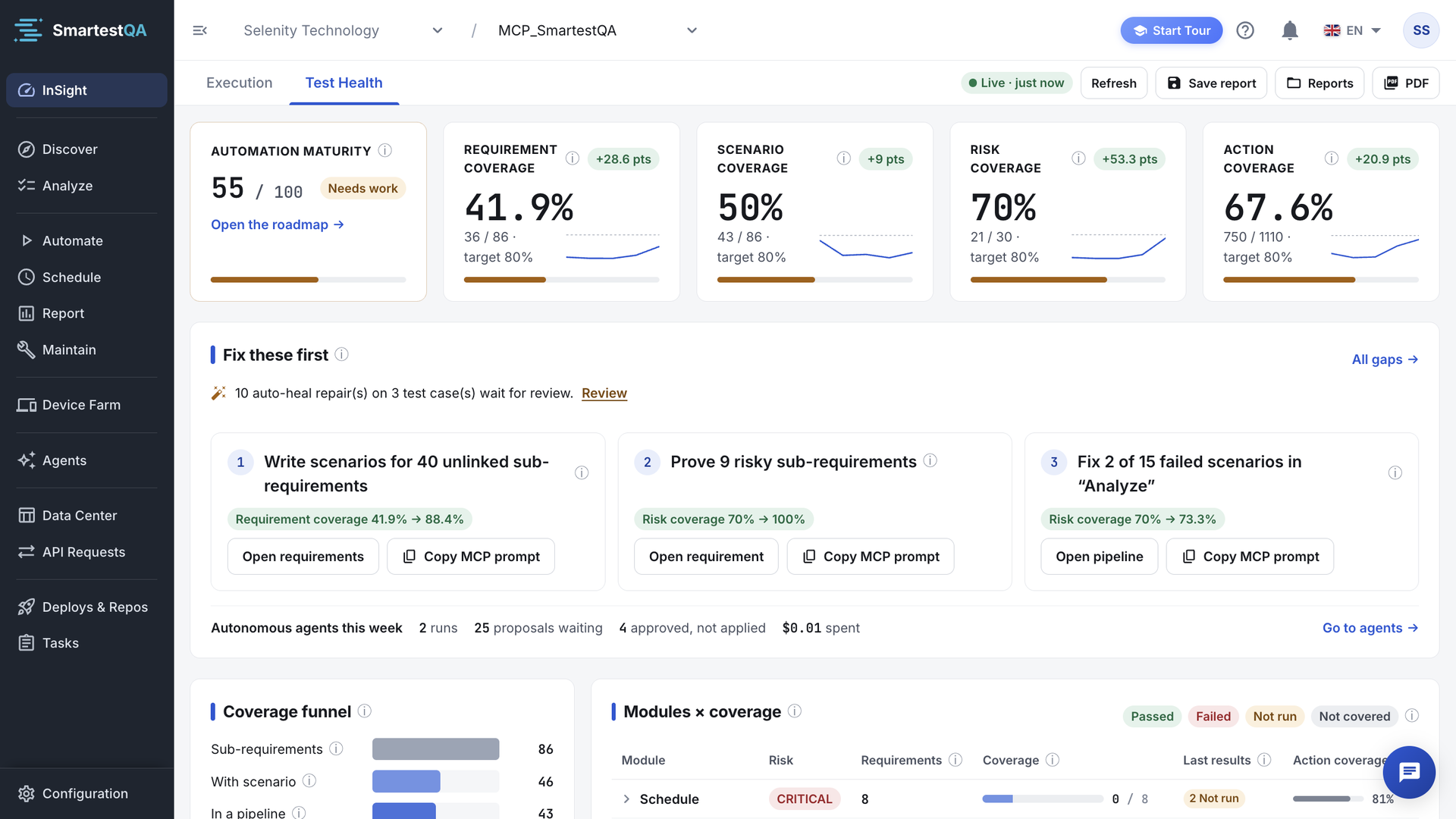
Coverage — four pillars#
Each pillar card shows a percentage, the fraction behind it (42 / 60), a marker at the 80% target, a small trend of the last weeks, and the change against one week ago in points (“+4 pts”, green up, red down).
| Pillar | Counts | Pulled down by |
|---|---|---|
| Requirement coverage | Sub-requirements with at least one scenario that checks a result and passed its last run, out of all sub-requirements. | Sub-requirements with no scenario, failed scenarios, scenarios that check nothing. |
| Scenario coverage | Sub-requirements with at least one real scenario that is in a pipeline and has run. | Scenarios outside pipelines, pipelines that never ran. |
| Risk coverage | CRITICAL and HIGH sub-requirements, or ones with a scenario tagged critical, that are proven by a passing scenario. | Risky sub-requirements without a passing, checking scenario. |
| Action coverage | Actions used in at least one step, out of all actions. A stand-in for code coverage. | Actions recorded in Discover that no test uses. |
A pillar with nothing to count shows not measured yet. Sub-requirements marked as not automatable are left out of every pillar. Formulas: Pillars.
Automation maturity#
The first card: a score out of 100 with a band, Good (80 and up), Needs work (50–79) or Low (under 50). Its hint names the pillar “pulling it down most”. Open the roadmap leads to Discover’s Setup Roadmap. How it is weighted: Maturity.
Fix these first#
“Sorted by how much each one moves a pillar. Recomputed every time this screen opens.” At most three items. Each has a title, a detail in its hint, the gain as a chip (“Risk coverage 40% → 55%”), an open button and Copy MCP prompt.
| Recommendation | Appears when | Opens |
|---|---|---|
| “Prove {count} risky sub-requirements” | Risky sub-requirements have scenarios, but none passes while checking a result. | Open requirement |
| “Write scenarios for {count} risky sub-requirements” | A risky sub-requirement has no scenario at all. | Open requirement |
| “Fix {count} of {total} failed scenarios in “{name}”” | A pipeline’s last run failed; the one with most failures is chosen. | Open pipeline |
| “Add an assertion to {count} scenarios” | Sub-requirements have scenarios, but none of them checks a result. | Open requirements |
| “Run “{name}” — {count} scenarios never ran” | A pipeline holds scenarios that never ran. | Open pipeline |
| “Write scenarios for {count} unlinked sub-requirements” | Sub-requirements have no scenario linked. | Open requirements |
| “Add {count} scenarios to a pipeline” | Scenarios are in no pipeline. | Open pipelines |
| “Schedule “{name}” — it's green” | A pipeline passes and proves but has no active schedule. | Open pipeline |
With nothing to do: “Nothing urgent. Keep the pipelines green.” All gaps jumps to the Gaps card. When auto-heal repairs wait for review, their line comes first in this card.
Copy MCP prompt
“Copies a ready prompt. Paste it into Claude or any MCP client and it does the work.” The prompt names the project, the item and its IDs, for example which risky sub-requirement to start with. After copying: “Prompt copied. Paste it into Claude (or any MCP client).” See MCP.
Autonomous agents this week#
A line with the project’s AI agents over the last 7 days: runs, failed, proposals waiting for your decision, approved, not applied, and the AI cost spent. “No agent yet.” when the project has none. Go to agents opens Autonomous Agents.
Coverage funnel and scenario funnel#
Two funnels show where things get stuck on the way to proof. Each step keeps only what passed the step above, and the card names the biggest loss.
| Coverage funnel (sub-requirements) | Scenario funnel (scenarios) |
|---|---|
| Sub-requirements: all of them | Scenarios: all, except templates, planned scenarios and load tests |
| With scenario: at least one scenario linked | Linked: linked to at least one sub-requirement |
| In a pipeline: a linked scenario is in a pipeline (directly, via a requirement row or a suite) | In a pipeline |
| Ran: and it has run | Ran in 30 days: its last run is within 30 days |
| Proving: and it checks a result and passed its last run | Checks a result, then Passing |
“Biggest loss: In a pipeline → Ran, 14 sub-requirements.” tells you the one step that would move most. A pipeline that is only called from another pipeline does not count its scenarios as “in a pipeline”.
Modules × coverage#
One row per module. Modules come from the Requirements tree: every folder directly under the root is a module, the same as the App Map module with that name (see Discover › modules). Main requirements at the root get a row of their own. Rows are ordered by risk, then by how much is unproven.
| Column | Shows |
|---|---|
| Module | The folder. Click to expand its sub-requirements, failed first, with Open. |
| Risk | The highest severity in the module. |
| Requirements | Its sub-requirements. |
| Coverage | A bar: green proven, blue has a scenario but no proof yet, grey no scenario. |
| Last results | Sub-requirements by the last run of their scenarios: failed, not run, passed. A sub-requirement counts as failed if any of its scenarios failed. |
| Action coverage | Share of the actions on this module’s pages that a test step uses. |
Folders without sub-requirements are listed as “+ {n} modules not started yet —” with Show. With no requirements at all: “No requirements yet. Add main requirements with sub-requirements in Analyze.”
Pipeline maturity#
“Draft → Executed → Proving → Automated. The right column says what the next level needs.” Click a row to open the pipeline.
| Level | Means | Next level needs |
|---|---|---|
| Draft | No scenarios, or it has never run. | Add scenarios or Run it once |
| Executed | It ran, but the last run was not all green or no scenario checks a result. | Fix the failed ones ({n}) or Add an assertion step |
| Proving | Last run all green and it checks results, but it has no active schedule. | Put it on a schedule |
| Automated | Green, proving and on a schedule. | — |
Other columns: Scenarios, Last run (passed/total of the newest run in 30 days, or Never ran) and Schedule (Daily, Weekly, Monthly, Custom, Ended or Manual). Above the table, Suites: shows which kinds of pipeline the project has, read from pipeline tags: Smoke, Sanity, API, Regression, Performance, Release. Below it: “{n} sub-requirements are covered by no pipeline.”
Trust issues#
“Scenarios that turn green without proving anything.” Each row has a count and Copy MCP prompt.
| Row | Means |
|---|---|
| scenarios check no result | No assertion, no visibility check with text, no validation-mode AI step, no API extractor, in the scenario or the templates it calls. Show lists them; click one to open it. |
| scenarios with a visibility check but no expected text | “It only says the element exists; a wrong message passes too.” |
| scenarios with an empty assertion | “The 'actual' value is empty, so there is nothing to compare.” |
| scenarios over 60 steps | Slow and hard to read when they fail; split them into templates. |
| templates carry their own assertion | Every scenario that calls them inherits the check. Usually fine. |
Gaps#
“What is not connected yet, riskiest first. Up to 100 rows; the list scrolls.” Three tabs, each with its count; the first non-empty one opens.
- Unlinked sub-requirement: Sub-requirement, Main requirement, Risk, with Open and Generate scenario, which copies an MCP prompt to write and link a scenario that checks its result.
- Scenario in no pipeline: Scenario and Last status, with Open.
- Unused action: Action and Page; Open opens the action for editing or deleting.
Traceability#
“Read from the Source: and Status: lines of sub-requirement descriptions.” Counts of sub-requirements with no code source, inferred (written from the UI or docs), conflict with code, not in code or no status line, and scenarios awaiting confirmation (tagged needs-confirmation). Write them as lines of their own in a sub-requirement’s description: Source: src/orders/checkout.ts (a file, symbol or endpoint) and Status: Verified, Inferred, Conflict or Not in code.
Stale tests#
“Tests that may no longer tell the truth.”
- Not run for 30+ days: real scenarios whose last run is older than 30 days.
- Never run.
- Requirement changed after the last run: the sub-requirement was edited after its scenarios last ran.
- Steps point to a deleted action: see deleting actions.
Progress#
“Four pillars and maturity over the selected period, calculated from existing data (daily up to 31 days, weekly beyond).” Its own period picker: Last 7 days, This week, Last week, Last 30 days, This month, Last month, Last 90 days (default) or Custom range. “Past points are approximate: deleted records and later edits are not reflected.” With a single point: “Only one point in this period; pick a longer period to see the trend.” How past points are rebuilt: Progress.
Saved reports#
A saved report “freezes this screen as it is now. Saved reports open exactly as they were saved.” Use it before a release, at the end of a sprint, or for an audit.
Save
Click Save report, keep or change the Report name (default “Test Health — {date}”, up to 200 characters) and click Save.
“Report saved.” It is stored with your name and the maturity score.
Open
Click Reports and pick one (newest first). The tab shows “Saved report · {title} · {date}”. The Progress chart is hidden in a saved report.
Go back or print
Back to live returns to today’s numbers. PDF prints the tab with a header naming the report, its date and who saved it.
Delete
In Reports, click the delete icon and confirm with Delete.
A saved report covers the whole project and Test Health only; Execution is not included. Anyone with project access can save, open and delete saved reports. The list shows the 100 newest.
Empty and error states#
- “Nothing to measure yet”: “This project has no requirements, scenarios or pipelines. Start with Setup Roadmap: the MCP client builds them with you.” with Copy MCP prompt and Open requirements.
- “Test Health could not be loaded”: “The server did not answer. Try again in a moment.” with Try again.
If something goes wrong#
Didn’t find your answer?Write to support with your project name and what you see on screen.
info@smartestqa.ai