Where a pipeline runs
Two choices decide where a pipeline’s tests happen: the Run Environment (which machine executes them) and, for web, the start page and environment (which address of your app they open).
In short
On this page you can
- Run web tests headless on SmartestQA servers with Run on Server.
- Pin a run to one server with A specific server, or leave Automatic (recommended).
- Run on one or more of your own machines with Run on Your Agent.
- Send mobile runs to your agent, SmartTest Device Farm, AWS Device Farm or BrowserStack.
- Pick the start page and DEV, TEST or PRP for web runs.
How to use it
- Open the pipeline’s Schedule tab and find Run Environment.
- Choose server or agent; for agents tick hosts with a green dot in Test Agent List.
- Web: choose the start page and Environment above the dates.
- Save, run, and read the queue message if the run waits for a server.
Run Environment#
Run Environment is on the Schedule tab, under the dates. The options depend on the project type.
| Project type | Options | Notes |
|---|---|---|
| WEB | Run on Server · Run on Your Agent | Server adds the Server choice; agent adds the Test Agent List. |
| MOBILE (Android, iOS) | Your Agent · SmartTest Device Farm · AWS Device Farm · BrowserStack | SmartTest Device Farm appears only with the add-on. See Mobile. |
| DESKTOP | Run on Your Agent only | See Desktop. |
Which one to choose#
| Your situation | Choose |
|---|---|
| Web app reachable from the internet, nightly or CI runs | Run on Server, Automatic (recommended) |
| Web app behind a VPN, firewall or on an intranet | Run on Your Agent on a machine inside that network, or a specific server set up for it |
| Steps that query your database, read a mailbox or call an internal API | A machine that can reach them: database, mail and API steps connect from where the run executes |
| Same tests on several machines or browsers at once | Run on Your Agent with several agents ticked |
| Phone or emulator on your desk | Your Agent (mobile, local setup) |
| Real devices without owning them | SmartTest Device Farm, AWS Device Farm or BrowserStack |
| Desktop application (Windows or macOS) | Run on Your Agent, on the Windows machine or Mac with the app |
Run on Server#
The run executes headless (no visible browser) on a SmartestQA server. You install nothing and no machine of yours has to stay on. The server must be able to reach your app’s address; it reaches the internet, not your internal network.
If your firewall only lets known addresses in, an Admin finds SmartestQA’s outgoing addresses under Our egress IPs in Company Settings › Network & capacity and asks IT to allow them.
Server: automatic or a specific server#
With Run on Server selected, a Server choice appears.
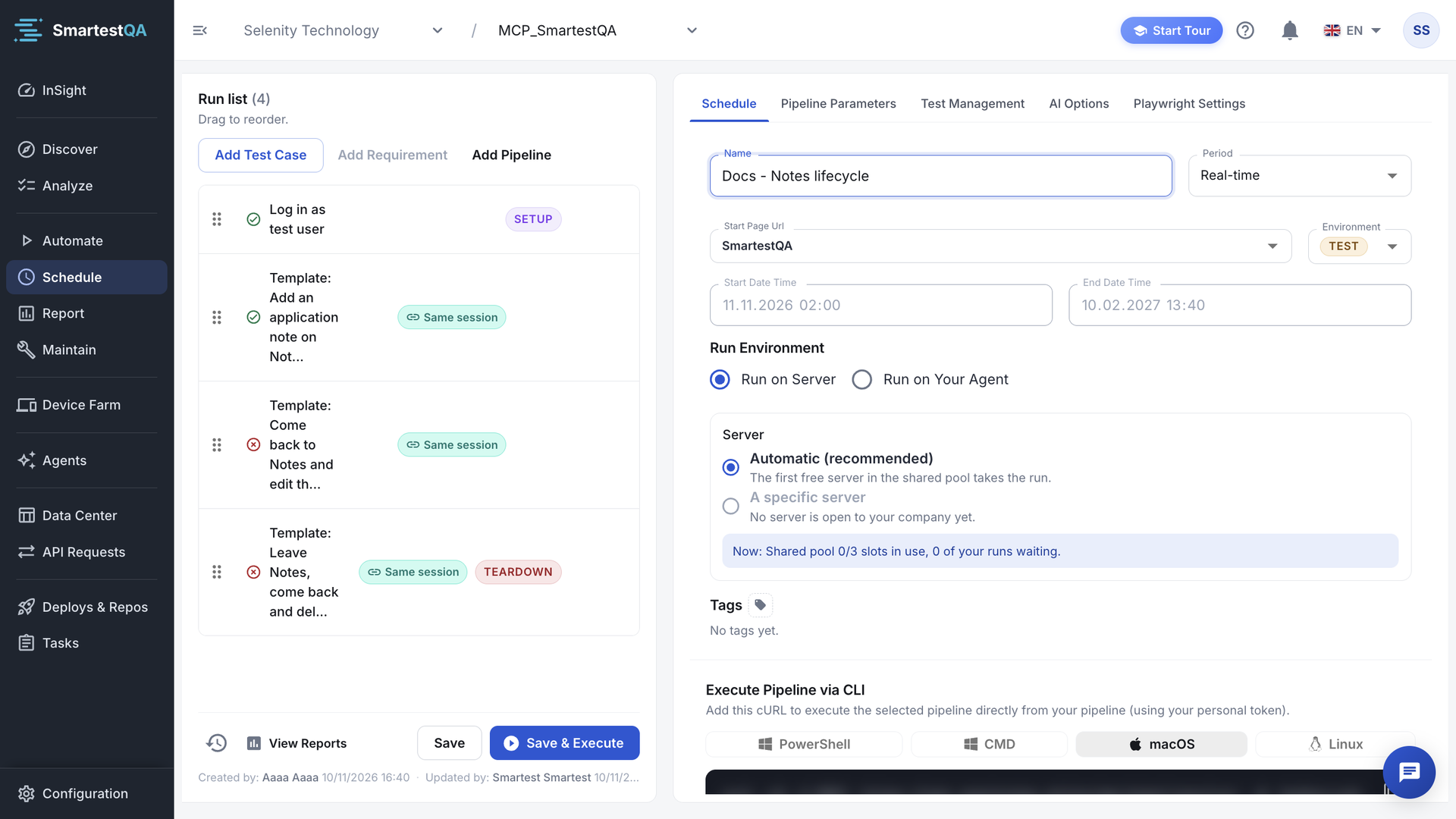
| Option | What happens |
|---|---|
| Automatic (recommended) | “The first free server in the shared pool takes the run.” If your company has dedicated servers: “First your company’s dedicated servers (n), then the shared pool if they are full.” |
| A specific server | “For an environment behind a VPN or a special setup. The run executes only on that server.” Pick it in Choose server; each entry shows name, usage (Dedicated, Dedicated · Self-hosted), slots in use and status (Online, Full, Paused, Offline, Disabled). With none available: “No server is open to your company yet.” |
A live line under the choice shows the current load, for example “Now: Shared pool 3/8 slots in use, 0 of your runs waiting.” or, for a specific server, “Now: build-eu-1 2/2 slots in use. If it is full the run waits for it and does not move to another server.” How to read it: Queue numbers.
When a run waits for a server#
A server runs a limited number of pipeline runs at once (its slots). When all slots are busy, your run waits in a queue instead of failing. Starting it shows, instead of “execution started successfully”:
- “Queued · next in line for your company · pool 8/8”
- “Queued · 2 run(s) of your company ahead · pool 8/8”
- “Sent to a server · starting”
Report opens on the run with a band: “Next in line for your company” or “n run(s) of your company are ahead”, then “Waiting 01:20 · pool 8/8 · the report opens automatically when the run starts.” Remove from queue takes the run out (“"name" will be removed from the queue and will not run.”). Stop run on the pipeline also removes its waiting runs.
Who goes first when a slot frees up:
- Priority by source: a sub-pipeline of a run that is already going, then runs started by hand, then CI/CD API runs, then scheduled runs, then RPA queue items.
- Fair share: among equal priority, the company with the fewest runs going at that moment.
- First come, first served after that.
- A waiting run never times out; it runs when its turn comes.
- Dedicated servers serve only their companies. If they are full or offline, the run moves to the shared pool after 30 seconds, when your company allows it; otherwise it waits for them.
- Your company may have a limit of concurrent runs in the shared pool. Admins see it, with dedicated servers, running and waiting runs, in Company Settings › Network & capacity. SmartestQA sets the limit; ask info@smartestqa.ai to change it.
- You never see a global position: the queue is fair between companies, so the message counts only your company’s runs ahead of yours.
Run on Your Agent#
The run executes on a computer you control, with the SmartestQA agent installed and online. Use it for apps the internet cannot reach, for mobile devices on your desk, for desktop apps, and when you want to watch the browser (turn off Headless Mode in Test Management).
Select Run on Your Agent
The Test Agent List appears, with your own host already ticked.
Tick the agents
Each host shows a dot: green online, red offline. (On the Test Agents page the same offline agent has a grey dot.) Tick one or more.
Save and run
Every ticked agent must be online when the run starts.
Each ticked agent runs the whole pipeline. Two agents ticked means two runs of every case.
- Not installed yet? Install an agent. When a host counts as online: the 90-second rule.
- Only hosts you have access to work. Saving drops ticked hosts you cannot use; if none is left, or a run starts with one, you get “Selected host is not accessible…” (fix). With no host ticked at all: “Please select at least 1 host…”.
- For nightly schedules use a machine that stays on, such as a VM, not a laptop.
Mobile projects#
| Option | Runs on | Set up in |
|---|---|---|
| Your Agent | A phone or emulator connected to your agent’s computer, through Appium | Device Farm › Test Agents; ticked hosts in Test Agent List; the device in Connected Device on the pipeline’s Mobile Settings tab |
| SmartTest Device Farm | SmartestQA’s device farm (add-on) | The pipeline’s Mobile Settings tab: choose devices and the app per platform. Without a choice: “No device selected — auto-picked per platform.” |
| AWS Device Farm | Devices in your AWS Device Farm account | Configuration › Project Panel › Mobile Config. The device list is the project’s, the same for every pipeline. |
| BrowserStack | Devices in your BrowserStack account | Configuration › Project Panel › Mobile Config. The device list is the project’s, the same for every pipeline. |
- In a MOBILE project (Android and iOS in one project), Target Platforms chooses Android, iOS or both for this pipeline. At least one stays ticked.
- With SmartTest Device Farm, every ticked platform needs an app: “Select an app for every selected target platform — Mobile Settings → SmartTest Device Farm”.
- The Mobile Settings tab also shows the AWS Device Farm and BrowserStack fields, but it does not save them: change those devices in Mobile Config. Your Agent and SmartTest Device Farm devices are saved with the pipeline (Mobile steps).
- Mobile pipelines have no start page or environment; the app is the start.
Desktop projects#
A desktop application can be opened only on the machine where it is installed, so desktop pipelines run on agents only: a Windows machine for a Windows application, a Mac for a macOS application. The platform of each application is set in Project Settings › Desktop Configuration. The Schedule tab says: “Desktop tests run only on an agent (Windows or macOS) where the application and Appium are installed. Select at least one online agent.” The message names Windows, but an online macOS agent with the application and Appium is ticked and used the same way. A desktop pipeline set to the server is moved to Run on Your Agent when you open it; save to keep it.
Application chooses which configured desktop application the run opens: “Each test case's own application” (cases without one use the project default), or one application for every case.
Start page and environment (web)#
Web pipelines open a start page URL, which has one address per environment. Both fields are above the dates on the Schedule tab.
- Start page: choose one of the project’s start page URLs. Manage URLs opens the list to add or edit one (Start page URLs). A choice you have not saved yet is marked: “This URL has not been saved yet. It will be saved when you click Save.”
- Environment: DEV, TEST or PRP, PRP being the production-side environment. An environment the start page has no address for is greyed out: “No URL defined for this environment”. Switching to a start page without the current environment picks TEST, then DEV, then PRP.
- Test cases follow the pipeline’s environment, so one set of tests serves DEV, TEST and PRP.
- A pipeline that contains only load tests (JMeter or k6) and API steps opens no browser page; the start page and environment fields are hidden.
- Choosing PRP in a pipeline with a JMeter load test asks first: “Load test on PRP?”.
PRP is real
Tests on PRP create orders, send e-mails and change data in production. Schedule against PRP only read-only checks you have agreed with the business.
Video transcript
Every pipeline has a Run Environment: the server, or your own agent. Run on Server needs nothing installed. Automatic lets the first free server in the shared pool take the run. A specific server pins the run to one server: for an environment behind a VPN or a special setup. The line below shows the load right now. When every slot is busy, the run waits in a queue instead of failing. Run on Your Agent runs the tests on a machine where you installed an agent: inside your network. Pick the agent from the Test Agent List. For an app that is reachable from outside, the server is the simplest choice.
If something goes wrong#
Didn’t find your answer?Write to support with your project name and what you see on screen.
info@smartestqa.ai