- Docs
- Reference
- Step reference
- AI steps
AI steps
An AI step describes its job in plain words instead of pointing at a locator. The AI looks at the current screen and answers a question, checks a statement, or performs an action. It works in web, mobile and desktop projects.
In short
On this page you can
- Ask a question about the current screen and save the answer, with AI Ask.
- Check that something is visible, as true or false, with AI Check.
- Click or type by describing it, with AI Do.
- Ask a general question without the screen, with AI Chat.
- Save the AI’s answer as a variable for later steps.
How to use it
- Make sure Enable AI and AI Document Analysis are on in the project’s AI options.
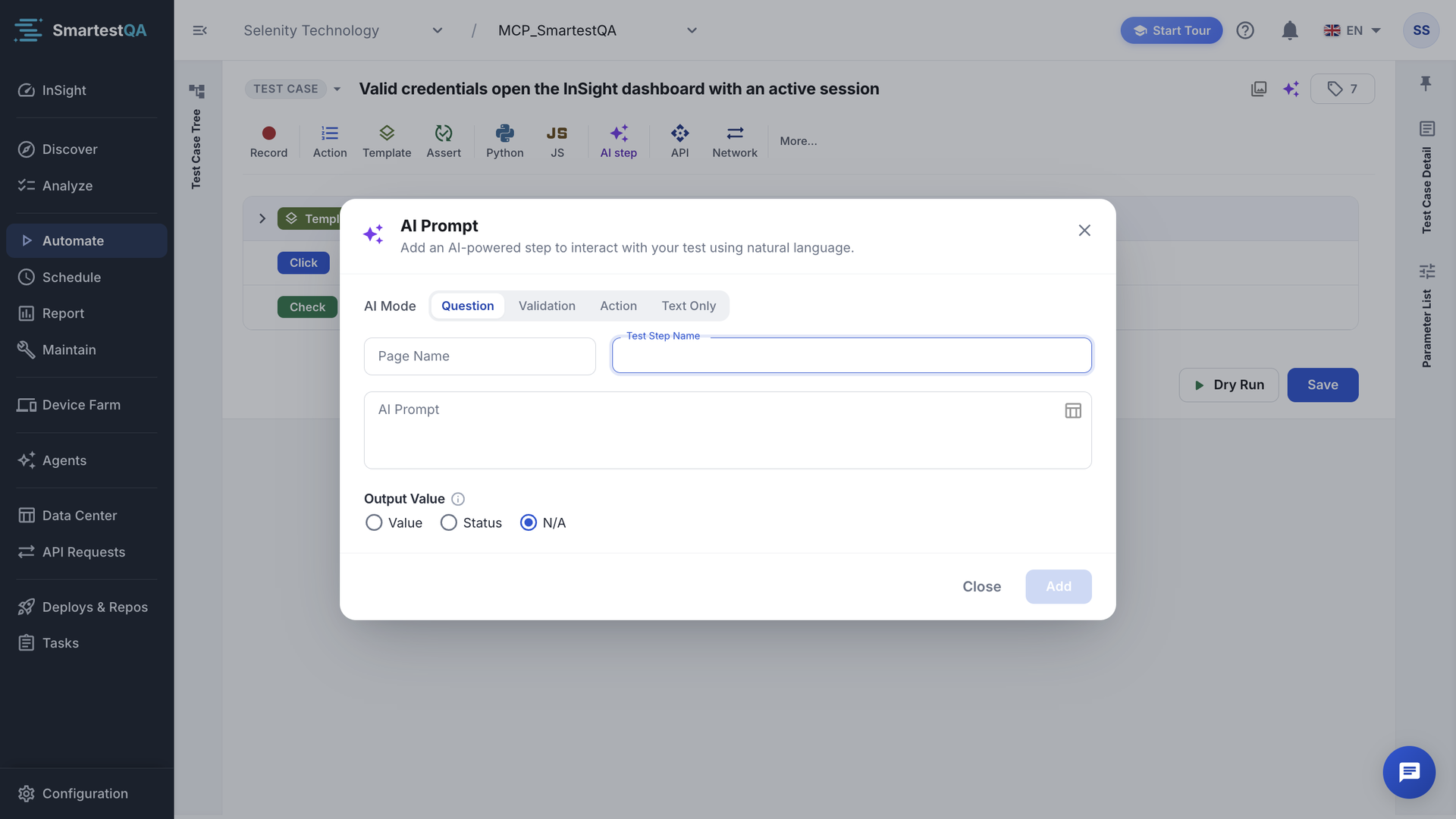
- Click AI step and choose the AI Mode.
- Pick the Page Name, write the AI Prompt and a Test Step Name.
- Under Output Value choose Value (with a Variable Name), Status or N/A.
- Save and run; replace AI Do steps with regular actions once they work.
The four modes#
| AI Mode | Chip | Sees the screen | Does | Example prompt |
|---|---|---|---|---|
| Question | AI Ask | Yes | Answers a question about the current screen. | What is the total price on screen? |
| Validation | AI Check | Yes | Says whether a statement is true on the screen; returns true or false. | Is the login button visible? |
| Action | AI Do | Yes | Finds the element and performs the action. | Type test@test.com in email field |
| Text Only | AI Chat | No | Answers without screen context. No screenshot is sent. | What is today's date? |
The step type follows the project: WEB, MOBILE and DESKTOP projects each have their own AI step type, with the same fields and behaviour.
Before you start#
- The project needs Enable AI and AI Document Analysis switched on in the project’s AI options, and a working AI provider. Otherwise AI step is disabled and its tooltip names what is missing, for example “Enable 'Enable AI' in Project Panel → AI Options”.
- The modes that see the screen send a screenshot to the project’s AI provider. Use test data.
Add an AI step#
Open the dialog
Click AI step. The dialog AI Prompt opens: “Add an AI-powered step to interact with your test using natural language.”
Choose the AI Mode
Question, Validation, Action or Text Only. Hover a mode for its description.
Page and name
Pick the Page Name the step belongs to and fill Test Step Name.
Write the prompt
Type the AI Prompt. It can contain variables:
Is the order number {{tc:orderId}} shown?. The picker icon inserts data source values.Choose the output
For Question, Validation and Text Only choose under Output Value: Value (and a Variable Name, default
aiOutput), Status, or N/A (the default). Action has no output. Click Add.The step appears with its chip: AI Ask, AI Check, AI Do or AI Chat.
Saving checks the fields: “Please enter a prompt first.”, “Page Name is required”, “Output variable cannot be empty”, “Output variables must be unique”.
Output Value#
| Choice | Effect |
|---|---|
| Value | The AI response is saved as a variable and can be used in later steps: {{tc:aiOutput}}. |
| Status | The validation result is read as pass or fail and sets the step’s status. |
| N/A | The step only runs; nothing is stored and the status is not affected. |
AI Ask#
Takes a screenshot and sends it with your question. Use it to read values that have no stable locator, for example a total inside a chart. Save the answer with Value and check it with an Assertion. Ask for one value in a fixed format (“Answer with the number only”) so the answer can be compared.
AI Check#
Takes a screenshot and asks whether your statement is visibly true. The AI must answer false when the screenshot does not clearly show it. If the page was still loading when the screenshot was taken, the step takes one more screenshot and asks again. A false answer ends the step as FAILED.
AI Do#
Finds the element you describe and performs the action: click, type, select. It is slower than a regular step and depends on the AI, so use it for one-off or hard-to-locate actions. AI Do steps that pass can be turned into regular actions in Maintenance (AI Steps, Convert to Action); after that the step runs from the saved locator without an AI call.
AI Chat#
Sends only your prompt, without a screenshot or page context. Use it to generate test data: “Give me a valid German IBAN, digits only.” Save the answer with Value.
At run time#
- AI steps added from the dialog are created with stop-on-error: if the AI fails or an AI Check is false, the step fails and the test case stops (“AI step FAILED (STOP_ON_ERROR): …”).
- If AI is turned off for the project or not usable when the step runs, the step ends as ERROR.
- On mobile, an AI step gets 35 seconds more than the normal step time budget.
- The report shows the prompt, the AI’s answer and the screenshot that was used.
Do
- Write one clear statement or question per step.
- Ask for a short answer in a fixed format.
- Convert AI Do steps to actions once they pass.
Don’t
- Use AI Check where an Assertion on a known value works.
- Put several actions in one AI Do prompt.
- Send screens with real personal data to the AI.
If something goes wrong#
Didn’t find your answer?Write to support with your project name and what you see on screen.
info@smartestqa.ai