Actions
An action is one control on one page. This page covers creating actions by hand, working in the Action List, and changing or deleting actions without breaking tests.
In short
On this page you can
- Create an action by hand with its page, type, name and locators.
- Find actions with module, page pills, column filters, tags and last-run status.
- Edit Page Name, Action Name and Navigates To directly in the list.
- Fix unreachable pages by hand or with Auto-fix.
- Rename, duplicate or delete actions without breaking test cases.
How to use it
- Click New Action and fill Page Name, Action Type and Action Name.
- Add one row per locator with Add Action Detail, then save.
- Narrow the list with page pills and filters; double-click a cell to edit it.
- Click the “n unreachable” chip or Auto-fix to fill missing Navigates To.
- Before deleting, check the Cases badge and replace the action in those tests.
Create or edit an action by hand#
Use New Action when you already know the locator, when the control cannot be scanned (for example it appears only after a long flow), or to add a fallback locator to a recorded action.
| Field | Required | Notes |
|---|---|---|
| Page Name | Yes | Type a new name or pick an existing page from the suggestions. |
| Action Type | Yes | Only types for your project type are listed. Defaults: Type (web), MobileTap (mobile), DesktopClick (desktop). |
| Action Name | Yes | Verb first: Click Save, Type Search. |
| Navigates To | No | The page this action leads to, for example pipeline or homepage_modal. |
| Action Detail | For a usable action, yes | Click Add Action Detail for each locator. Key is the locator type, Value the locator. |
| Tags | No | Available after the first save. |
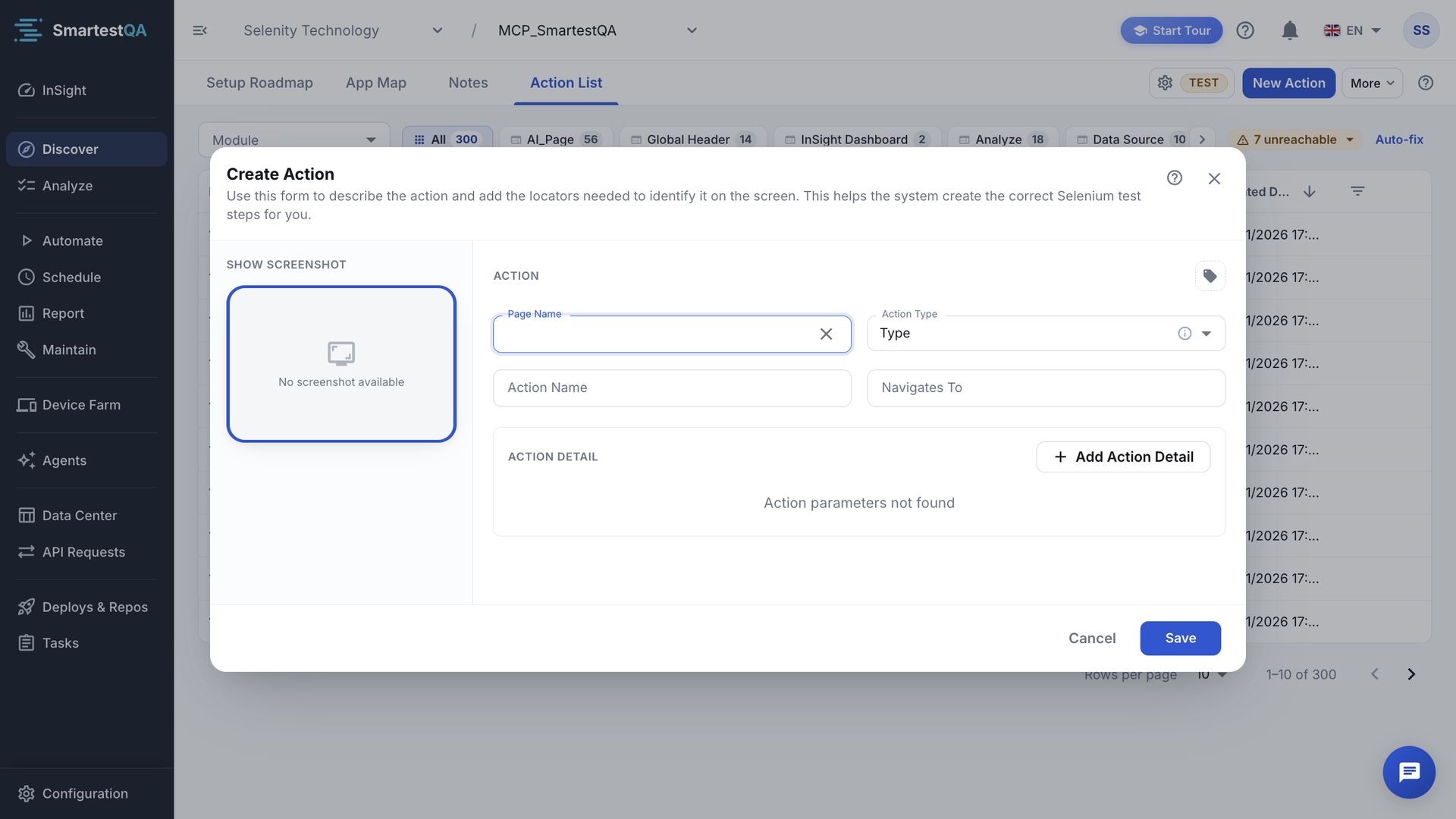
Web action types: Click, Hover, Type, Clear & Type, Select, Navigate, Get, Visibility Check, Double Click, Right Click, Wait (seconds). Mobile and desktop projects have their own lists.
Key    Value
id     email
css    form#login input[type=email]
xpath  //form[@id='login']//input[@name='email']
Values that start with input or {{ are treated as values, not locators. In a MOBILE project each detail row also has an Android/iOS platform field; it is stored for reference and does not change how the test runs.
The dialog does not close when you click outside it, and pressing Enter anywhere saves. Missing fields show “Please fill in the Page Name field.”, “Please fill in the Action Name field.” or “Please select an Action Type.”
Work with the Action List#
Find actions#
- Module and page pills narrow the list. Each pill shows that page’s action count; the active pill shows the current result total.
- Column filters on Page Name, Action Name and Navigates To match any part of the text, ignoring case. They apply 1.5 seconds after you stop typing.
- Action Type has a multi-select list with Clear all.
- Filter By Tags (last column) takes Include and Exclude tags and Filter By Status (Last Run): Success, Failed (also matches errors), Running.
- The default order is newest first. Show 10, 25, 50 or 100 rows per page.
Edit in place#
Double-click a Page Name, Action Name or Navigates To cell (or focus it and press Enter or F2). Enter saves, Esc cancels. An empty value is ignored, so you cannot clear a field here; open the action with Edit instead. Hover a row for Edit, Duplicate and Delete.
Unreachable pages and Auto-fix#
A page is unreachable when no action has it as Navigates To. The chip “n unreachable” appears when two or more visible pages are unreachable; a single one is assumed to be your start page and is ignored. Click the chip to list them. Clicking a name copies it, so you can paste it into a Navigates To cell.
Auto-fix looks at test cases for actions that ran successfully, have an empty Navigates To and are followed by a step on a different page, and sets Navigates To to that page. It reports “n actions updated with navigatesTo.” or “No missing navigatesTo found.”
Video transcript
The Action List holds every action Discover recorded: the building blocks of your test steps. The page pills filter the list to one page of your application. Each column has its own filter: page name, action name, where it navigates to, and type. A row shows the action, its type, its locator, and in Cases how many test cases use it. The unreachable chip counts pages that no recorded action leads to. Auto-fix proposes the missing links. Edit, Duplicate and Delete are at the end of each row.
Change, copy and delete safely#
Renaming a page or an action#
- Test cases keep working. Steps point at actions by ID, not by name.
- Module membership and App Map records follow the page name. A renamed page leaves its module (reassign it) and shows Not on map until you run Update map.
- Notes scoped to the old name no longer match a page, so they are treated as tags and sent with every request. Re-scope them.
Duplicating#
Duplicate opens Create Action pre-filled. When you save, SmartestQA checks whether an action with the same project, type, page, name (both ignoring case) and main locator already exists; if it does, it returns that action instead of creating a copy. To get a real copy, change the name, the page or the locator before saving.
Deleting#
- Admins, Super Admins and the person who created the action can delete it. Others get “You do not have permission to delete this action.”
- An action with no links asks for a simple confirmation.
- An action used by test cases or data sources shows those links first, with a warning: Delete Anyway deletes the action and every test step that uses it, plus its data source mappings, suite parameters and tags. There is no undo.
- Safer: check the Cases badge, replace the action in those tests, then delete.
Delete Anyway changes test cases
Tests that used the action lose that step and may now pass for the wrong reason. Never use Delete Anyway on an action with a high Cases count.
There is no bulk delete, bulk edit, import or export of actions. An AI assistant connected through MCP can create and update actions for you (see MCP).
If something goes wrong#
Didn’t find your answer?Write to support with your project name and what you see on screen.
info@smartestqa.ai