- Docs
- Administration
- Company settings
- Network and capacity
Network and capacity
Network and capacity shows what your network team and your planners need for runs on the Smartest Server: the addresses those runs come from, and how much server capacity your company has right now.
In short
On this page you can
- Copy the egress IPs that Run on Server runs come from.
- See how many server runs your company may have at once, and how many run now.
- See how many runs wait, and whether you use the shared pool or dedicated servers.
- Check the state of your dedicated servers.
How to use it
- Open Configuration › Company Settings › Network and capacity.
- Click Copy all under Our egress IPs and send the list to your network team.
- Ask them to allow these addresses to your test environments.
- When runs wait, compare Running now with Concurrent runs; the page refreshes every 15 seconds.
This section is read only: SmartestQA sets your capacity and servers. It refreshes every 15 seconds. It concerns Run on Server only; runs on your own agent do not use it. See Do you need an agent?
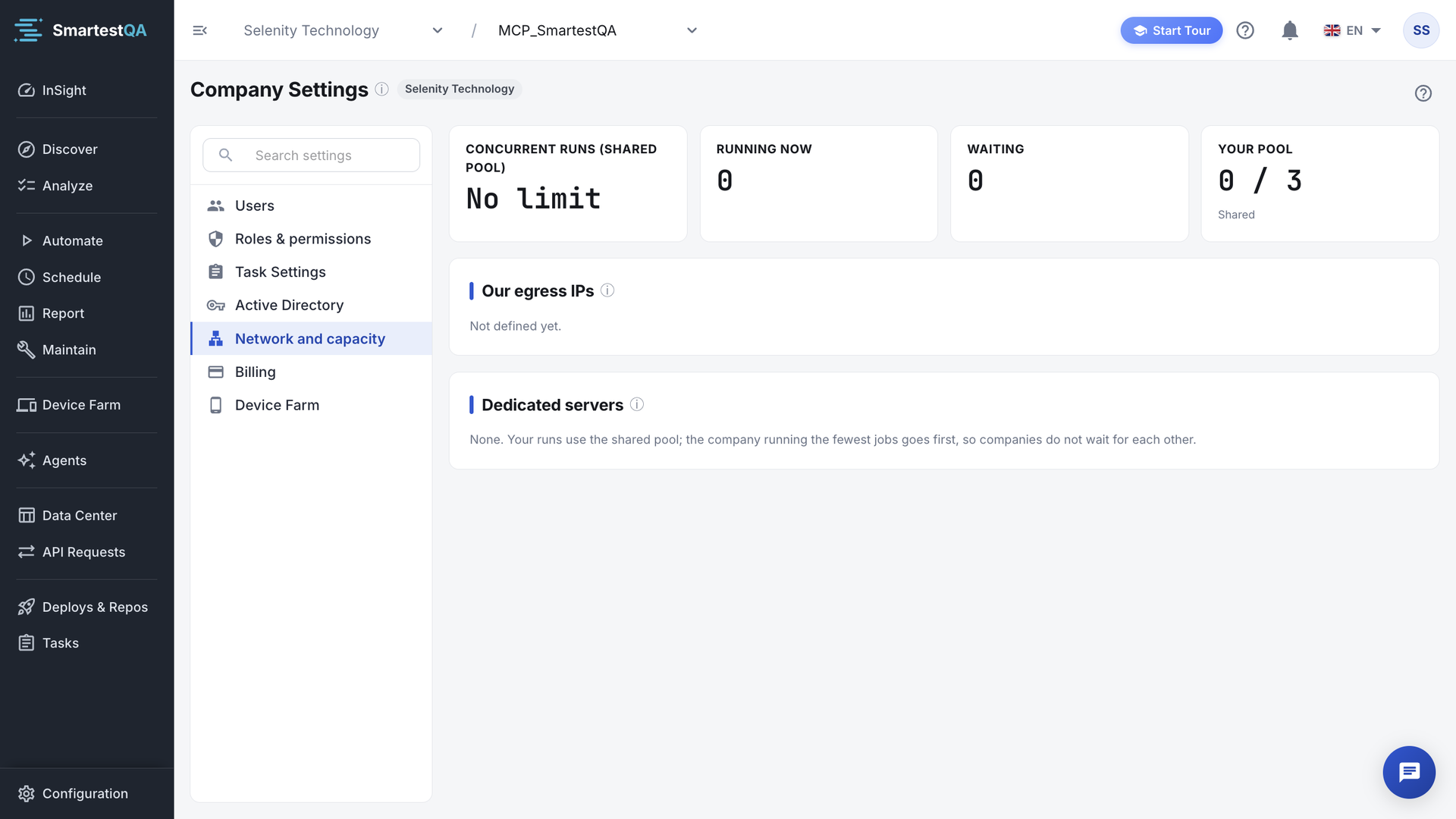
Our egress IPs#
“If your test environments are closed to the internet, add these addresses to your firewall allow list. "Run on Server" runs reach your applications from these IPs.” Each address has a copy icon; Copy all copies them one per line. “Not defined yet.” means SmartestQA has not published addresses for your installation; ask info@smartestqa.ai.
If your app must stay unreachable from outside, run tests on an agent inside your network instead: Install an agent.
The numbers#
| Card | What it shows |
|---|---|
| Concurrent runs (shared pool) | The most server runs your company may have at the same time on the shared servers. “No limit” if none is set. |
| Running now | Your server runs in progress. |
| Waiting | Your server runs in the queue. Shown in amber when above 0. |
| Your pool | Used and total run slots of the servers you use, and the pool type: Shared or Dedicated. |
slot          = one pipeline run on one server at a time
a run starts  = a server you may use has a free slot
                AND (shared pool) your company is below "Concurrent runs"
order         = priority (chained, manual, API, scheduled) → company with fewest runs now → oldest first
Your pool     = used slots / total slots of those servers
Example: Concurrent runs is 2, Running now is 2, and you start a third pipeline. It waits (Waiting = 1) even if the shared servers have free slots, and starts as soon as one of your two runs ends. Among companies, the one running the fewest jobs goes first, so a busy company does not block others. The report of a waiting run shows its place in your queue.
Dedicated servers#
“Servers reserved for your company. Runs go to them first; the shared pool is used if allowed and they are full.” Each server shows its name, used and total slots, and its state: Online, Full, Paused, Offline or Disabled.
- “If they are full or offline, runs move to the shared pool after 30 s.”: fallback is allowed.
- “If they are full, runs wait for them.”: fallback is off.
- With no dedicated server: “None. Your runs use the shared pool; the company running the fewest jobs goes first, so companies do not wait for each other.”
To get dedicated servers or a higher limit, contact SmartestQA.
If something goes wrong#
Didn’t find your answer?Write to support with your project name and what you see on screen.
info@smartestqa.ai