- Docs
- AI
- Autonomous Agents
- Agent settings
Agent settings
Everything an agent does comes from its settings. The dialog has six tabs; saving creates a new version, and each run keeps a copy of the settings it used.
In short
On this page you can
- Describe an agent’s job in five plain-language boxes, or edit the raw text in Advanced.
- Choose exactly which tools the agent may call.
- Set a schedule, an after-deploy trigger or manual runs, in your time zone.
- Choose whether the SmartestQA server or Claude Desktop runs it.
- Send the report to Slack, Teams, Discord, WhatsApp, e-mail or a webhook, and cap steps and spend.
How to use it
- Click Settings (sliders icon) on the agent’s card.
- Fill Instructions box 1, then add steps, rules and the expected result.
- Check the tools on Tools & autonomy and the timing on Trigger.
- Pick report targets on Reports and click Send a test.
- Adjust Limits and click Save: a new version is created.
Open the dialog with Settings on an agent’s card, or by installing an agent from the catalog. Its title is Agent settings · name with the current version. The tabs are General, Instructions, Tools & autonomy, Trigger, Reports and Limits. A click outside the dialog does not close it; use Cancel, the X or Esc.
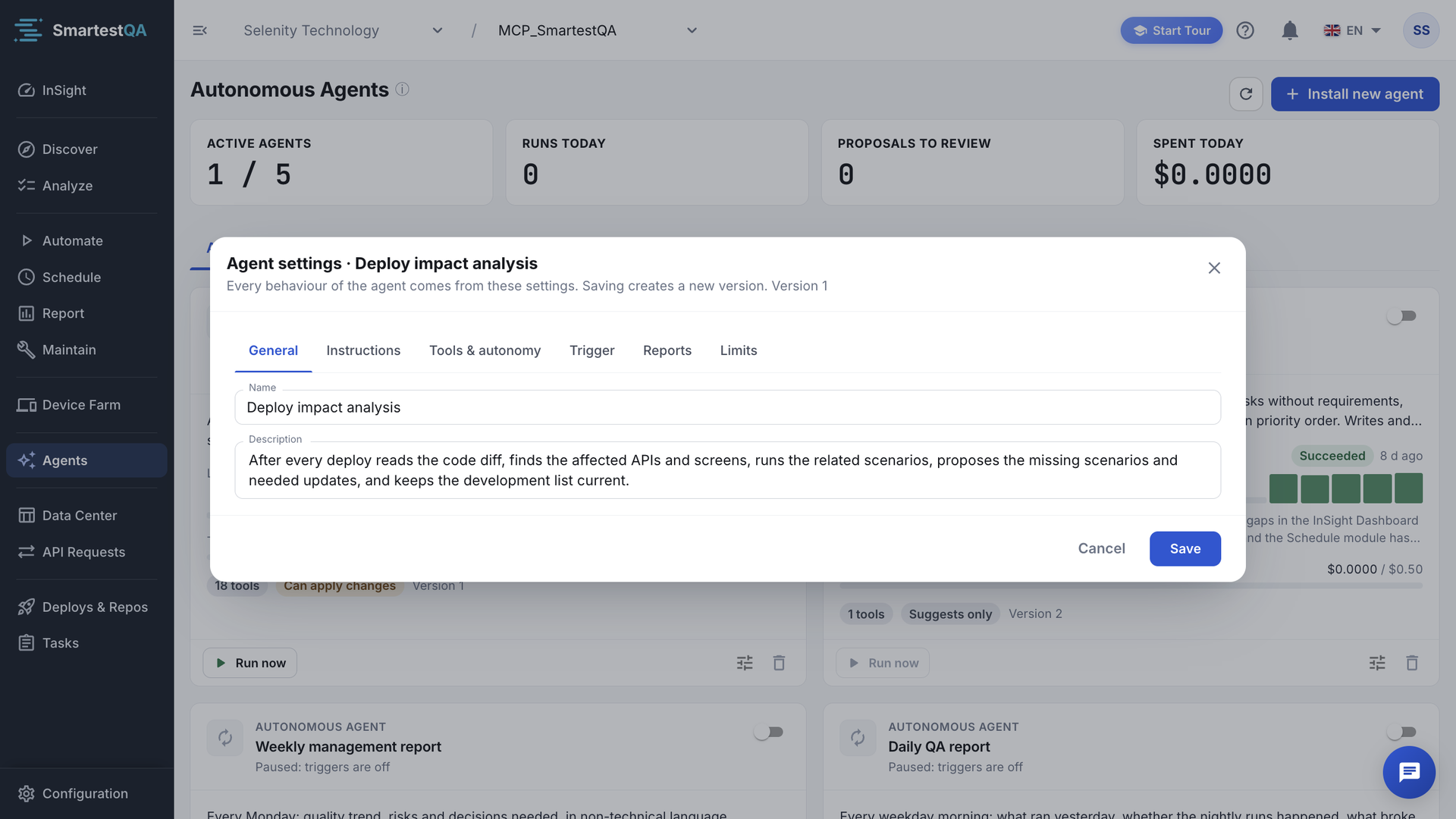
General#
| Field | Rule |
|---|---|
| Name | Required, up to 150 characters. Shown on the card and in the Runs table. |
| Description | Up to 1,000 characters. The card shows the first two lines. |
Instructions#
The instructions tell the model its goal, how to work, what rules to follow and what to return. They are sent to the model at the start of every run. There are two modes:
- Easy: five boxes in plain words. SmartestQA writes the instructions for the model from them.
- Advanced: the raw text. Catalog agents open here, because their instructions are long. Text written by hand can be edited only here (“This text was written by hand; it can only be edited in Advanced mode.”).
The five boxes#
What should the agent do? (required)
One or two sentences, for example “Summarise yesterday’s failed tests and tell the team what to look at first.” Saving without it shows “Write what the agent should do (Instructions, box 1).”
What should it look at? (optional)
Narrow the scope: “Only the Checkout pipeline, last 7 days.”
Steps
In order, one per line, with Add step. A tool name you write in a step is ticked on Tools & autonomy automatically. Add a tool to the last step… inserts one for you.
Rules (safe defaults are on)
Ticked by default: Never delete anything, Do not change things directly — only propose changes for approval, Never touch PRP, Write the report in the project report language. Optional: At most this many items per run: and your own rules, one per line.
What should the result look like? (optional)
“A short list: root cause, affected tests, who should fix it. Most urgent first.”
Show the text sent to the model shows the generated instructions. Start from an example fills every box (and, for a new agent, its name and description).
Tools & autonomy#
“The agent can only call the tools ticked here; anything else is rejected by the server.” Search by name or purpose, tick Only selected (n) to see your choice, and read “n / total shown”.
- Tools that can change things are listed first, with “n selected · a automatic · s as proposal”.
- Other tools are grouped (Report, Failure, Coverage, Test cases…) and marked Read-only or Always a proposal in this version.
- A tool used in the instructions shows In instructions with a lock. You cannot untick it: “Used in the instructions. Remove it from the instructions first to untick it.”
- A grey chip such as
VIEW_REPORTorEDIT_ACTIONis the permission the agent’s user must have. Without it, the tool is refused during the run. Admins have every permission.
Suggest only or Apply automatically#
Each tool that can change things has a selector: Suggest only or Apply automatically. When any tool is set to automatic, the card shows Can apply changes; otherwise Suggests only.
Server runs never write
When the SmartestQA server runs an agent, every call that would change something is recorded as a PROPOSAL, whatever this selector says. Nothing changes until a person clicks Apply in the run detail.
Trigger#
| Trigger type | Runs | Shown on the card |
|---|---|---|
| Manual | “Runs only when started with Run now.” | Only when you run it |
| Schedule | At the times of its cron expression, in its time zone. | For example “Weekdays at 08:30 — Next 10.11, 08:30” |
| After each deploy | Checks for a new deploy every hour; runs only when one has arrived. | After each deploy (checked hourly) |
These three are the only choices. The older On test failure trigger can no longer be chosen; agents that already have it keep running and show it in the list (“When a test fails” on the card). For failed runs, use Daily triage. In the Runs tab, a run started after a deploy shows the trigger Schedule.
Schedule#
Cron expression takes five fields: minute, hour, day of month, month, weekday. “Example: 0 2 * * 1-5 = weekdays at 02:00”.
| Cron | The card says |
|---|---|
0 6 * * * | Every day at 06:00 |
30 8 * * 1-5 | Weekdays at 08:30 |
0 9 * * 1 | Every Monday at 09:00 |
0 7 1 * * | Monthly on day 1 at 07:00 |
15 * * * * | Every hour at :15 |
| anything else | the expression itself |
Time zone is a list of time zones. Empty means Server default, the time zone your SmartestQA installation is set to. The daily budget also resets at midnight in this time zone.
After each deploy#
Pick the repositories
Repos lists the code repositories of Deploys & Repos. With one repository it is chosen for you; with several you must pick: “Choose which repos to listen to.”
Pick the environment
Environment: All environments or one, such as TEST.
With several repositories, choose Run when
Any of them is deployed runs after a new deploy of any selected repository. All of them are deployed (e.g. FE + BE) “Waits until every selected repo has a new deploy (they do not have to be at the same time), then runs once for all of them.”
With no repository connected you see “Connect a code repo under Deploys & Repos first.” and cannot save.
Runs on: server or Claude Desktop#
| Runs on | Who starts it | Cost in SmartestQA | Notes |
|---|---|---|---|
| Smartest server (project LLM API) | SmartestQA, on the trigger | Tokens of the project’s AI connection, counted against the limits | Works when your computer is off. Report agents run only here: “This agent's tools run only on the SmartestQA server, so it cannot run in your LLM client.” |
| User's LLM client (Claude Desktop) | A scheduled task in Claude Desktop | None recorded (the work runs on your Claude plan) | “Instructions and active state are fetched from this panel on every run; pause it here and the run is skipped.” Supports Schedule and After each deploy. |
Run now always uses the server
Run now starts the run on the SmartestQA server, also for an agent set to Claude Desktop. That run uses the project’s AI connection and its cost counts against the agent’s limits. Only the scheduled task in Claude Desktop runs it there.
Set up the Claude Desktop scheduled task
Connect Claude Desktop
Install the SmartestQA MCP in Claude Desktop first: Connect Claude Desktop.
Copy the task text
Save the agent with Runs on set to Claude Desktop and a schedule. Reopen Settings › Trigger: the box Claude scheduled task prompt shows a short text that names the agent by its number. Click the copy icon.
Create the task in Claude Desktop
“Create a scheduled task in Claude Desktop with this text. The instructions live in this panel; this text only calls the agent.” Give the task the same schedule as the agent.
Set a late cutoff
Late cutoff (HH:mm): “A missed run is not caught up after this time (computer was off, etc.). Empty: no cutoff.” Daily QA report uses 12:00.
At the scheduled time the run appears on the card and in Runs, with the executor shown as Claude Desktop.
Each time the task asks, SmartestQA answers SKIP when the agent is paused, already ran in this period, is past its late cutoff, or (after-deploy agents) has no new deploy. If no request arrived 90 minutes after a scheduled time, the card warns “Expected run did not arrive (time) — is Claude Desktop open?”. See the fix.
Reports#
Choose where the agent’s report goes. A target you leave empty is skipped; with no target at all you see “No target selected: reports stay only in the run history.”
| Target | How |
|---|---|
| Channels (Integrations) | Slack, Microsoft Teams, Discord, WhatsApp, as set up in Integrations. A channel that is not set up shows Set up in Integrations; one that is set up but off shows Enable in Integrations. By default every enabled channel is ticked. |
| “Comma separated, up to 10 addresses.” The report arrives as a formatted e-mail with a PDF attached. | |
| Webhook | “The report is POSTed as JSON: {source, agentId, agentName, projectId, runId, title, message, level, at}. Any 2xx counts as delivered.” The address must start with http:// or https:// and may not point at SmartestQA itself or a local address. |
- Send the summary after every run: “The run summary goes to the targets below when the run ends, also when it fails.”
- If the instructions call
agent_notify, the agent sends its report itself and this switch is replaced by a note. “If a run skips sending, the run summary is sent automatically at the end.” - Send a test “Uses the settings on this screen; nothing is saved.” The result line says Sent and Failed per target.
Limits#
| Field | Range | What happens |
|---|---|---|
| Max steps per run | 1–60 | “Each model decision is one step.” Reaching it ends the run as Stopped at limit. |
| Max cost per run (USD) | above 0, up to 10 | “The run stops when it reaches this cost.” Ends as Stopped at limit. |
| Daily budget (USD) | above 0, up to 100 | “Total for this agent per day; new runs are blocked when full.” A run in progress stops as Budget blocked. |
“The run stops when any limit is reached.” Formulas and an example: How spend is counted.
Saving and versions#
- Save shows “Agent saved (new version).” and the card’s Version goes up by one.
- Every run stores the settings it ran with: open the run and click Settings used in this run.
- Changing the trigger, cron, time zone or deploy filter restarts the timing. Runs missed before the change are not caught up.
- Problems that SmartestQA finds on save appear in a red box at the top of the dialog. See Install or Save shows an error.
Didn’t find your answer?Write to support with your project name and what you see on screen.
info@smartestqa.ai