- Docs
- AI
- MCP & AI assistants
- Connect an assistant
Connect an assistant
There are three ways to connect. Pick the one that matches the app you use; you need only one of them per app.
In short
On this page you can
- Add SmartestQA to claude.ai as a custom connector and sign in once.
- Install the SmartestQA MCP (.mcpb) extension in Claude Desktop.
- Register the MCP in Claude Code, Cursor and Claude Desktop with one command.
- Use your host’s API key safely, change it, or disconnect.
How to use it
- Decide which app you use: claude.ai, Claude Desktop, or Claude Code / Cursor.
- claude.ai: Settings › Connectors › Add custom connector, then sign in to SmartestQA.
- Desktop or CLI: open Device FarmTest Agents, select your host, open the MCP tab.
- Install the extension or run the command, then restart the client.
- Ask “Which SmartestQA projects can I access?” to check.
Choose a way#
| You use | Take |
|---|---|
| Claude in the browser (claude.ai), or the Claude apps with the same account | The connector |
| Claude Desktop, and you prefer an API key to a sign-in | The Claude Desktop extension |
| Claude Code, Cursor, another MCP client, or a CI machine | The one-line install |
Connect claude.ai (connector)#
The connector is SmartestQA’s hosted MCP server. You sign in on SmartestQA’s own page; your password is never shared with Claude.
Open Connectors in Claude
In Claude, go to Settings › Connectors. In a Claude Team or Enterprise organization, an owner may have to allow custom connectors first.
Add a custom connector
Choose Add custom connector, name it SmartestQA and enter the server URL:
SmartestQA connector URL (production)https://mcp.smartestqa.ai/mcpIf your company runs its own SmartestQA installation, ask your admin for its connector URL.
Sign in to SmartestQA
A SmartestQA window opens. If you are already signed in to SmartestQA in that browser, you see Allow Claude access: “If you allow it, it can read your projects, write and run test cases, and manage your reports and defects on your behalf. It can reach only the projects you can reach.” Click Allow. Otherwise sign in with your SmartestQA email and password first (Sign in and allow).
Start a chat
Back in Claude, the connector shows as connected. In a new chat, make sure SmartestQA is enabled in the tools menu and ask “Which SmartestQA projects can I access?”.
Claude lists your projects and asks which one to work on.
- Claude receives an access token that is valid for one hour and is renewed automatically. The renewal token is replaced at each renewal and expires after 30 days without use; then you sign in again. SmartestQA stores only a hash of each token.
- Disconnect: in Claude, Settings › Connectors, open SmartestQA and disconnect. An access token already issued expires within the hour. “You can remove this access at any time in Claude under Settings > Connectors.”
- After 10 wrong passwords within 15 minutes, sign-in is paused: “Too many failed attempts. Please try again in 15 minutes.”
Connect Claude Desktop (extension)#
Open the MCP tab
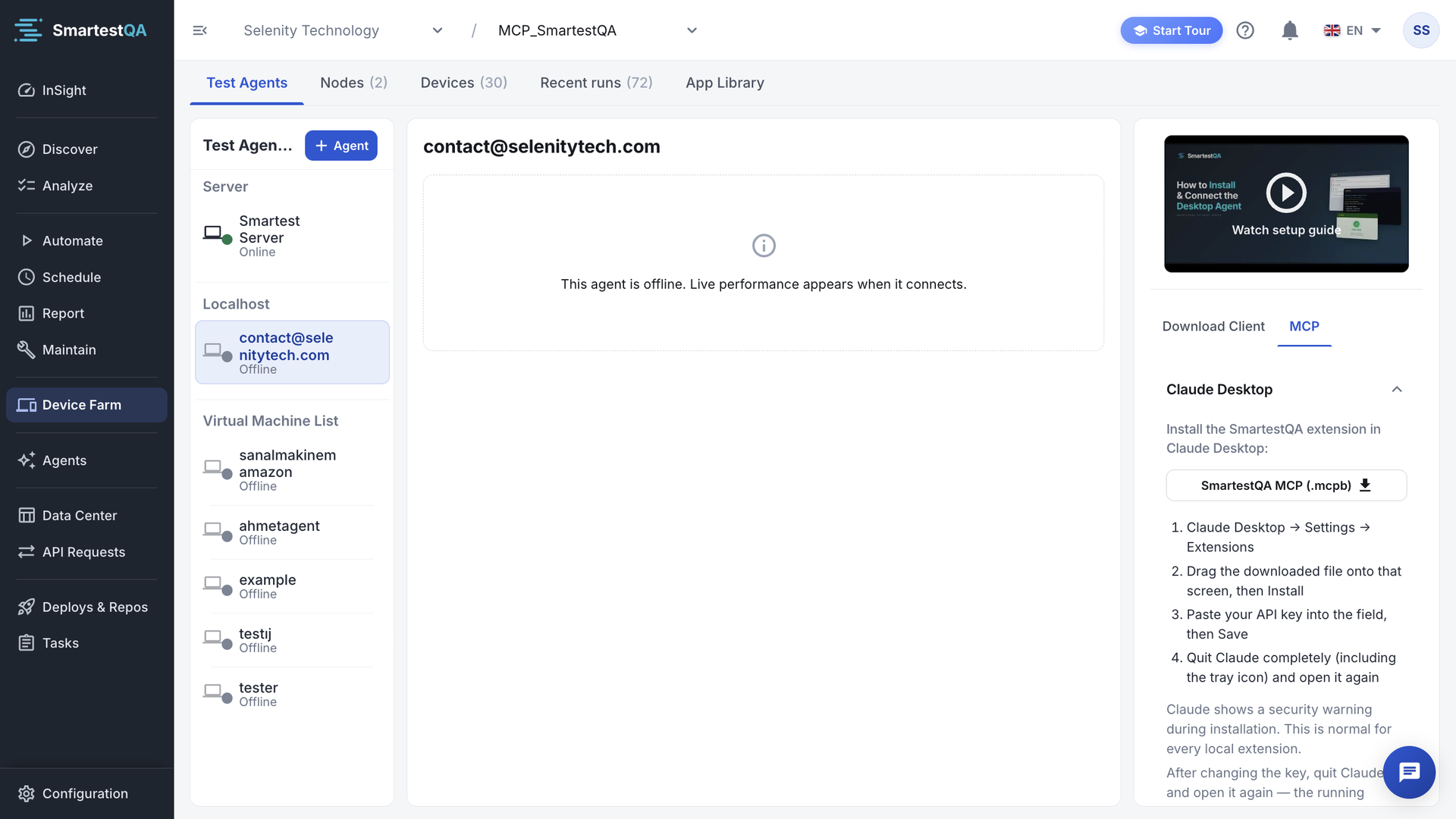
In SmartestQA, go to Device FarmTest Agents and select your host. Under Localhost each user has one, named after their email. Open the tab MCP (its tooltip says Connect to Claude).
Download the extension
Click SmartestQA MCP (.mcpb). The same file works on Windows and macOS. Hover the button to see its version, size and date.
Install it in Claude Desktop
“Claude Desktop → Settings → Extensions”. “Drag the downloaded file onto that screen, then Install”. Dragging works in every Claude Desktop installation; double-clicking does not always.
Paste your API key
“Paste your API key into the field, then Save”. Copy the key with Copy API Key on your host’s row in Test Agents. See The API key.
Restart Claude
“Quit Claude completely (including the tray icon) and open it again”. Closing the window is not enough.
Ask “Which SmartestQA projects can I access?”. The + menu of the chat also offers the prompts Status, Modules, Scenarios and Red runs.
Two normal messages
“Claude shows a security warning during installation. This is normal for every local extension.” And: “After changing the key, quit Claude and open it again — the running server keeps the old one.”
Connect Claude Code, Cursor or another client#
“Claude Code, Cursor or another MCP client”: “Needs Node.js 18 or newer on the machine. Claude Desktop is not required.” (Node.js missing?)
Open the MCP tab
As above: Device FarmTest Agents, select your host, tab MCP.
Pick the operating system
Choose Windows, macOS or Linux (your browser’s system is preselected). The command below changes with it: PowerShell on Windows, a shell command on macOS and Linux.
Copy and run the command
Click the copy icon and run the command in a terminal (PowerShell on Windows). It already contains your API key, so do not paste it anywhere else.
Let it register
The installer downloads the package, checks your key and registers SmartestQA in every client it finds: Claude Desktop, Claude Code and Cursor.
Restart the client
Claude Code: start a new session (
claude mcp listshows the server). Cursor: Settings › MCP shows it; restart Cursor if not. Claude Desktop: quit and reopen.Ask “Which SmartestQA projects can I access?”.
Install from the zip instead#
For machines with folder rules, CI or offline installs: Download the package yourself: SmartestQA MCP (.zip), “Windows, macOS and Linux — one package”. “An alternative to the command above — you do not need both. Downloading the archive installs nothing: unpack it into a permanent folder (not Downloads), then run this inside it:” the second command on the tab, for example:
sh ./smartest-mcp --install --env=prod --apikey=YOUR_API_KEYOn Windows the launcher is .\smartest-mcp.cmd. The tab fills in the environment and your key for you. Copy it from there rather than typing it.
Another MCP client#
Add a local (stdio) MCP server that runs node <package folder>/build/main.js with two environment variables: SMARTEST_ENV (the environment, as in the tab’s command) and SMARTEST_API_KEY (your key). The address of SmartestQA is fixed inside the package; you cannot point it at another server.
Update, list or remove#
smartest-mcp --list                   show what is registered
smartest-mcp --update                 install the latest version
smartest-mcp --uninstall --env=prod   remove one environment's entry
The Claude Desktop extension is updated and removed in Claude Desktop’s Extensions screen.
Read-only connection
For a local install you can set SMARTEST_READONLY=true in the server’s environment. The assistant then sees only reading tools and reading actions; every write answers “this connection … is read-only” (see Read-only connection).
The API key#
- What it is: the API key of a host in Device FarmTest Agents, the same key the SmartestQA agent uses. Copy it with Copy API Key on the host’s row. The MCP acts as the user of that host, with that user’s projects and permissions. Use your own Localhost host.
- Where it is kept: the Claude Desktop extension stores it in Claude’s settings; the one-line install writes it into each client’s MCP configuration on your machine.
- Never in the chat: SmartestQA tools have no key parameter, so the key never appears in the conversation or its transcript. The server masks it in its logs.
- Environment fixed: each package is built for one SmartestQA environment. A key from another environment is rejected; it cannot redirect the package to another server.
- Changing it: paste the new key in Claude Desktop’s extension settings (then restart Claude), or run the install command again from the MCP tab.
- The connector uses no API key: you sign in to SmartestQA instead.
Passwords never go to the assistant
Do not type your SmartestQA password, or a password of the app under test, into the chat. When a test needs a login, the assistant creates a data source key with an empty value, and you fill the value in SmartestQA yourself.
If something goes wrong#
Didn’t find your answer?Write to support with your project name and what you see on screen.
info@smartestqa.ai