- Docs
- Reference
- Step reference
- Mail steps
Mail steps
Sign-up, password reset and two-factor login send emails. The mail steps read those emails from a test mailbox so the test can go on: type the code, open the link, or check that a message arrived.
In short
On this page you can
- Read a verification code from a new email with Extract OTP.
- Read a confirmation or reset link with Extract Link.
- Wait until an email arrives and save its subject and content with Wait for Mail.
- Count emails with Get Mails and send one with Send Mail.
- Filter by sender, subject or content, with your own timeout.
How to use it
- Have an admin connect the test mailbox on the Integrations page.
- Click More › Mail; fill Test Step Name and pick the Email Integration.
- Choose the Operation Type and fill Sender Filter.
- Name the Output Variable, for example
otp. - Add a Type step with
{{tc:otp}}right after it, then save and run.
The five mail operations#
| Operation Type | Chip | Does | Required | Output |
|---|---|---|---|---|
| Extract OTP | Extract OTP | Extract verification code (OTP) from email | Sender Filter, Output Variable | The code |
| Extract Link | Extract Link | Extract verification/reset link from email | Sender Filter, Output Variable | The link |
| Wait for Mail | Wait Mail | Wait for a specific email to arrive | Sender Filter | Subject and content, if named |
| Get Mails | Get Messages | Get emails from inbox | Sender Filter | None (the count is logged) |
| Send Mail | Send Mail | Send email | Recipient | None |
Mail steps exist in web, mobile and desktop projects.
Add a mail step#
Check the mailbox connection
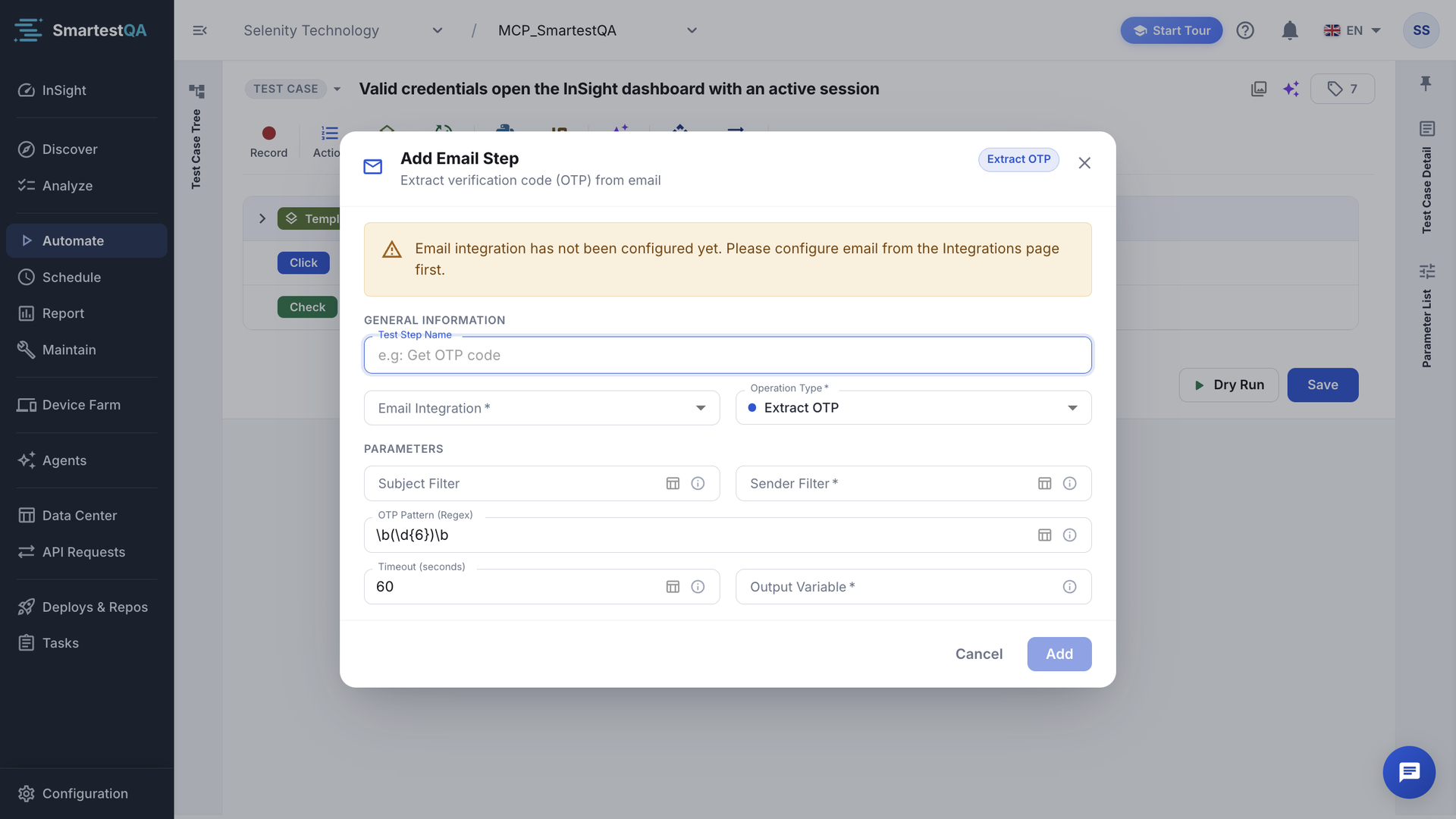
Mail steps read and send through an email integration (an IMAP and SMTP account) set up on the Integrations page. Without one, the dialog says “Email integration has not been configured yet. Please configure email from the Integrations page first.”
Open the dialog
Click More › Mail. The dialog Add Email Step opens.
General Information
Fill Test Step Name (for example
Get OTP code) and pick the Email Integration. Choose the Operation Type.Parameters
Fill the fields of the operation (below). Required fields are marked. Values can contain variables, for example a Subject Filter of
Code for {{tc:userEmail}}.Add and use the output
Click Add. In a later step use the output: Type
{{tc:otp}}into the code field.
Fields#
| Field | Used by | Default | Meaning |
|---|---|---|---|
| Sender Filter | All but Send Mail | — | Text to search in the sender address, for example noreply@example.com. Required. |
| Subject Filter | All but Send Mail | — | Text to search in the subject, for example Verification code. |
| Content Filter | Wait for Mail | — | Text to search in the content. |
| OTP Pattern (Regex) | Extract OTP | \b(\d{6})\b | The code to find. The default is a 6-digit number. For a 4-digit code use \b(\d{4})\b. |
| Link Content | Extract Link | — | Text the link must contain, for example /verify. |
| Timeout (seconds) | Extract OTP, Extract Link, Wait for Mail | 60 | Maximum waiting time, 1–600. |
| Output Variable | Extract OTP, Extract Link | — | Variable to store the result, for example otp. Required. |
| Subject Output, Content Output | Wait for Mail | — | Variables to store the email’s subject and content. Optional. |
| Unread Only | Get Mails | true | true or false. |
| Max Mail Count | Get Mails | 10 | Maximum number of emails to retrieve, 1–100. |
| Recipient, CC | Send Mail | — | Addresses. Recipient is required. |
| Subject, Content | Send Mail | — | Variables allowed: Test Report - {{tc:date}}. |
| HTML Format | Send Mail | false | true sends the content as HTML. |
Output names in one step must differ: “Output variables must be unique”.
Which emails a step sees#
Extract OTP, Extract Link and Wait for Mail look only for new mail in the inbox: unread messages that arrived after the step started (with a 30-second margin for mail that arrived just before). Unread mail that was already there is ignored, so an old code from an earlier run is never used. The step checks the mailbox every 5 seconds until a message matches or the timeout ends.
a message matches when:  unread  AND  received ≥ (step start − 30 s)  AND  filters match
the step gives up at:    step start + Timeout (seconds)
Example: the step starts at 10:00:00 with Timeout 60. A matching mail received at 09:59:45 counts (within 30 s); one received at 09:59:00 does not. If none arrives by 10:01:00, the step ends with “Timeout: No email with OTP found within 60 seconds”.
Extract OTP#
Finds the newest matching email and takes the first text that matches OTP Pattern (Regex). The code is saved in the output variable and the email is marked as read, so the next run cannot pick it up again.
4  Click         Send code
5  Extract OTP   Sender Filter: security@shop.example.com   Output Variable: otp
6  Type          Code field   value: {{tc:otp}}
7  Click         Verify
Extract Link#
Finds the newest matching email and takes the first http:// or https:// link that contains Link Content. Follow it with a Navigate step: value {{tc:link}}.
Wait for Mail#
Waits until a matching email arrives. Optionally saves its subject and content into Subject Output and Content Output, which you can check with an Assertion (for example the content Contains Order 1042).
Get Mails#
Reads up to Max Mail Count emails that match the filters and logs how many it found (“Found 3 emails”). It does not wait and produces no variable.
Send Mail#
Sends an email through the integration’s SMTP account, for example to trigger a mail-in workflow of your app or to send a short result. Log: “Email sent to: …”.
Outputs and results#
- Outputs are saved as
{{tc:name}}:{{tc:otp}},{{tc:link}},{{tc:mailSubject}}. - Any error (timeout, mailbox connection, sending) ends the step as ERROR and stops the test case.
- The mailbox is reached from the machine that runs the test.
If something goes wrong#
Didn’t find your answer?Write to support with your project name and what you see on screen.
info@smartestqa.ai