App Map
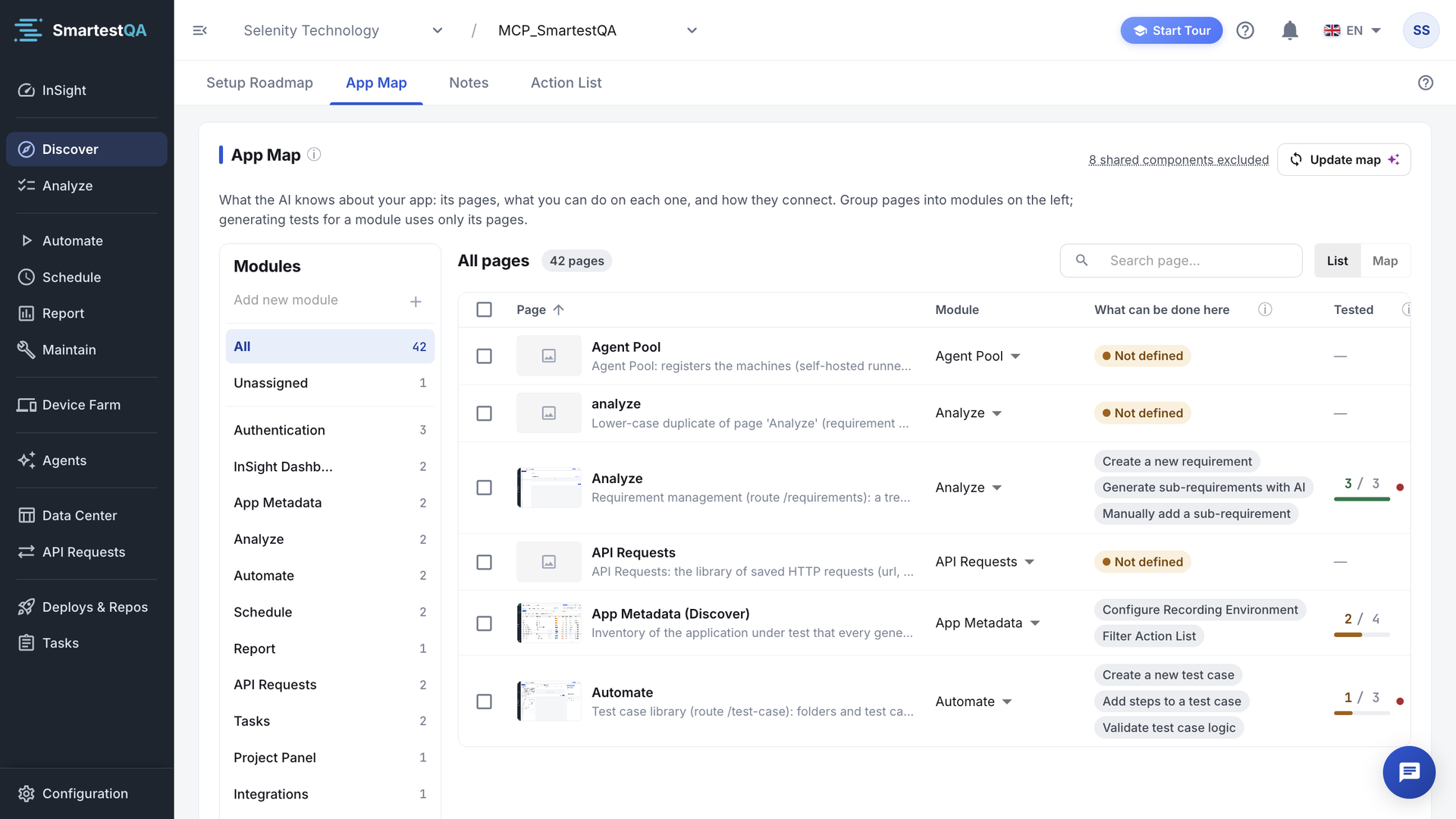
The App Map turns pages into knowledge: what each page is for, what users do there, where it leads and how well it is tested.
In short
On this page you can
- Build or refresh the map from your actions and tests with Update map.
- Describe a page: purpose, preconditions, expected outcomes, risk and roles.
- Add up to 4 screenshots per page and set a condition on each transition.
- Group pages into modules by drop-down, drag or Move to….
- Read the row markers Not on map, No actions and Page name required.
How to use it
- Click Update map, check the preview and apply it.
- Optionally tick AI task extraction to fill “What can be done here”.
- Click Detail on a page and write its Purpose, outcomes and Risk.
- Create modules with Add new module and move pages into them.
- Switch to Map to see the coverage colours.
Build or refresh the map: Update map#
Click Update map
A preview opens (Update map — preview) with: Pages to create, Pages to update, Transitions to create, Passing test cases scanned, Manually edited fields preserved, Will be marked unreachable.
Optionally let AI extract tasks
Tick Also extract tasks of n pages with AI to have the AI fill “What can be done here” for those pages in the background, one page per AI call, up to 60 pages per batch.
Apply
The map is rebuilt as described below. You see “Map updated”.
What Apply does, in order:
- Fills empty Navigates To values where it can.
- Builds pages from all actions.
- Builds transitions from the step order of every test case. A page or transition seen in a passing test is Verified; one known only from Navigates To is Declared; a page with neither is Orphan.
- Marks the entry page: the first page of the most passing test cases.
- Fills Preconditions from manual test prerequisites, Required data from data source key names (never values), and the main screenshot from the most used action screenshot. Screenshots that came from the recorder or that you uploaded are never replaced.
- Removes stale records it created earlier, then starts AI descriptions of test cases that changed.
Describe a page#
Click Detail on a page. In Page information you can edit:
| Field | What to write | Example for checkout |
|---|---|---|
| Display name | The name people use. | Checkout |
| Roles | Who can open it, comma separated. | customer, guest |
| Purpose | One or two sentences: why the page exists. This is what the roadmap counts. | Customer reviews the cart, chooses delivery and payment, and places the order. |
| Preconditions | What must be true before the page works. | Cart has at least one in-stock item; delivery address saved. |
| Expected outcomes | What success looks like. | Order number shown; confirmation email sent; stock reduced. |
| Risk | What would hurt most if it broke. | Revenue loss; double charge if Place Order is clicked twice. |
Also in the detail dialog: Required data (read-only), Shared component (not a page) for headers, footers and menus, What can be done here (tasks, filled by AI or an MCP assistant), Goes to with an editable Condition per transition, Screenshot (upload, drag and drop or paste, up to 4 per page, each with an optional role and state), Test status and the notes scoped to this page or its module.
Your edits are protected
Saving Page information marks the page as manually edited. Later Update map runs do not overwrite those text fields; the preview counts them under “Manually edited fields preserved”.
A good purpose
- “Back-office user approves or rejects refund requests over €500; approved refunds go to finance.”
- Names the user, the decision and the consequence.
A weak purpose
- “Refund page.”
- “This page has a table and two buttons.”
- Repeats the name or describes the layout, which the AI already sees.
Group pages into modules#
- The Modules sidebar has Add new module, All, Unassigned, and rename and delete per module.
- Move pages with the module drop-down on the row, by dragging, or by selecting several (“n selected”) and using Move to…. Each move saves at once and offers Undo.
- Deleting a module needs an Admin and moves it to the Archive.
- Shared components are hidden behind “n shared components excluded”; use Show as page if one was misdetected.
The list shows Page, Module, What can be done here (“Not defined” when empty), Tested and Detail. Row markers: Not on map (run Update map), No actions, Page name required. Switch between List and Map at the top.
Video transcript
The App Map is what the AI knows about your app: its pages, what you can do on each, and how they connect. On the left, pages are grouped into modules. Generating tests for a module uses only its pages. The list shows each page with its module and what can be done there. Detail opens the description of one page. Map draws the same pages as a graph, with the links between them. Update map rebuilds it from the actions Discover recorded.
If something goes wrong#
Didn’t find your answer?Write to support with your project name and what you see on screen.
info@smartestqa.ai