- Docs
- Administration
- Project settings
- Test Management
Test Management
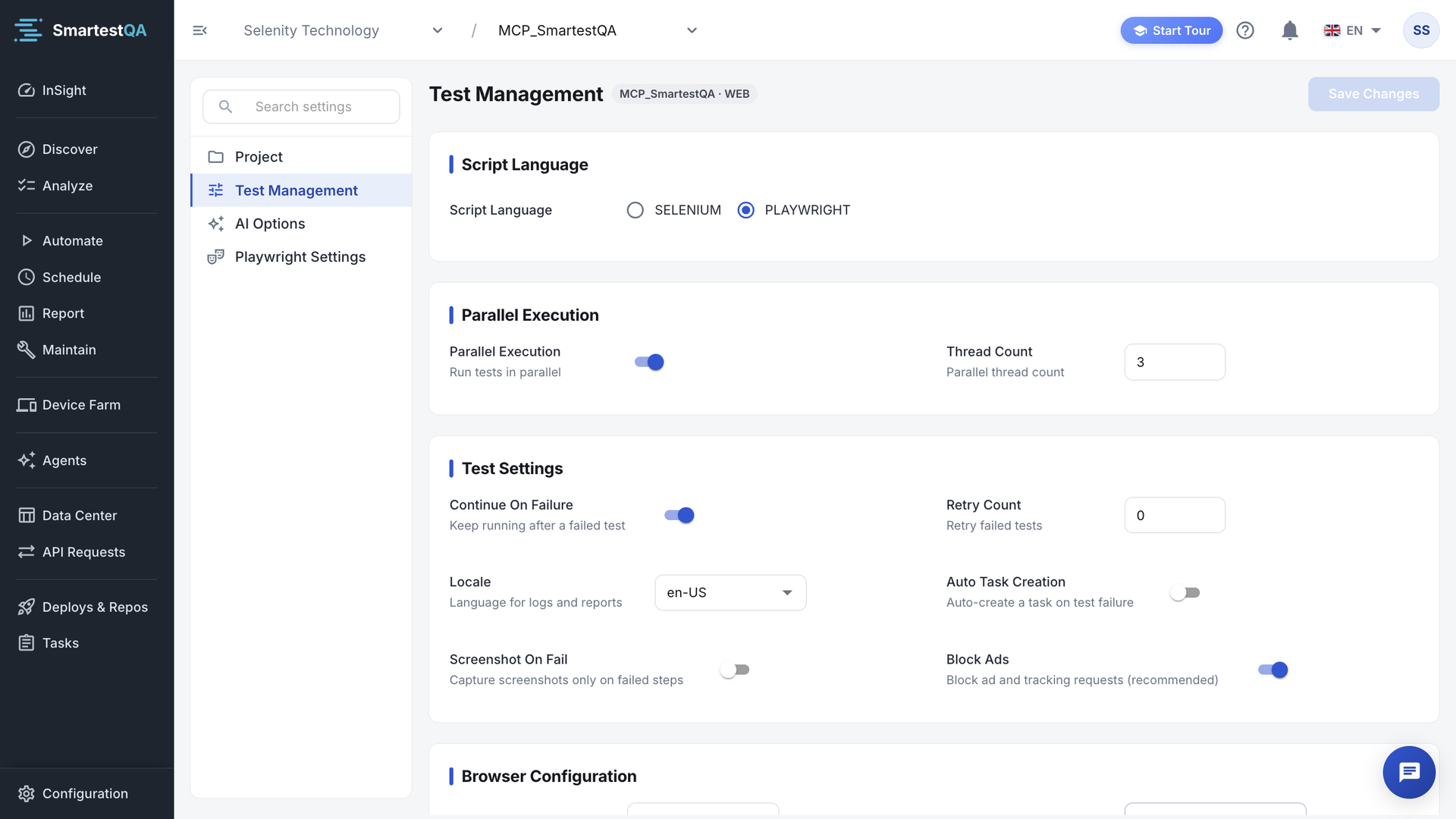
Test Management decides how the tests of a project run: which engine, how many at once, what happens after a failure, how long a step waits, what is recorded and who gets the report.
In short
On this page you can
- Choose the web engine, SELENIUM or PLAYWRIGHT.
- Run several tests at once with Parallel Execution and Thread Count.
- Decide how failures are handled with Retry Count and Continue On Failure.
- Set browser language, resolution, headless mode, timeouts, screenshots and video.
- Send the run report by email after each pipeline run, or only when something failed.
How to use it
- Open Configuration › Project Panel › Test Management.
- Change the values in each block; ranges are checked as you type.
- Click Save Changes in the header.
- Run a Dry Run in Automate to see the effect at once.
- Copy the change into the run settings of existing pipelines in Schedule, if they should follow.
The section is a list of blocks. Which blocks you see depends on the project type:
| Block | WEB | MOBILE / ANDROID / IOS | DESKTOP |
|---|---|---|---|
| Script Language | Yes | No | No |
| Parallel Execution | Yes | Yes | No: cases run one after another on one desktop |
| Test Settings | Yes, with Block Ads | Yes | Yes |
| Browser Configuration, Display Settings | Yes | Yes | No |
| Logging & Recording | Yes | Yes | Skip Successful Logs only |
| Test Execution | Yes | Yes | Wait Timeout only |
| Email Notification | Yes | Yes | Yes |
Script Language (WEB)#
Script Language picks the engine that drives the browser: SELENIUM or PLAYWRIGHT. New projects use Playwright. The choice also decides which extra section the menu shows: Selenium Settings or Playwright Settings. The values of the other engine are kept, so you can switch back.
Selenium or Playwright?
Both run the same test cases. Playwright sees every browser request in Network steps; Selenium sees fetch/XHR calls only. Playwright also offers timezone, geolocation and permission settings. Pick one per project and keep it.
Parallel Execution and Thread Count#
| Setting | What it changes | Values |
|---|---|---|
| Parallel Execution | “Run tests in parallel”: the test cases of a pipeline run at the same time instead of one after another. | On or off. New projects: on. |
| Thread Count | “Parallel thread count”: how many test cases run at the same time. Greyed out while Parallel Execution is off; the value is kept. | 1 up to your licence’s Max Thread Count. |
saved Thread Count   = max(1, min(entered value, licence Max Thread Count))
new project default  = min(3, licence Max Thread Count)
licence not readable → the server caps at 3
Example: your licence allows 4 parallel threads. You type 8: the field shows 4 and 4 is saved; a new project starts with 3. If your licence allows only 1 thread, every new project starts with 1 and the field cannot go higher. An Admin sees your limit in Billing › License Details.
Test Settings#
| Setting | What it changes | New project |
|---|---|---|
| Continue On Failure | “Keep running after a failed test.” Off: after a test case fails, the rest of the suite is not run. | On |
| Retry Count | “Retry failed tests.” How many more times a failed test case is run. 0 to 5; higher values are set to 5. | 0 |
| Locale | “Language for logs and reports”: en-US, tr-TR or de-DE. It is also the language in which AI writes content for the project (descriptions, agent output) and the language AI assistants must use through MCP. | en-US |
| Auto Task Creation | “Auto-create a task on test failure.” After a pipeline run, a task is created for each failed test case. Tasks use the statuses from Task Settings. | Off |
| Screenshot On Fail | On: pipeline runs keep screenshots only for failed steps. Off: every step gets a screenshot. Dry Runs always take one per step. | Off |
| Block Ads (WEB) | “Block ad and tracking requests (recommended).” Fewer pop-ups and faster pages. | On |
attempts per test case = Retry Count + 1          (Retry Count 0–5, so at most 6)
a test case passes     = any attempt passes
after the last failed attempt:
  Continue On Failure on  → the next test case runs
  Continue On Failure off → the remaining test cases of the suite are not run
                             and are reported as failed because the previous case failed
Example: a suite has 10 test cases, Retry Count is 2. Case 4 fails on all 3 attempts. With Continue On Failure on, cases 5 to 10 run and the suite reports 1 failure (if the others pass). With it off, cases 5 to 10 do not run and are reported as failed. Worst case for one test case: (Retry Count + 1) × its normal duration.
Browser Configuration and Display Settings#
| Setting | What it changes | Values |
|---|---|---|
| Browser | The browser of web runs. | Chrome. Firefox and Edge are listed but cannot be selected. |
| Browser Version | Fixed. | Latest |
| Platform | Stored with the run settings and shown in reports. The browser runs on the machine that executes the test: the Smartest Server or your agent. | Windows, Linux, Mac, Remote. New projects: Windows. |
| Browser Locale | “Browser language & date format (BCP-47) - Selenium and Playwright.” The language the app under test sees, for example tr-TR for Turkish dates. Pick from the list or type a code. | New projects: en-US. Empty: en-US. |
| Resolution | “Browser viewport size.” | 1920x1080 (new projects), 1366x768, 1280x720, 1536x864, 1440x900, 2560x1440, 3840x2160, 375x667, 768x1024 |
| Headless Mode | “Run without UI”: the browser has no visible window. It matters on your own agent; Run on Server always runs without a window. | New projects: on |
Do not confuse Locale (language of logs, reports and AI-written content) with Browser Locale (language of the app under test).
Logging & Recording#
| Setting | What it changes | New project |
|---|---|---|
| Skip Successful Logs | “Keep only failed step logs in reports.” Reports get smaller; passed steps show no detail. | Off |
| Video Recording (not DESKTOP) | “Record a video of the test run.” The report keeps the video. | On |
Test Execution#
| Setting | What it changes | Values |
|---|---|---|
| Wait Timeout (sec) | “Default element wait time”: how long a step waits for its element before it fails. | 1–120. New projects: 30. |
| Page Load Timeout (sec) (not DESKTOP) | “Max page load wait time. 1-120.” | 1–120. New projects: 120. |
Values outside the range are set to the nearest limit, on screen and again on the server. A step that waits for a missing element blocks its thread for the whole Wait Timeout, so a high value makes failing runs slow.
Email Notification#
Turn on Email Notification (“Send email reports”) to mail the report after each pipeline run. The other fields appear when it is on.
| Field | What it changes | New project |
|---|---|---|
| When to Send | Always, or On Failure: only when a test of the run failed. | On Failure |
| Email Subject | “Report email subject.” | Test Execution Report |
| Email To | Recipients, separated by semicolons: a@x.com;b@x.com. With no recipient no email is sent. | The email of the person who created the project |
| Email CC | Copy recipients, same format. | Same as Email To |
Automatic report emails are in English. Slack, Teams and other channels are set up in Integrations, not here.
What a new project starts with#
Every new project gets these values. The sample project brings its own settings. A summary for first-time users is in Quick Start.
| Setting | Default | Setting | Default |
|---|---|---|---|
| Script Language | PLAYWRIGHT | Resolution | 1920x1080 |
| Parallel Execution | On | Headless Mode | On |
| Thread Count | min(3, licence) | Browser · Version · Platform | Chrome · Latest · Windows |
| Continue On Failure | On | Browser Locale | en-US |
| Retry Count | 0 | Skip Successful Logs | Off |
| Locale | en-US | Video Recording | On |
| Auto Task Creation | Off | Wait / Page Load Timeout | 30 s / 120 s |
| Screenshot On Fail | Off | Email Notification | Off (On Failure) |
| Block Ads | On | AI | On, Smartest AI |
How settings reach a run#
| Run | Settings it uses |
|---|---|
| Dry Run from Automate | The project’s current values, read when the run starts. Exceptions: Retry Count is always 0, and the run is never parallel. |
| Pipeline (scheduled, manual, CI, API) | The copy made when the pipeline was created. You change it in the pipeline’s own run settings in Schedule. |
| Always from the project | AI for Assessment, AI Document Analysis and Collect for Templates: they are never copied into a pipeline. |
| Pipeline first, project as fallback | Auto Task Creation and Email Notification: if the pipeline’s copy has no value, the project’s is used. |
Changing the project does not change existing pipelines
If you raise Retry Count to 2 today, pipelines created last month still run with 0. Open each pipeline in Schedule and change its run settings, or create the pipeline again. The same applies to Script Language, threads, timeouts, video and emails.
Save#
Save Changes is enabled only when a value differs from the saved one; changing a value and back counts as no change. Success: “Project settings saved successfully”. Failure: “An error occurred while saving project settings”. Test Management, AI Options and the Selenium or Playwright section share one save: changes in all of them go in the same request.
Video transcript
Project Panel > Test Management holds the settings the runs of this project start from. Script Language chooses the engine: Selenium or Playwright. Parallel Execution runs test cases side by side; Thread Count says how many. Test Settings: continue after a failure, retry failed tests, and create a task when a test fails. Browser Configuration sets the browser, its version, the resolution and headless mode. Logging & Recording decides what a report keeps: failed-step logs only, and a video. Save Changes applies them. A new pipeline starts with a copy and can change its own.
If something goes wrong#
Didn’t find your answer?Write to support with your project name and what you see on screen.
info@smartestqa.ai