- Docs
- Build tests
- Maintenance
- Network Calls
Network Calls
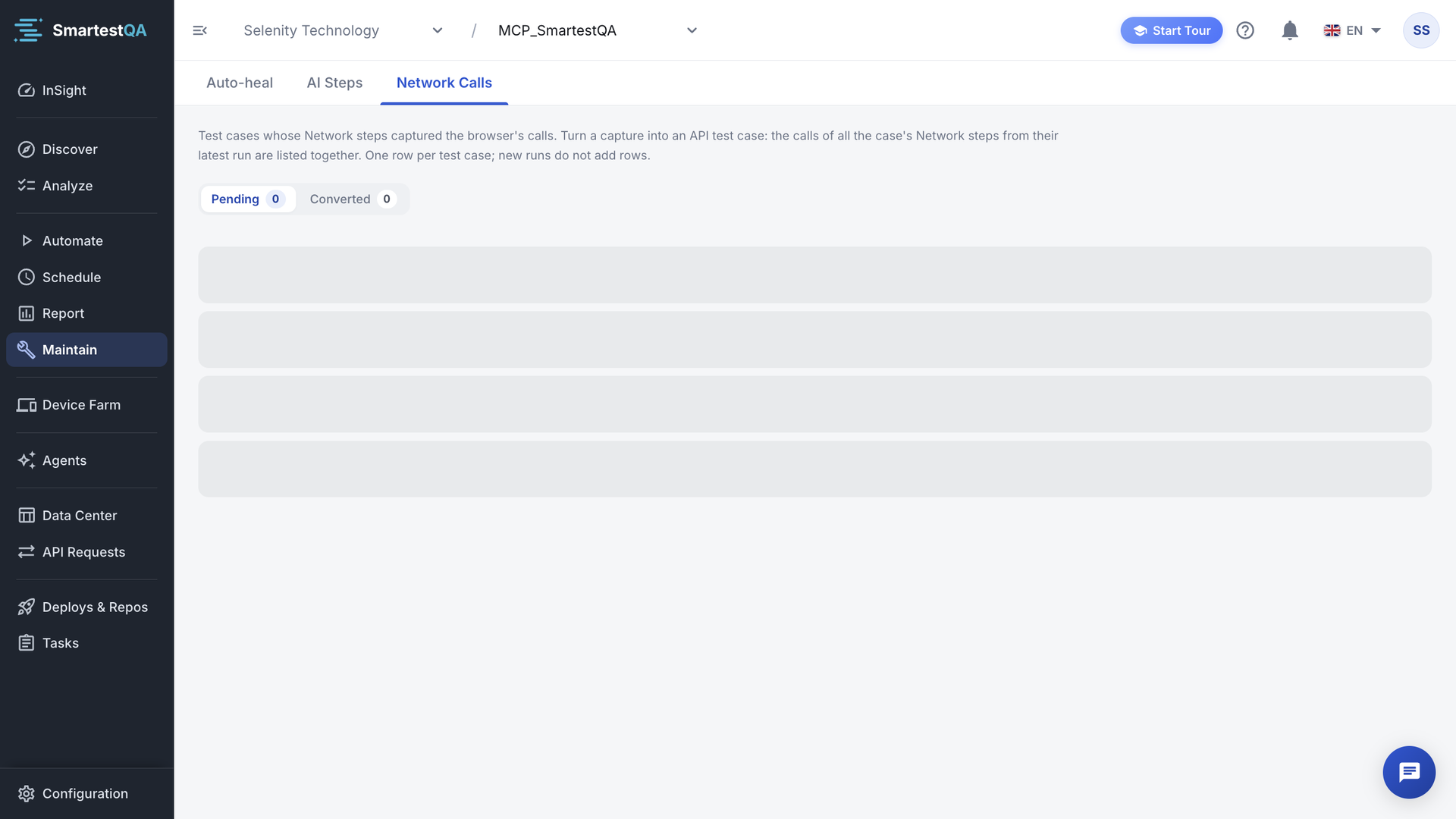
A Network step records the calls your web app makes while a test runs. Network Calls lists every test case with such a capture and turns the calls you pick into a new test case made of API Request steps.
In short
On this page you can
- See every web test case whose Network steps captured calls in a pipeline run.
- Pick the app’s own API calls; static files and third-party calls are left out by default.
- Carry the login token into later requests with
{{authToken}}. - Replace the host with a
{{baseUrl}}variable for several environments. - Create the API test case in the same folder as the browser test.
How to use it
- Add a Network step in List mode and run the test case in a pipeline.
- Open Maintain › Network Calls and click Make API test.
- Keep or change the selected requests; select the login request too.
- Read the warnings, set the name, and click Create with n steps.
- Fill in the listed variables in the new test case, then run it.
What the tab lists#
One row per test case that has a Network step and has run in a pipeline or scheduled run. New runs update the row; they do not add rows. The latest run of each Network step is used, and all the Network steps of the test case are combined in one list. Network steps exist only in WEB projects.
| Part | What it shows |
|---|---|
| Test case name | Click it to open the test case in Automate. |
| “s Network steps · c calls” | The test case’s Network steps and the calls they captured in their latest run. See the count. |
| Date and “n runs” | The latest run and how many runs these steps were part of. |
| Make API test | On Pending rows: opens the conversion dialog. |
| → test case name | On Converted rows: the API test case that was created. Click to open it. |
Filters: Pending (the tab opens here) and Converted.
Make an API test, step by step#
Open the dialog
Click Make API test. The dialog Network → API steps opens: “The requests you pick are added as API Request steps to a new test case in the same folder. You can then generate a JMeter test from it.” From a report, Convert to API steps brings you here and opens the dialog by itself.
Pick the requests
The list opens on API calls. Other filters appear when there are such requests: Pages, Static, Third party, Other and All. Tick or untick rows, or use Select All for the visible filter. The counter says “n requests selected”.
Pre-selected: your app’s own API calls that did not fail, each method and path once. A login request (its response contains a session token) is marked Login and pre-selected, unless it goes to a third-party site.
Choose the two options
- Add Bearer {{authToken}} to requests after login (on by default): requests after the login request send its token.
- Replace the host with a {{baseUrl}} variable (update it in one place per environment) (off by default).
Read the warnings
The dialog lists what you must fill in afterwards, for example “You need to define values for these variables: …”. Each warning is explained in Troubleshooting.
Name and create
New test case name is pre-filled as “<test case> - API” (“Created in the same folder as the source test case.”). Click Create with n steps.
“<name> created (n API steps)”. The new test case opens in Automate, and the row moves to Converted.
Finish the test case
Define the listed variables, add any custom headers, add assertions on the responses, and run it.
Marks on a request#
| Mark | Meaning |
|---|---|
| step n | The Network step that captured the request. |
| duplicate | The same method and path appeared earlier; only the first is pre-selected. |
| Login | “Its response contains a session token. The token is stored in {{authToken}} at this step and later steps use it.” |
| Masked body warning | “Secret fields in the body (passwords etc.) are masked in the report. They are added as {{fieldName}} variables; you fill in the values.” |
| truncated | “The body is truncated in the report. Complete it after saving.” |
What gets created#
- A new test case in the folder of the source test case, with the source test case’s environment. Its description is “Generated from the Network capture of the "<name>" run.” plus “Variables to define: …”.
- One API Request step per selected request, in capture order, named by method and path, for example
POST /api/orders. Query parameters are kept. - Secrets become variables. The report masks secrets as
***. A masked Authorization header becomes Bearer{{authToken}}; a masked header or body field becomes a{{name}}variable. - The login token is extracted. On the login request a JSON extractor stores the token in
{{authToken}}(and a refresh token in{{refreshToken}}). - Browser headers are dropped: Host, Cookie, User-Agent, Referer, Origin, caching and similar headers are not copied.
Requests to other sites, analytics and tracking services, static files (scripts, styles, images, fonts), WebSocket and event streams, and OPTIONS or HEAD requests are not pre-selected.
After the conversion#
The test case stays under Converted, even after later runs, with a link to the API test case. If you delete that API test case, the row returns to Pending and you can convert it again.
Tips#
- Use the Network step’s List mode for the whole session. CHECK and EXTRACT modes capture a single request.
- Select the login request whenever later calls need a token. Otherwise you get “Requests use {{authToken}}, but no selected request produces a token.”
- Turn on the
{{baseUrl}}option when the same API runs on DEV, TEST and PRP, and setbaseUrlas a suite parameter. - A List capture has no request headers. If your API needs a tenant or language header, add it to the steps.
If something goes wrong#
Didn’t find your answer?Write to support with your project name and what you see on screen.
info@smartestqa.ai