- Docs
- Resources
- API Requests
API Requests
API Requests is the project’s API library. You build or import HTTP requests here, try them with Send, and add them as API steps to test cases, so UI and API checks live in the same scenario.
In short
On this page you can
- Keep the project’s HTTP requests in collections and folders.
- Import requests from Postman, Swagger / OpenAPI or a curl command.
- Try a request with Send and read status, time, size and body.
- Set authorization once on a collection or folder for its requests.
- Add a saved request to a test case as an API step.
How to use it
- Open API Requests and create a collection with Add Collection.
- Click New Request, or import with Import Postman or Import Swagger / OpenAPI.
- Fill method, URL, body and Request settings, then Save.
- Click Send to check the response.
- In Automate, add an API step and pick the request in Select API Request.
At a glance
- Where
- Main menu › API Requests. Left: the API tree. Middle: the request. Right: Request settings (Authorization, Params, Header).
- Who
- Every project member creates, edits, sends and deletes requests. Deleting a folder or collection that is not empty needs an Admin.
- You need
- A selected project and the API’s address. For Send, the API must be reachable from the SmartestQA server.
- Time
- A request takes a minute; a Swagger import of a whole API takes seconds.
- Produces
- Saved requests: method, URL, headers, query parameters, body and authorization.
- Project types
- The same in WEB, MOBILE and DESKTOP projects. API steps can sit next to UI steps in any scenario.
Start from your question#
I want to…
Something is wrong
Where API Requests fits#
API Requests sits beside the order of work, like Data Source. You fill the library before or while you automate; Automate copies requests into steps.
- 1DiscoverPages and controls
- 2AnalyzeRequirements
- 3AutomateAPI steps copy saved requests
- 4SchedulePipelines run them
- 5ReportRequest and response in the step log
- 6MaintenanceFix the step’s copy
Why use it#
- UI and API in one scenario. Create an order through the API, check it in the browser, or the other way round.
- Start from what you have. Postman collections, Swagger / OpenAPI specs and curl commands from the browser’s developer tools become requests.
- One place for authorization. Set a Bearer token or Basic Auth on a collection or folder and let requests inherit it while you try them here.
- Data from Data Source. URLs, headers and bodies can hold
{{ds:apiBase}}and other references, with a different value per environment. See Reference syntax.
The building blocks#
- Collection
- The top level of the tree, usually one per API or service. An import always creates one.
- Folder
- Groups requests inside a collection or another folder. Swagger imports create one folder per tag.
- Request
- One HTTP call: method, URL, headers, query parameters, body and authorization. Shown with a colored method chip.
- Authorization
- None, Bearer Token, Basic Auth or Inherit from parent. Collections and folders can hold one for their requests.
- Send
- Sends the request now, from the SmartestQA server, and shows the response. Nothing is saved.
- API step
- A step in a test case made from a saved request. It keeps its own copy of the request.
- Reference
{{ds:key}},{{tc:name}}or{{excel:name}}_columninside a request, filled in by the run.
The screen#
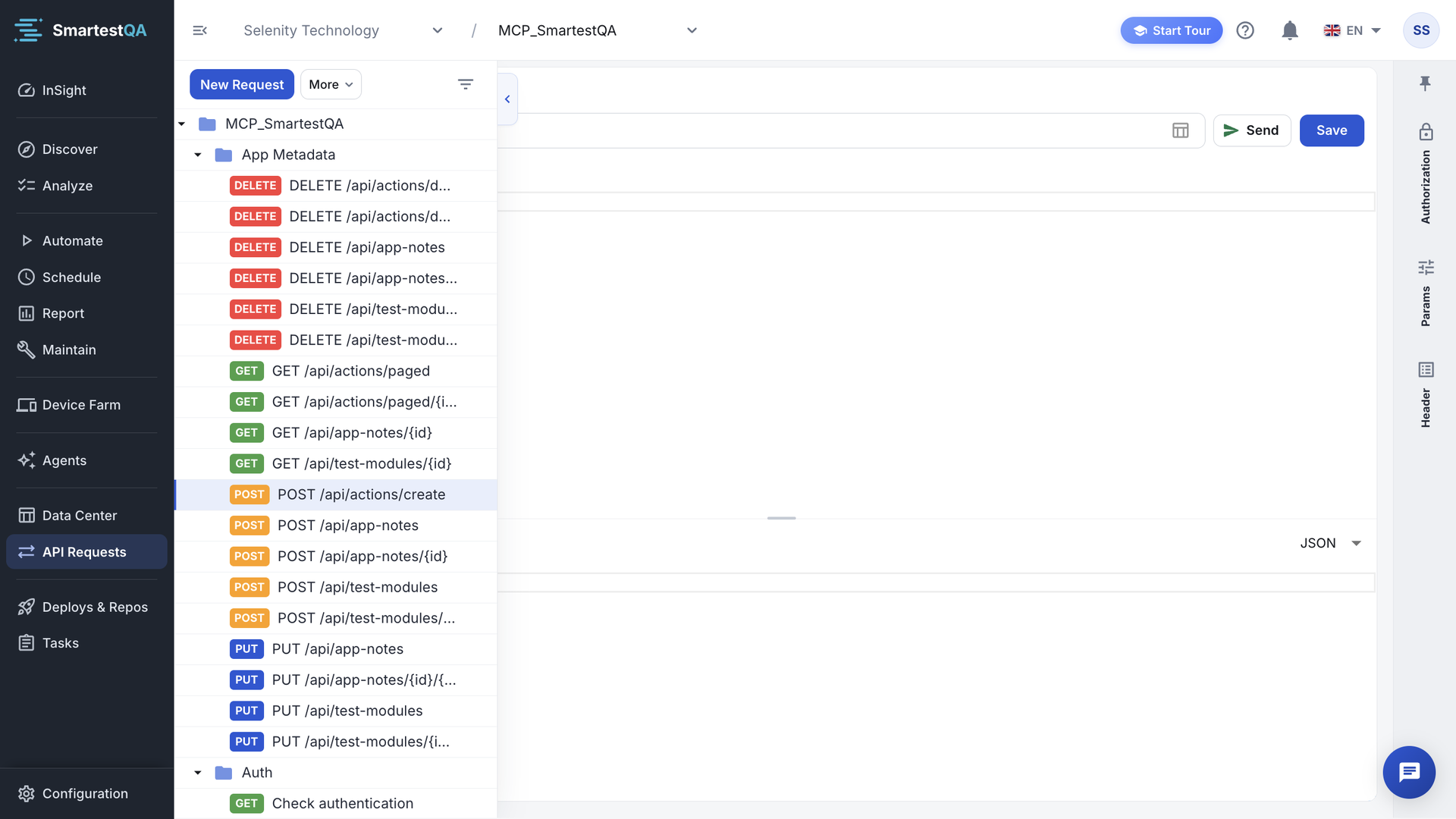
| Area | What it does | More |
|---|---|---|
| API tree | New Request, More (Add Collection, Add Folder, Import Postman, Import Swagger / OpenAPI), search, and a menu on every item. | The API library |
| Request | Editable name, HTTP method, Request URL, Send, Save, Body and Response. | Edit and send |
| Request settings | Authorization, Params, Header. On narrow screens it folds into a strip of tabs at the right edge. | Authorization |
| Footer | Created by and Updated by with dates. |
On screens narrower than 1600 pixels the tree folds into a rail on the left (“Show the tree”). The last selected item and the open folders are remembered for the session.
Who can do what#
| Task | User | Admin |
|---|---|---|
| Create, edit, duplicate, move, send and import | Yes | Yes |
| Delete a request or an empty folder or collection | Yes | Yes |
| Delete a folder or collection that has content | No | Yes |
The top folder of the tree cannot be deleted. Roles: Roles & permissions.
Before you start#
- Know where the API runs. Send and Swagger URL imports go out from the SmartestQA server; runs go out from the machine that runs the test. An API on your intranet needs an agent for runs and cannot be tried with Send.
- Put the base URL in a key.
{{ds:apiBase}}/orderswithapiBase,apiBase_TEST… in Data Source. - Put tokens in encrypted keys. A token typed into a request is visible to everyone who opens it. See Where secrets belong.
Best practices#
Do
- One collection per API, folders per resource.
- Name requests by what they do: “Create order”, “Get order by id”.
- Use
{{ds:…}}for base URLs and secrets. - Use Bearer Token or an Authorization header for anything you will run in tests.
- Check the response with Send before you add the request to a test.
Don’t
- Paste production tokens into requests.
- Expect a step to change when you edit the saved request.
- Rely on Basic Auth or Inherit from parent in a run; see Authorization in runs.
- Leave path placeholders such as
{id}from an import in the URL.
In this section#
Create requests, collections and folders, rename, duplicate, move and delete them, and import from Postman, Swagger / OpenAPI or curl.
API RequestsEdit and sendMethod, URL, body, authorization, params and headers; what Save checks, what Send really sends, and how to read the response.
API RequestsUse requests in testsAdd a saved request as an API step, create one from curl, understand the step’s own copy, and what a run sends differently from Send.
API RequestsTroubleshootingEvery API Requests message and symptom, with why it happens, what to check and how to fix it.
API RequestsFAQ, MCP & limitsQuestions and answers about API Requests, AI assistants through MCP, and the limits.
Related#
Didn’t find your answer?Write to support with your project name and what you see on screen.
info@smartestqa.ai