- Docs
- Administration
- Company settings
- Roles & permissions
Roles & permissions
SmartestQA has three fixed roles. This section shows, item by item, what each one can do. It is read from the checks in the code and cannot be edited.
In short
On this page you can
- See what the ADMIN and USER roles can do before you assign them.
- Find which actions a User can do only partly, and why.
- Check who can delete, archive and restore work.
- Confirm which company tasks need an admin.
How to use it
- Open Configuration › Company Settings › Roles & permissions.
- Click a role in the Roles list; USER is shown first.
- Read the right panel: Can, Limited (with the reason) or Cannot per item.
- Change a person’s role in Users if they need more or fewer rights.
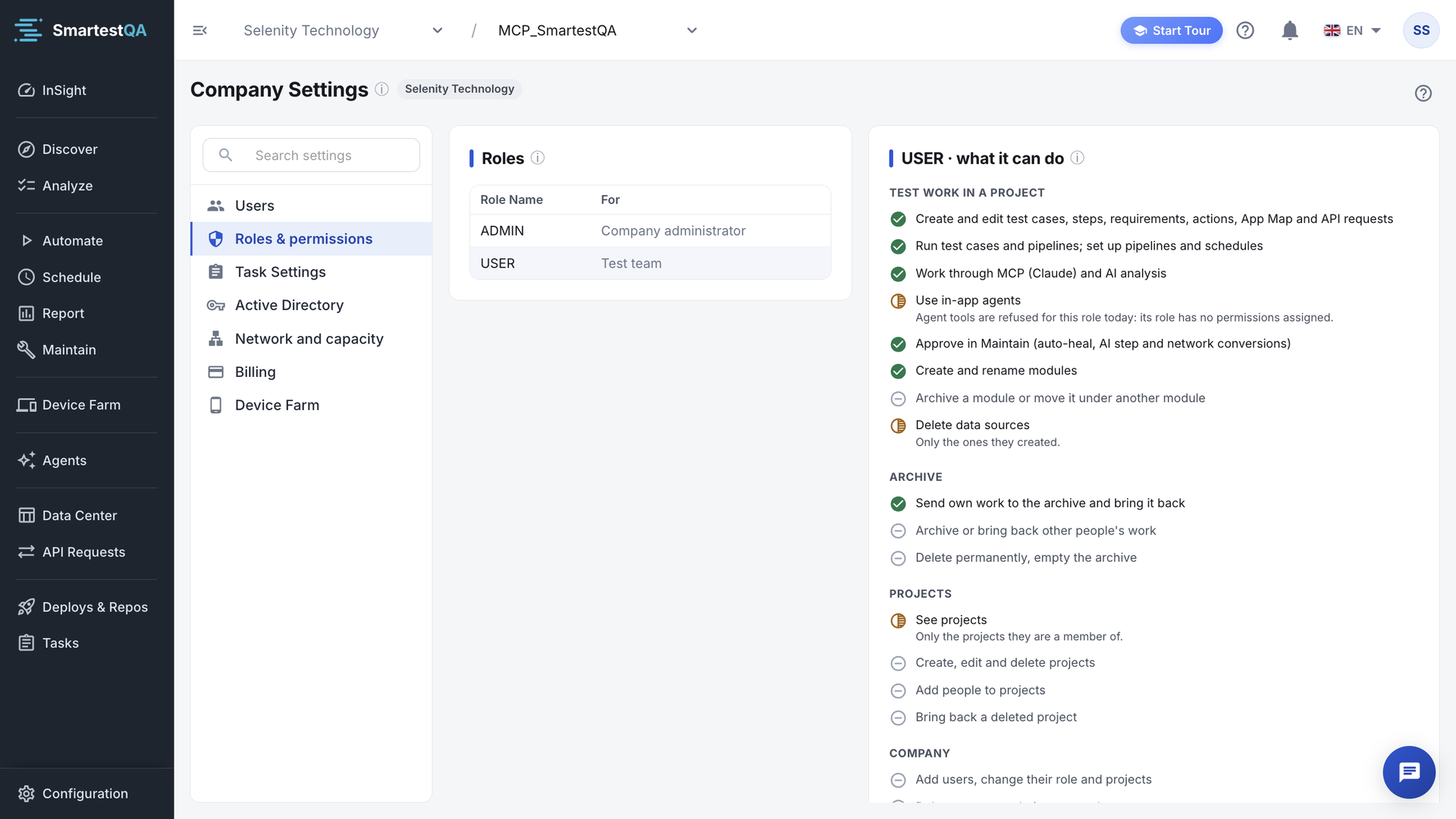
“Roles are fixed: Super admin, Admin and User. Pick one to see what it can do.” The right panel lists each item with an icon and a word: Can, Limited (with a line that says how) or Cannot.
| Role | For | How someone gets it |
|---|---|---|
| SUPER ADMIN | Platform operator (SmartestQA) | SmartestQA staff only. It cannot be given by an admin or by Active Directory. |
| ADMIN | Company administrator | The person who signed up, and anyone an admin promotes. |
| USER | Test team | Default for invited colleagues. |
What each role can do#
| Item | Admin | User |
|---|---|---|
| Test work in a project | ||
| Create and edit test cases, steps, requirements, actions, App Map and API requests | Can | Can |
| Run test cases and pipelines; set up pipelines and schedules | Can | Can |
| Work through MCP (Claude) and AI analysis | Can | Can |
| Use in-app agents | Can | Limited: agent tools are refused for this role today |
| Approve in Maintain (auto-heal, AI step and network conversions) | Can | Can |
| Create and rename modules | Can | Can |
| Archive a module or move it under another module | Can | Cannot |
| Delete data sources | Can | Limited: only the ones they created |
| Archive | ||
| Send own work to the archive and bring it back | Can | Can |
| Archive or bring back other people’s work | Can | Cannot |
| Delete permanently, empty the archive | Can | Cannot |
| Projects | ||
| See projects | Can (all) | Limited: only the projects they are a member of |
| Create, edit and delete projects | Can | Cannot |
| Add people to projects | Can | Cannot |
| Bring back a deleted project | Cannot (ask SmartestQA) | Cannot |
| Company | ||
| Add users, change their role and projects | Can | Cannot |
| Delete users, set their password | Cannot (SmartestQA only) | Cannot |
| Company profile, licence and billing | Can | Cannot |
| Task statuses (Tasks settings) | Can | Cannot |
| Integrations (Jira, Xray, Slack, Active Directory, webhooks …) | Can | Cannot |
| Manage the device farm (nodes, devices, app library) | Can | Limited: uses devices in their projects; cannot manage them |
| See the audit log | Can | Cannot |
A fifth group, Platform (SmartestQA operator only), lists what only Super Admin can do: companies and licence limits, system settings, the step catalogue and system logs.
Screens that need Admin#
For the User role these menu items are greyed out with “Please contact your administrator to access this feature.”:
- Configuration › Project Panel
- Configuration › Company Settings (this page)
- Configuration › Integrations
- Configuration › Logs
Choosing roles#
- Testers, analysts and developers who write and run tests: User. They can do all test work in their projects.
- Team leads who add people, manage projects, settings and integrations: Admin.
- Keep two admins, so that leave or illness never blocks user changes. The last active admin cannot be demoted or deactivated.
Change a role in Users. With Active Directory, map AD groups to roles in Groups and roles.
Didn’t find your answer?Write to support with your project name and what you see on screen.
info@smartestqa.ai