Schedule a pipeline
A pipeline with a Period starts by itself. The Period says how often, the start and end dates say from when until when, and the Scheduled Runs tab shows when the next run really starts.
In short
On this page you can
- Run a pipeline every day, week or month at the time of its start date.
- Write a 5-field cron expression for anything else, such as every 30 minutes on weekdays.
- Limit the schedule with Start Date Time and End Date Time.
- See every scheduled pipeline and its Next run on Scheduled Runs.
- Pause a schedule by setting Period back to Real-time.
How to use it
- Open the pipeline and pick a Period on the Schedule tab.
- Set Start Date Time to the first run and End Date Time to the last day.
- For Custom (Cron), type the Cron Expression and read the summary under it.
- Click Save.
- Open Scheduled Runs and check Next run in your own time.
Period#
Period sits next to the pipeline name on the Schedule tab. The time and day of a Daily, Weekly or Monthly schedule come from Start Date Time.
| Period | Starts the pipeline | Example with Start Date Time = Tue 10 Nov 2026, 02:00 |
|---|---|---|
| Real-time | Never by itself. Only when someone or something starts it: Run, Save & Execute, CI/CD, a trigger or a queue. | — |
| Daily | Every day at the time of Start Date Time | Every day at 02:00 |
| Weekly | Every week on the weekday and time of Start Date Time | Every Tuesday at 02:00 |
| Monthly | Every month on the day and time of Start Date Time | The 10th of every month at 02:00 |
| Custom (Cron) | When the Cron Expression says | 0 2 * * 1-5: weekdays at 02:00 |
Monthly on the 29th, 30th or 31st
A Monthly schedule runs only in months that have that day. A start date on the 31st skips February, April, June, September and November. Choose a day from 1 to 28, or use a cron expression.
Set a schedule#
Make sure it passes
Run the pipeline once with Save & Execute and check the report. A schedule repeats whatever the pipeline does, failures included.
Pick the Period
On the Schedule tab choose Daily, Weekly, Monthly or Custom (Cron). The date fields become editable.
Set the dates
Start Date Time: the first run, and for Daily, Weekly and Monthly also the time, weekday or day of every run. End Date Time: after this, no more runs.
For Custom (Cron), type the expression
Type five fields in Cron Expression, for example
*/30 * * * *. Under the field a summary appears, such as “Weekdays, at 09:00 · Next run: 10 Nov, 09:00”. See Cron expressions.Save
Click Save. Saving registers the schedule; saving again replaces it with the new values.
Check the next run
Open ScheduleScheduled Runs. The pipeline is listed with Next run, shown in your own time.
The next run is the time you meant. If it is off by a few hours, see Time zone.
Start and end dates#
- Real-time disables both fields; the dates are not used.
- Both are required for every other Period: “Start Date is required”, “End Date is required”.
- The end must be after the start: “End Date cannot be before Start Date” in the form, “End date must be after start date.” on save.
- Daily, Weekly and Monthly can end at most one year from today: “End Date cannot be more than 1 year from now”. Extend the end date before it passes to keep the schedule going.
- The year must be between 2000 and ten years from now (“Start date year must be between 2000 and 2036.”).
- A start date in the past is fine: the schedule starts with the next matching time from now.
- After the end date the pipeline does not start any more and Scheduled Runs shows Ended. The pipeline itself stays and can still be run by hand.
Cron expressions#
Choose Custom (Cron) when Daily, Weekly and Monthly are not enough. A cron expression has five fields separated by spaces:
minute  hour  day-of-month  month  weekday
0-59 0-23 1-31 1-12 0-7 (0 and 7 = Sunday)| In a field | Means | Example |
|---|---|---|
* | Every value | * in hour: every hour |
*/n | Every n-th value from the start | */15 in minute: :00, :15, :30, :45 |
n-m | A range | 1-5 in weekday: Monday to Friday |
n,m,k | A list | 8,12,17 in hour |
n/step | From n, every step | 5/10 in minute: :05, :15, :25… |
| Names | JAN–DEC for months, SUN–SAT for weekdays | MON-FRI |
| Expression | Summary shown under the field |
|---|---|
0 2 * * * | Every day, at 02:00 |
30 2 * * 1-5 | Weekdays, at 02:30 |
*/30 * * * * | Every day, every 30 minutes |
0 */4 * * * | Every day, every 4 hours |
*/15 8-18 * * 1-5 | Weekdays, between 08:00-18:45, every 15 minutes |
0 8 1 * * | Day 1 of every month, at 08:00 |
0 10 * * 0,6 | Weekends, at 10:00 |
- The summary is shown for common patterns only. No summary does not mean the expression is wrong; an error message does.
- Set either a day of month or a weekday. If you set both, only the weekday is used:
0 9 1 * 1runs every Monday, not on the 1st. - The cron schedule still runs only between Start Date Time and End Date Time.
- Wrong input shows “Cron expression is required.”, “Expected 5 fields (got 6): minute hour day month weekday” or “Invalid "70" for "minute" (allowed: 0-59, *, */n, n-m, n,m)”. Fixes.
Time zone#
Schedules run on the SmartestQA server’s clock. The date and time you type are read as server time, and so is a cron expression. The summary under the cron field calculates Next run with your browser’s clock, so it can differ from the real start when you and the server are in different time zones.
Rule of thumb: trust the Next run column on Scheduled Runs. It comes from the server and is shown in your time. If it is three hours later than you wanted, set the time three hours earlier and save again.
You type        Start Date Time = 10 Nov, 02:00   (Daily)
Server reads    02:00 server time  = 02:00 UTC
Next run shows  10 Nov, 05:00      (your time, UTC+3)
To run at 02:00 your time, type 23:00 (the evening before).
Check the server time zone of your SmartestQA installation once with this method; it does not change between pipelines.
Missed runs, restarts and long runs#
- No catch-up. If SmartestQA is not running at the planned time, that run is skipped. The next run starts at its normal time.
- Restarts keep schedules. When SmartestQA restarts, every scheduled pipeline whose end date is still ahead is registered again.
- Leave room between runs. Choose an interval longer than one run takes. Runs that overlap compete for the same test users, agents and server slots.
- What it runs is the saved pipeline. A scheduled run uses the pipeline as it was last saved. Unsaved edits on an open page are not used.
- Where it runs. A scheduled run uses the pipeline’s Run Environment. An agent must be online at that moment; a laptop that sleeps at night misses its runs (agent offline).
- Server queue. When runs wait for a SmartestQA server, scheduled runs come after runs started by hand and by CI/CD (Server queue).
- Data tables. With Loop mode Table (manual), a scheduled run runs every enabled row, one pipeline run per row.
Pause or stop a schedule#
There is no pause switch. To stop a pipeline from starting by itself:
- Set Period to Real-time and click Save. The schedule is removed; the pipeline and its history stay. To resume, choose the Period again, check the dates and save.
- Or delete the pipeline (Delete a pipeline).
To stop a run that has already started, use Stop run (Stop a run).
The Scheduled Runs tab#
ScheduleScheduled Runs lists only pipelines with a Period other than Real-time. Click a row or the pipeline name to open the pipeline.
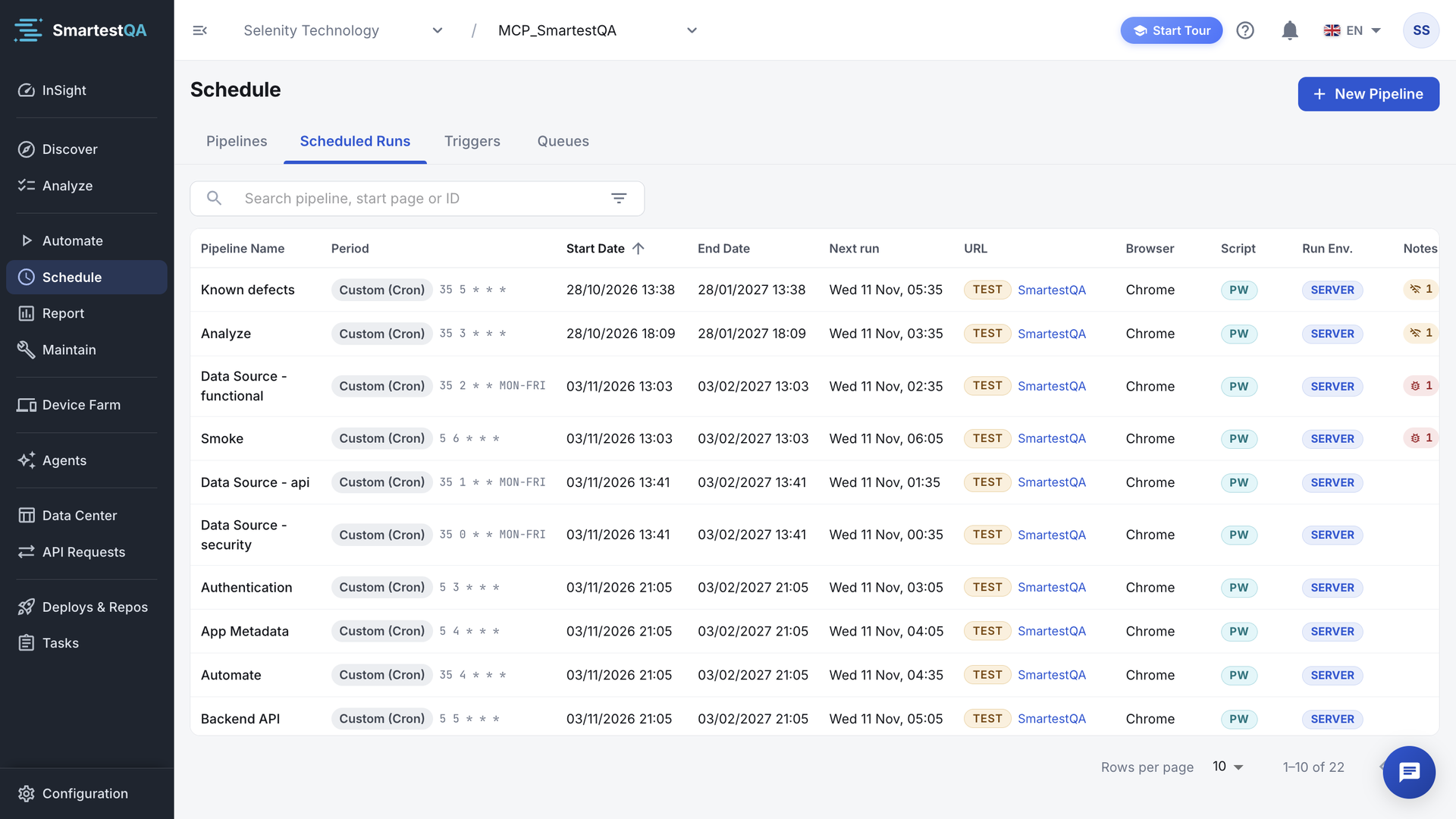
| Column | Shows |
|---|---|
| Pipeline Name | A link to the pipeline |
| Period | Daily, Weekly, Monthly or Custom (Cron), with the cron expression next to it |
| Start Date / End Date | The schedule window |
| Next run | When the server will start it next, in your time. Ended after the end date; “—” when nothing is planned. |
| URL | Environment and start page (web) |
| Browser / Platform | The browser (web) or target platform (mobile) |
| Script | PW (Playwright) or SE (Selenium), web and desktop |
| Run Env. | Server, Agent or the mobile target |
| Notes | AI notes on the failed steps of the last run, counted by verdict |
Filters: search (“Search pipeline, start page or ID”), Filter By Tags, Period, Start date (from) and Start date (to), Run Environment and, in web projects, Browser. Clear Filters resets them. With no scheduled pipeline you see “No scheduled runs yet. Give a pipeline a Period to run it on a schedule.” and a Go to Pipelines button.
Video transcript
A new pipeline runs on demand: its Period is Real-time. Open Period to schedule it: Daily, Weekly, Monthly or a cron expression. Choose Daily. The date fields become editable. Start Date Time is the first run, and its time is the time of every run. Here: 02:00. End Date Time is when the schedule stops: at most one year ahead. Save. From now on the pipeline starts by itself every night. Scheduled Runs lists every scheduled pipeline with its period and Next run, in your own time.
If something goes wrong#
Didn’t find your answer?Write to support with your project name and what you see on screen.
info@smartestqa.ai