Test Case Creation and Management
Test Case is the fundamental building block of SmartestQA. In this guide, you will learn all the components of the Automate screen, step types, and test case management in detail. We will proceed step by step with screenshots and explanations.
Screen Overview
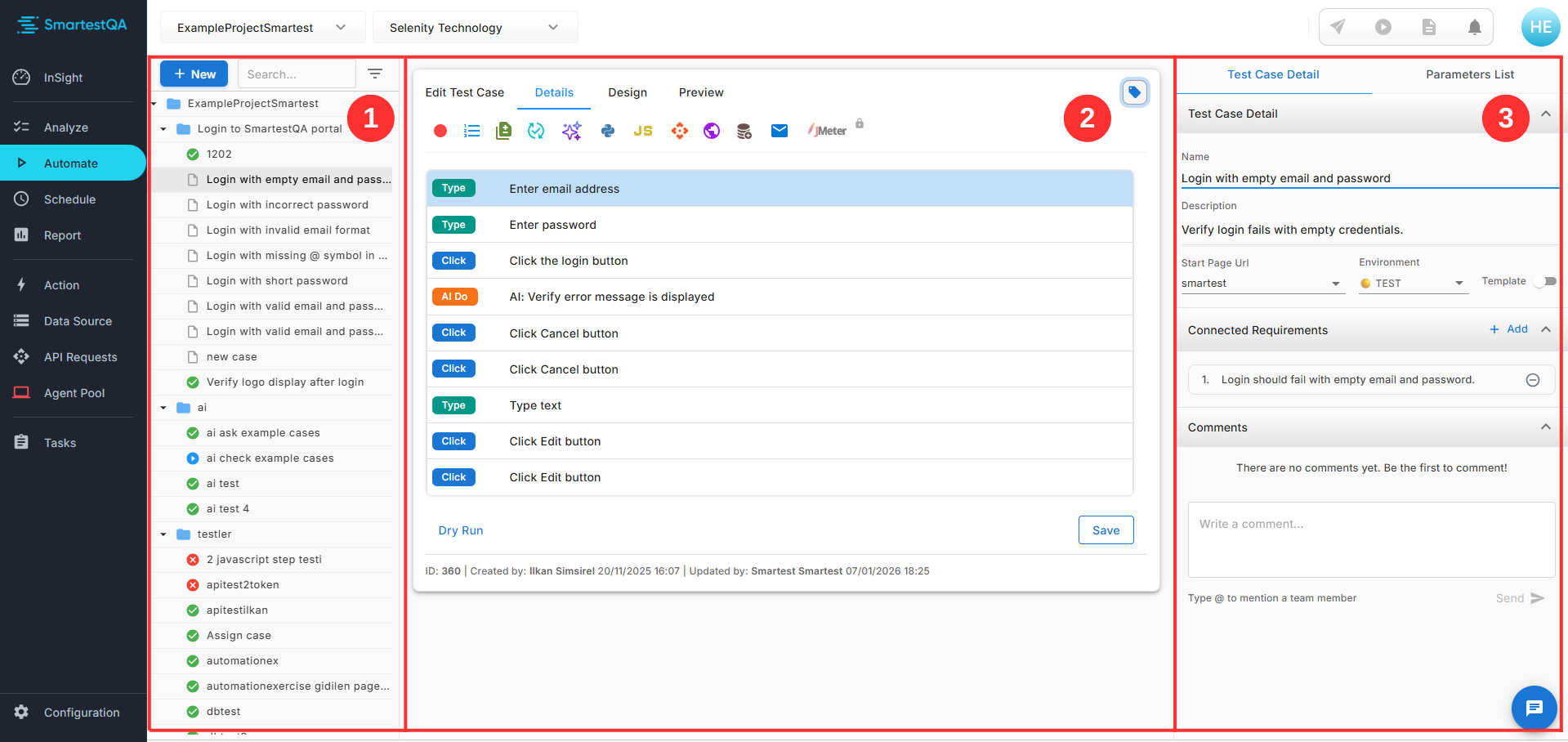
You can access the Automate screen by clicking Automate from the left menu. The screen consists of 3 main sections: Left Menu, Tree Panel, Middle Panel (Details) and Right Panel (Test Case Detail).
Left Menu (Sidebar)
Main navigation. InSight, Analyze, Automate, Schedule, Report, Action, Data Source, API Requests, Agent Pool, Tasks and Configuration menus.
Tree Panel
Folder and test case hierarchy. Search, filtering, create new. Test status icons (passed/failed/not run).
Middle Panel (Details)
Test case details: Tabs (Details/Design/Preview), Add Component icons, Test Steps List, Dry Run and Save buttons.
Right Panel
Test Case Detail and Parameters List tabs. Test case information, environment, requirements and comments sections.
Tree Panel
The tree panel allows you to organize your test cases with a folder structure. You can group your tests by creating folders according to the modules in your project.
Example Folder Structure:
Controls:
+ Button
New folder or test case
Search
Search test cases
Filter
Status filtering
Details / Design / Preview Tabs
There are 3 tabs at the top of the middle panel. Each tab offers a different view. Click on each tab to learn more.
Details
Default view. Step list, Add Component icons and editing area.
Active TabDesign
Visual flow diagram. Visually view the flow and connections of steps.
Flow ViewPreview
Screenshot gallery. Review screenshots recorded for each step.
GalleryDetails Tab
- The default tab that opens when you select a test case.
- Contains the step list where all test steps are listed in order.
- The Add Component toolbar at the top lets you add new step types.
- Click on any step to edit its properties in the right panel.
- Drag and drop to reorder steps within the list.
Add Component - 12 Step Types
In SmartestQA, you can create rich test scenarios with 12 different step types. Each icon represents a different function. Clicking on icons opens the relevant dialog.


1. Record
FASTESTStarts the Smart Recorder. Automatically records all your browser actions (click, type, select, etc.) and converts them to actions.
2. Action
Add predefined actions. Basic web operations like Click, Type, Select, Wait, Scroll. Created from Action menu or plugin.
3. Template
Add test cases marked as templates as steps. Modularize recurring operations like Login, Logout, Navigation.
Covers: Action & Template
4. Assertion
Validation steps: Equals, Not Equals, Contains, Not Contains, Starts With, Ends With, Is Empty, Is Not Empty, Greater Than, Less Than, Is Null, Is Not Null.
5. AI Prompt
AICreate AI-powered dynamic content. For test data generation, email content, random data, dynamic scripts.
6. Python
Run Python scripts. Browser commands, custom logic, file operations, API calls, data processing.
7. JavaScript
Run JS in the browser. DOM manipulation, scroll, hidden elements, localStorage, custom validation.
Covers: Python & JavaScript
8. API
REST API calls: GET, POST, PUT, DELETE. Headers, body, auth. Extract values from response with JSON Extractor.
9. Global Parameters
Set global parameters. Value sharing between tests, environment variables, dynamic data.
{{param}} format.
Covers: API Requests & Global Parameters
10. Database (JDBC)
Database queries: SELECT, INSERT, UPDATE, DELETE. Oracle, MySQL, PostgreSQL, SQL Server support.
Video coming soon
11. Email (OTP, Link, Send)
Email operations: OTP code extraction, link verification, email sending. Useful for registration and authentication flows.
Video coming soon
12. JMeter
COMING SOONAdd performance tests by uploading JMX files. Load testing, stress testing scenarios.
Video coming soon
Test Steps List
Added steps are shown in order in this list. Each row represents a test step.
Test Steps List
Step Operations:
URL Tooltip
When you hover over a step, a tooltip appears showing the URL where the operation will be performed. This way you can quickly check which operation is performed on which page.
Test Case Detail (Right Panel)
In the right panel, you can view and edit the basic information of the test case. There are two tabs: Test Case Detail and Parameters List.
Unique name of the test case. Use meaningful names.
Text explaining the purpose of the test.
URL where the test will start
DEV / TEST / PROD
When enabled, this test case can be used as a step in other test cases
You can connect the existing test case to a relevant requirement
There are no comments yet. Be the first to comment!
Type @ to mention a team member
Parameters List
When you select a step, you can edit its parameters by switching to the Parameters List tab. Parameter values can be static or dynamic.
Parameter Types:
Static
Fixed value: "admin@test.com"
Global Parameter
Dynamic: {{username}}
Data Source
Excel/CSV: ${email}
Extracted
Value extracted from JSON Extractor
Dry Run & Save
Dry Run
Quick test execution
- Runs instantly on local agent
- No need to create a pipeline
- Real-time result and error viewing
- Ideal for debugging
Save
Save test case
- Saves all changes
- Validates required fields
- Checks for duplicate keys
- No auto-save!
Metadata Information (Shown at the bottom)
54
- | 23/12/2025 23:33
- | 23/12/2025 23:33
Don't Forget to Save!
SmartestQA does not auto-save. Don't forget to click the Save button to avoid losing your changes. Unsaved changes are lost when the page is refreshed.
Frequently Asked Questions
What is the difference between Test Case and Template?
A test case is an independent test scenario. A template is a reusable test block. When you mark a test case as a template, you can use it as a step within other test cases. For example, you can create a template for Login and use it in all tests.
What is the difference between Dry Run and Pipeline?
Dry Run quickly runs a single test case on the local agent - ideal for debugging. Pipeline allows you to run multiple test cases in a specific order, in a specific environment (on an agent). Pipeline is used for CI/CD integration.
How to add Start Page URL?
You can define your URLs from the Configuration - Project Preferences menu. DEV, TEST and PROD environment addresses can be entered separately for each URL. In the test case, you only select the URL name, the environment address is automatically used based on the environment selection.
Record button is not working, what should I do?
1. Make sure the Chrome Plugin is installed and active
2. Check that Start Page URL is defined
3. Environment must be selected (DEV/TEST/PROD)
4. Test case must be saved (Save)
5. Refresh the browser and try again